[2026 Guide] How to Recover Deleted Files from SharePoint?
Accidentally deleting important documents can be stressful, especially when they are stored in a collaborative platform like SharePoint. The good news is that SharePoint includes built-in recovery mechanisms that often make it possible to restore lost files.
Whether files were deleted from a SharePoint site or synced folders on your computer, there are multiple recovery paths available. This guide explains how to recover deleted files from SharePoint step by step.
Can I Recover Deleted Files from SharePoint?
Yes, you can recover files from SharePoint once they are deleted. Many users worry that once a document is deleted from SharePoint, it will be gone forever. SharePoint is designed with multiple safety layers to prevent accidental data loss.
Deleted items in SharePoint or Microsoft Teams are not immediately removed from the system. Instead, they are temporarily stored so users and administrators can restore them if needed. If the parent site or library itself has not been deleted, SharePoint allows you to recover deleted lists, libraries, files, list items, and even previous versions of documents.
These deleted items are first moved to the Recycle Bin, where they remain available for recovery until the retention period expires. This makes it entirely possible to recover deleted files from SharePoint in most common scenarios.
Overview of SharePoint Recycle Bin
Before attempting recovery, it’s important to understand how the SharePoint Recycle Bin works. Unlike a traditional computer recycle bin, SharePoint’s system is divided into two stages.
This two-tier structure provides both users and administrators with recovery options. Knowing which stage your deleted file is in helps determine how it can be restored.
First Stage Recycle Bin (End-User Recycle Bin)
The First Stage Recycle Bin is where deleted files initially go when a user removes them from a SharePoint document library or site. This recycle bin is accessible to site users who have permission to manage content. Files stored here can be easily restored to their original locations without administrative involvement.
Items remain in the First Stage Recycle Bin for up to 93 days, unless the recycle bin is manually emptied. If a user deletes an item from this recycle bin, it does not disappear immediately but moves to the second stage instead, from where you can recover the SharePoint file.
Second Stage Recycle Bin (Administrator Recycle Bin)
The Second Stage Recycle Bin, also known as the Site Collection Recycle Bin, is accessible only to SharePoint administrators. When users delete items from the First Stage Recycle Bin, those items are transferred here. This stage acts as a final safety net before permanent deletion.
Files in the Administrator Recycle Bin also count toward the same 93-day retention limit, calculated from the original deletion date. Once this period expires, SharePoint permanently removes the files, making native recovery impossible.
How to Recover Deleted Files from SharePoint Recycle Bin?
If a file was deleted recently, the first place to check is the SharePoint Recycle Bin. This method applies when you want to recover deleted documents from SharePoint Online, and you are the site user or owner. It is the simplest and fastest way to restore lost files.
As long as the item still exists in the First Stage Recycle Bin, recovery takes only a few clicks.
-
Sign in to SharePoint Online and open the site where the file was deleted. Click “Settings (gear icon)” in the top-right corner, then choose "Site Contents”.
-
Select “Recycle Bin” from the menu.
-
Browse or search for the deleted file or folder and select the item you want to restore, then click “Restore” to return it to its original location and recover deleted files on SharePoint.
This process also applies to files deleted from Microsoft Teams, since Teams files are stored in the underlying SharePoint site. Using this method is often the most effective way to recover deleted files on SharePoint without technical complexity.
How to Recover Deleted SharePoint Files from Site Collection Recycle Bin?
When files are no longer visible in the user's recycle bin, administrators still have one more chance to restore them. The Site Collection Recycle Bin stores items that were removed from the First Stage Recycle Bin. This method is intended for administrators managing SharePoint environments. It is particularly useful when users accidentally purge items themselves.
-
Log in to SharePoint Admin Center with administrator credentials. Open the relevant Site Collection (root web) as admin.
-
Click "Settings," then choose "Site Settings," and click "Recycle Bin” from the site settings. Switch to the "Second-stage recycle bin” by clicking its button at the bottom.
-
Select the files or folders to restore, then click "Restore” to recover the items to their original locations.
This method ensures that important data can still be recovered even after user-level deletion. However, once the 93-day retention window expires, SharePoint permanently removes the files.
⚡ How to Recover Deleted/Lost/Corrupted SharePoint Documents
In some situations, SharePoint’s Recycle Bin may not be enough. This often happens when files are permanently deleted, corrupted, or lost after being synced to a local computer using OneDrive.
In such cases, recovery depends on the data stored on your computer rather than SharePoint’s cloud system. 4DDiG Windows Data Recovery is designed to recover deleted, missing, or corrupted documents that were synced from SharePoint to a Windows computer.
Secure Download
Secure Download
If your SharePoint files were saved on your computer and later deleted, overwritten, or damaged due to crashes or sync errors, 4DDiG can scan your hard drive to recover them. It supports common file types like Word, Excel, PowerPoint, and PDFs.
What makes 4DDiG helpful is its deep scan feature, which can find files even after file system errors or accidental deletion. You can also preview files before recovering them, saving time and making sure you restore the right ones.
-
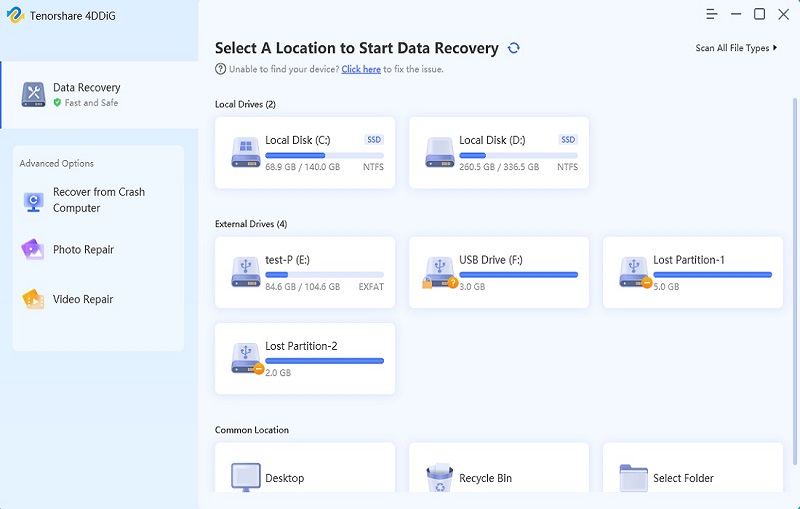
Download and install 4DDiG Windows Data Recovery on your computer. Launch the software and select the drive where the SharePoint files were synced.
-
4DDiG will not automatically scan your drive. Choose “Type” on the left panel, then choose the type of document that you want to recover to quickly shortlist the results.
-
Preview the recovered files to verify their integrity, then click the “Recover” button once you’ve selected the files you need to recover.
-
Recover them to a secure location by clicking the "Save Now" buttons. It’s suggested not to save them to the same place to avoid data overwriting.
FAQs
Q1: How to recover SharePoint files not in the Recycle Bin?
If files are no longer in the recycle bin, recovery is only possible if they were synced locally. Tools like 4DDiG Windows Data Recovery can help retrieve those files.
Q2: Can you recover permanently deleted files from SharePoint?
Once the 93-day retention period expires, SharePoint permanently deletes the files. Recovery is then only possible from backups or local synced copies.
Q3: How do I find the Recycle Bin of a SharePoint site?
Open the SharePoint site, click the Settings icon, and select Recycle Bin from the menu.
Conclusion
Recovering lost documents doesn’t have to be complicated if you understand how SharePoint handles deletions. From the user recycle bin to the administrator recycle bin, SharePoint provides multiple chances to restore files before they are permanently removed.
When cloud-based recovery is no longer possible, local recovery solutions can still help. For reliable recovery of synced, deleted, or corrupted documents, 4DDiG Data Recovery offers a practical and effective option to recover deleted files from SharePoint.
Secure Download
Secure Download
💡 Summarize with AI:
You May Also Like
- Home >>
- Office Recovery >>
- [2026 Guide] How to Recover Deleted Files from SharePoint?
ChatGPT
Perplexity
Grok