[2026] How to Remove Password Protection from a Word Document?
Password-protected Word documents are commonly used to safeguard sensitive information, prevent unauthorized edits, or restrict access when sharing files. However, there are situations where the password is no longer needed, forgotten, or causing inconvenience for legitimate users.
In this guide, you will learn how to remove password protection from a Word document safely and correctly using official methods on Windows and Mac, along with practical alternatives when the password is unavailable.
Things to Know Before Removing a Word Password
Before attempting to unlock or remove a password from a Word document, it is important to understand how Word security works and what limitations you may encounter. Microsoft Word uses encryption to protect documents, and the removal process depends heavily on whether you still know the password.
Skipping these considerations may lead to data loss or unnecessary frustration. Key points you should be aware of:
- If the Word document is encrypted with an open password, Microsoft does not provide any built-in way to recover it if forgotten.
- Editing restrictions and open-password protection are different; editing locks can sometimes be removed without knowing the password.
- Removing protection will not change the document content, but saving incorrectly may overwrite important versions.
- Always keep a backup copy of the original file before attempting to unprotect it.
- Online password removal tools may compromise document privacy and security.
Understanding these limitations helps users decide how to un password protect a Word document responsibly and choose the safest approach.
How to Remove Password Protection from a Word Document With a Password?
If you still remember the password, removing protection is straightforward and fully supported by Microsoft Word. The process differs slightly between Windows and macOS, but both are quick and reliable. Once the password is removed, the document can be opened freely without restrictions.
How to Unlock a Password-Protected Word File on Windows?
On Windows, Word allows you to remove encryption directly from the document settings. This method works for Word 2016, 2019, 2021, and Microsoft 365.
-
Open the password-protected Word document and enter the correct password to unlock the file.
-
Click “File” in the top-left corner, then select "Info” from the left panel. Click “Protect Document” and choose “Encrypt with Password.
-
Delete the existing password from the dialog box and click “OK. Finally, save the document to apply the changes.
After saving, the file will no longer prompt for a password. This method is the most reliable way to remove a password from a protected Word document when the password is known.
How to Unlock a Password-Protected Word File on Mac?
Mac users can also remove Word document passwords using the built-in tools in Microsoft Word for macOS. The interface differs slightly, but the functionality remains the same.
-
Open the Word document in Microsoft Word for Mac and enter the password when prompted.
-
Click “Review” in the top menu bar and select “Protect", then choose "Protect Document”.
-
In the security dialog, clear the password field and click “OK," then save the document.
If you want to remove editing restrictions instead of open protection, simply remove the “Password to modify” option within the same menu. This approach fully supports users who want to remove a password-protected document in Word without affecting formatting or content.
How to Remove a Password-Protected Document in Word Without a Password?
When the password is forgotten or unavailable, the situation becomes more complex. Microsoft Word does not officially support bypassing encryption. However, depending on the type of protection used, there may still be legitimate options to regain access.
1Remove Editing Restrictions
This method applies only to documents restricted for editing but not encrypted for opening. Many users confuse editing locks with full password protection.
Open the Word document and go to “Review.
-
Click “Protect” then choose “Restrict Editing”.
-
Select Stop Protection" from the right menu pane, and if prompted, try leaving the password blank or use the known password. Finally, save the document.
If successful, you can now edit and save the file freely. This is a practical way to turn off password protection on a Word document when only editing limits are applied.
2Restore a Previous Unprotected Version
In many cases, Word documents are automatically backed up through File History, OneDrive, or Time Machine. A previous version may exist without password protection.
Right-click the Word document and select “Properties.
-
Open the “Previous Versions” tab and choose an earlier version.
Click Restore or Open.
This approach allows users to remove password protection from a Word document indirectly by reverting to an accessible version before password protection was actually applied.
3Use Word Recovery Software
When a Word document becomes inaccessible due to forgotten passwords, corruption, or unexpected closure, professional recovery software may help retrieve usable versions of the file. This is especially useful when Word’s built-in recovery options fail.
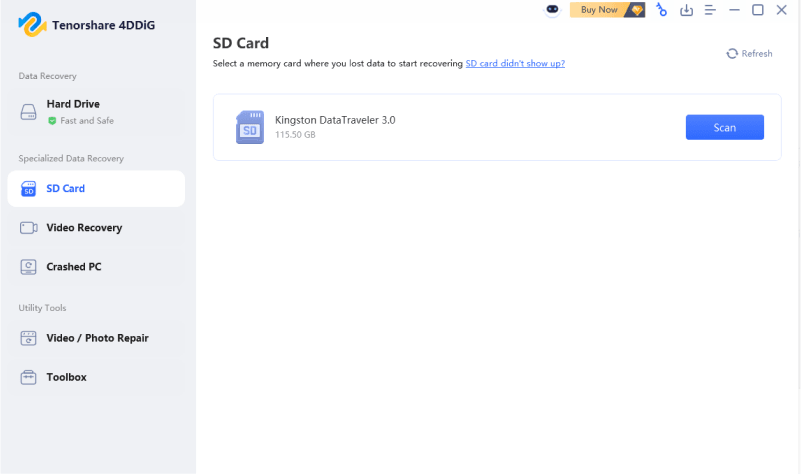
4DDiG Windows Data Recovery can recover unsaved, deleted, or inaccessible Word documents from hard drives, USB devices, and system crashes. It works on both Windows and Mac and recovers your corrupted or unsaved data. It even gives successful results after accidental deletion or system crash with its user-friendly UI.
Secure Download
Secure Download
-
Download and install 4DDiG Data Recovery software on your computer and launch it. Now, select your desired storage option and pick the drive that you want to scan.
-
4DDiG will now automatically begin scanning the selected drive. Young will see a list of file types that you can scan your drive for. Select all or save "Document" in this case, specifically, to get faster results.
-
Click on a document to check its preview, and once you find the one you want to unlock, click “Recover”.
-
Finally, you just need to choose a storage location for the file and click “Save Now” to recover the document.
This method does not “crack” passwords but helps recover unlocked versions when available, making it a reliable option to remove password protection from a Word document by recovery.
Alternative Ways to Access the Word Document Without Removing the Password
Sometimes, full access is unnecessary. If you only need to read or extract content, these alternative methods may help without modifying the original file.
1Open the Word Document as read-only
Some protected documents allow viewing without editing. Open the file and choose read-only access if prompted.
2Convert the Word Document to Another Format
If the document opens but editing is restricted, exporting it to PDF or plain text may allow content access without removing protection.
3Use Word’s Open and Repair Feature
Go to File > Open, click the arrow next to Open, and choose Open and Repair. This may bypass minor protection issues caused by corruption.
4Extract Content from Temporary or Cached Files
In rare cases, Word creates temporary backup files during editing sessions. These may contain readable content without protection.
FAQs About Password Protection on Word Documents
Q1: Will removing a password affect the document’s formatting or content?
No, removing a password does not alter formatting or content as long as the file is saved correctly. The protection layer is separate from document data.
Q2: Is it legal to remove a password from someone else’s Word document?
It depends on ownership and authorization. Removing passwords without permission may violate privacy or legal agreements.
Q3: Can I access a password-protected Word file if I only need to read it?
Sometimes yes. Read-only access, PDF conversion, or recovery of cached versions may allow limited access without full removal.
Conclusion
Knowing how to remove password protection from a Word document can save time, prevent data loss, and restore access to important files. Whether you remember the password or not, this guide covers official methods on Windows and Mac, practical alternatives, and recovery solutions.
When documents become inaccessible or unsaved, Tenorshare 4DDiG offers a reliable way to retrieve Word files safely and efficiently, making it a valuable tool for long-term document protection.
Secure Download
Secure Download
ChatGPT
Perplexity
Grok