[7 Tested Ways] How to Recover Deleted Emails in Outlook
Accidentally deleting an important email can instantly cause stress, especially when it contains work documents, receipts, or legal information. Many users search for how to recover deleted emails in Outlook after realizing something critical is missing.
The good news is that Outlook provides several recovery options depending on how and when the email was deleted. This guide explains every reliable method, from simple inbox recovery to advanced solutions for permanently deleted messages.
Can Deleted Emails Be Recovered in Outlook?
Before attempting recovery, it is important to understand whether Outlook can actually restore deleted emails. In many cases, Outlook keeps deleted messages for a period of 30 days, either in the Deleted Items folder or on the mail server. This makes Outlook deleted email recovery possible for most accidental deletions.
However, if emails were permanently deleted using Shift + Delete or if the retention period has passed, recovery becomes much more difficult. Once server retention expires and no backup exists, Outlook itself can no longer restore those messages. In such situations, external recovery methods may be the only option.
Recover from the Deleted Items Folder
When users search for how to recover deleted emails in Outlook, the Deleted Items folder should always be the first place to check. Outlook does not immediately erase emails after deletion, which gives users a safety buffer.
Many people panic too quickly without realizing the message may still be sitting there untouched. This method is simple, fast, and carries zero risk. It is best used when the email was deleted recently, and the folder has not been cleared.
-
Open Outlook and click the “Deleted Items” folder from the left navigation panel.
-
Browse or search for the email you want to recover. Click the email and select “Recover”.
-
Confirm that the email has been restored successfully by checking its original destination folder.
This method works only if the Deleted Items folder has not been emptied.
Use Recover Deleted Items in Outlook
If the email is no longer visible in Deleted Items, Outlook still offers a secondary recovery option. The Recover Deleted Items feature stores emails temporarily after they are removed from Deleted Items.
This hidden recovery layer is often overlooked by users. Outlook usually keeps these emails for fourteen to thirty days, depending on account type. This is how to get deleted emails from Outlook directly.
Open Outlook and click the “Deleted Items” folder.
-
At the top menu, select “Recover items deleted from this folder”.
-
The window will display recently removed emails. Select the emails you want to restore and click “Restore this message” and confirm.
The recovered emails will reappear in the Deleted Items folder, allowing you to move them back to your inbox.
Restore Emails from Outlook Web
Sometimes, Outlook desktop does not show all recoverable emails, especially with cloud-based accounts. Outlook Web provides direct access to server-stored messages.
This method works best for Microsoft 365 and Exchange users. Server retention often lasts longer than local storage. Checking Outlook Web can reveal emails that seem permanently gone.
-
Go to Outlook Web and sign in to your account, then open the "Deleted Items” folder.
-
Right-click the email you want to restore and go to "Move," then select the folder where you want to restore that email.
Recover Emails from an Exchange or Microsoft 365 Account
Exchange and Microsoft 365 accounts include server-level recovery features. Even after emails are deleted locally, they may still exist in retention storage. This gives users additional recovery time beyond standard Outlook limits.
However, recovery depends on organizational retention policies. Not all accounts store emails for the same duration. Follow to see how to find a deleted email in Outlook.
-
Log in to Outlook using your work or school account and click the "Recover deleted items from server” button on the home screen.
-
Microsoft will recover permanently deleted emails. You need to select the emails you want back and choose "Recover selected Items", and click "OK".
If the emails or this feature are not available, then your account does not support this method, or the items are no longer in the server-side storage. This approach is especially helpful for users trying to recover emails deleted from the trash in Outlook on corporate accounts.
Ask an IT Administrator to Restore Emails
When user accessible recovery options are exhausted, IT administrators may still help. Many organizations keep compliance backups for legal and security reasons. These backups are not visible to end users.
Administrator recovery is often the final option before data is considered permanently lost. This method is common in enterprise environments.
-
Contact your IT department or help desk and provide details such as sender, subject, approximate date, and recipient.
-
Explain when and how the email was deleted, then wait for administrators to check backup or retention systems.
Receive restored emails if available.
This is often the only solution for how to recover permanently deleted emails in Outlook in business or school environments.
Restore from a Backup or PST File
If you previously created a backup, recovery becomes straightforward. Outlook allows users to export mailboxes into PST files. These files can later be imported to restore old or deleted emails. This method works even for very old messages. However, it requires that a backup already exists.
-
Open Outlook and click “File", then select “Open and Export”, then choose “Import/Export option.
-
Choose the “Import from another program or file” option and browse to your PST backup file and select it.
-
Choose the folders to import and complete the process.
This is an ideal solution for users needing to retrieve deleted mail from Outlook long after deletion.
⚡ Recover Outlook Emails Using Data Recovery Software
When Outlook-based recovery options fail, data recovery software becomes essential. This is especially true when emails were permanently deleted, system crashes occurred, or Outlook data files were corrupted. In these cases, 4DDiG Data Recovery offers a practical solution.
4DDiG is capable of scanning local drives where Outlook data files are stored, including PST and OST files. It can recover deleted emails even when Outlook itself cannot detect them. The software supports previewing recoverable items before restoring, ensuring accuracy and safety.
Secure Download
Secure Download
To recover emails, you can easily use 4DDiG, which allows a preview feature for the found email files and allows them to be recovered to a secure location. Follow to see how to undo deleted emails in Outlook when all other methods fail.
-
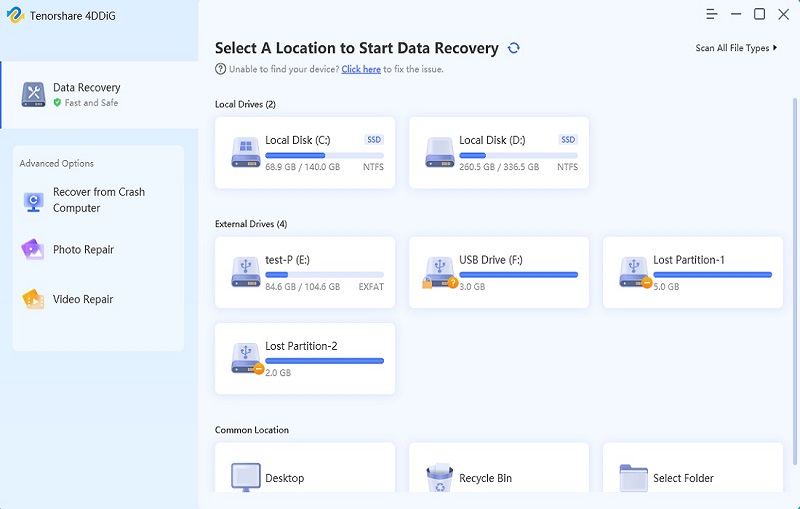
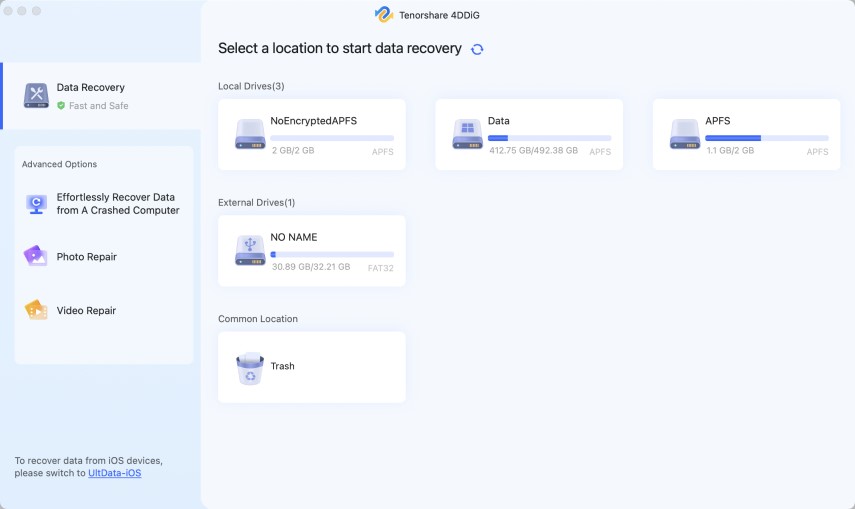
Download and install 4DDiG on your computer. Launch it and select the drive where you want to restore your emails from, and 4DDiG will automatically start scanning it.
-
Use the “File Type” filters to choose “Email”, where you can find the Outlook emails you need.
-
Once the search is complete, you can close the emails to check their previews. For the emails that you want to restore, you can click “Recover”.
-
Choose a secure location to save those emails other than the original location and click “Save Now”.
Conclusion
Learning how to recover deleted emails in Outlook can save time, stress, and critical information. Outlook provides multiple recovery layers, from Deleted Items to server retention and backups.
When those options are exhausted, Tenorshare 4DDiG offers a reliable way to restore lost emails safely. Acting quickly and choosing the right method ensures the highest chance of successful recovery.
Secure Download
Secure Download
💡 Summarize with AI:
You May Also Like
- Home >>
- Email Recovery >>
- [7 Tested Ways] How to Recover Deleted Emails in Outlook
ChatGPT
Perplexity
Grok