[2026] How to Recover Deleted AOL Mail in 5 Proven Ways

5 mins read

Updated on 2026-05-26 14:56:14 to Data Recovery

Accidentally deleting AOL emails can quickly remove access to business conversations, verification emails, attachments, and saved records.

This often happens due to Trash folder expiration, sync issues, or accidental deletion. If you’re wondering how to recover AOL email, you can usually restore messages from the Trash folder or try recovery options for recently deleted emails, and take steps to prevent future loss.

Why My AOL Emails Get Deleted?

Mailbox cleanup settings, synchronization conflicts, accidental deletion, and account-access problems are some of the main reasons AOL emails disappear. Understanding the source of deletion helps determine whether recovery is still possible through Trash restoration, backup recovery, or deep storage scanning. Common reasons include:

Accidental Email Deletion

Emails are deleted by mistake while cleaning up the inbox or managing messages.

Emptying the Trash Folder

Once the Trash folder is emptied, deleted emails are usually no longer recoverable.

AOL Sync Issues

Sync conflicts across devices may cause emails to disappear or not display correctly.

POP/IMAP Settings

Incorrect email client settings can remove emails from the AOL server after downloading.

Browser or Cache Problems

Corrupted browser cache or data issues may prevent emails from loading properly.

Account Compromise

Unauthorized access to the account can lead to emails being deleted or altered.

Can You Recover Deleted AOL Mail?

Deleted AOL emails usually move into the Trash folder first instead of disappearing permanently immediately. Emails stored in Trash remain recoverable until AOL removes them automatically, or the folder is manually emptied.

So, can users still recover deleted mail on AOL after deletion? In many cases, yes. Emails stored inside Trash, synchronized email clients, cached mailbox copies, or exported backup files can often be restored successfully. Recovery becomes significantly harder after permanent deletion or retention expiration.

Notes about AOL Retention Period:

AOL Mail typically keeps deleted emails in the Trash folder for a limited time (often around 7 days) before they are automatically removed. However, AOL does not clearly publish a fixed retention period. Once the Trash folder is emptied, recovery becomes much more difficult unless backups or other recovery methods are available.

According to AOL support guidance, deleted emails may not be recoverable after server-side cleanup is completed.

⚡How to Recover Deleted AOL Emails?

Trash recovery, mailbox synchronization checks, backup restoration, and recovery software are the most practical methods for recovering deleted AOL mail successfully. Recovery of success mainly depends on whether the deleted messages still exist on AOL servers, local storage, or synchronized devices.

Method 1. Recover AOL Emails from the Trash Folder

Recently deleted AOL emails usually remain inside the Trash folder temporarily before permanent server removal occurs. Restoring messages directly from Trash preserves original sender information, timestamps, and mailbox organization.

  • Sign in to your AOL mail account and click the “Trash” icon from the left panel on the screen.

  • Now, you are in the "Trash Folder," where you can see the emails that were deleted.

    recover aol emails from the trash
  • Select the mails that you wish to restore and click the "Action" option from the top and choose the “Inbox” option under the “Move to” section. Now, your deleted AOL mail will be moved from Trash to the Inbox.

Method 2. Restore Emails from Recently Deleted or Server-Synced Data

Server synchronization sometimes keeps mailbox copies available across connected devices even after deletion on one platform. Checking synchronized email apps and recently updated folders can restore missing mailbox content quickly. This approach is especially useful for users searching for restoring deleted emails from AOL Mail across multiple devices.

  • If you are a web user, contact your Email server admin and request email recovery rollback.

  • Pay for this premium service to get your important emails back. Remember that the chances of recovery are very low in the case of individual users.

Method 3. Find Missing AOL Emails Using the Search Function

Inbox filters, accidental archiving, and mailbox categorization can make emails appear deleted even when they still exist inside the account. AOL’s built-in search function helps locate hidden, moved, or mislabeled messages efficiently.

  • Open AOL mail and click the "Search Button," which often uses a magnifying glass icon.

  • Search for your desired email with the “Category”, “Sender info”, "Subject", or "Body" text.

Method 4. Recover Permanently Deleted AOL Emails with Data Recovery Software

Permanently deleted emails may still be recoverable if local cache files, exported backups, or synced data remain on the device. In some cases, recovery tools can scan storage drives for leftover email fragments and mailbox data that are no longer visible in the system.

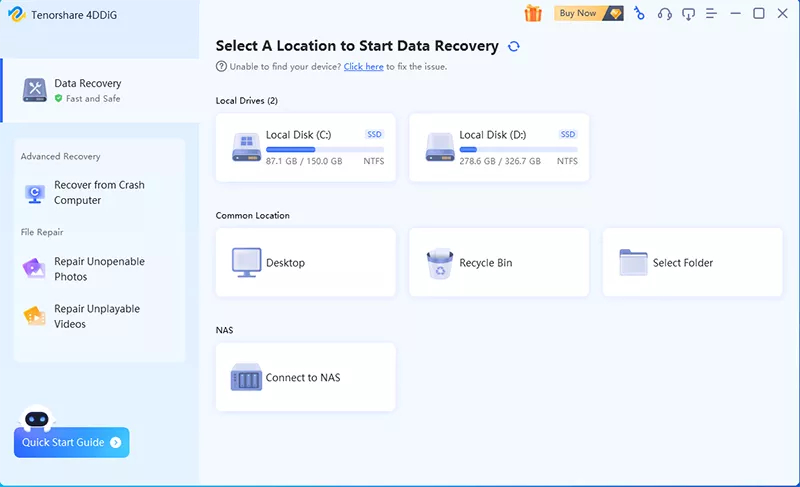
4DDiG data recovery can help scan SSDs, HDDs, USB drives, and SD cards to locate deleted email-related files, including browser cache data, synced email storage, and exported AOL archives. It may be useful when emails are lost after Trash expiration or permanent deletion from the mailbox.

  • Launch 4DDiG after installing it on your PC, and select the Hard drive where your AOL emails were deleted from to automatically start scanning it.

    launch 4ddig and enter interface
  • While 4DDiG scans your drive, click “File Type” and select “Email” as it will help by showing only the available email files to recover.

    click type to see all files 4ddig
  • Once the scan is complete, click the available files and check their preview. When you find an AOL mail that you wish to recover, click the "Recover" button.

    preview and recover the emails
  • When asked, choose a location and click "Save Now."

    save the recovered emails

Method 5. Restore AOL Emails from Backup or Export File

Exported mailbox backups provide one of the safest ways to restore deleted AOL messages after permanent server removal. Local backup copies stored through Outlook, Thunderbird, or third-party export utilities can restore mailbox access quickly.

  • Open Outlook on your computer and click "File," then go to the "Open & Export" section.

  • Click the "Import/Export" option and choose "Import from another program and file," then click "Next."

    choose import or export from outlook
  • Now, choose the "Open Outlook Data File” option and click “Next” to choose your backup AOL export file.

  • Choose the backup file in the file explorer window and click "Open," then wait for Outlook to process your backup and display the recovered emails.

How to Prevent AOL Emails from Being Deleted Again?

Mailbox retention settings, backup routines, and synchronization management significantly reduce the risk of accidental AOL email deletion. Preventive protection remains more reliable than emergency mailbox restoration after permanent data loss occurs.

  • Regularly Export Important Emails to Local Storage: Save important emails locally to prevent permanent loss from deletion or sync issues.
  • Avoid Emptying the Trash Folder Immediately: Keep deleted emails in Trash for a while to allow recovery.
  • Enable Account Recovery and Two-Factor Authentication: Improve account security and make recovery easier if access is lost.
  • Monitor Email Sync Settings: Ensure email clients are syncing correctly to avoid unintended deletions or missing emails.
  • Use Cloud Backup Solutions: Back up mailbox data to cloud storage for safer long-term protection.
  • Avoid Phishing and Suspicious Links: Prevent account compromise that could lead to email loss or deletion.

FAQs About AOL Email Recovery

Q1: Can I recover permanently deleted AOL emails?

Permanent AOL email recovery becomes difficult after Trash expiration, but local mailbox cache files, synchronized devices, or backup exports may still contain recoverable data. Professional recovery software can sometimes restore deleted mailbox fragments from local storage devices.

Q2: Can I recover AOL emails after emptying the Trash?

Trash cleanup removes emails from AOL’s normal recovery interface, but synchronized devices and exported mailbox backups may still preserve copies. Recovery chances decrease significantly if overwritten storage sectors replace deleted mailbox data.

Q3: Does AOL have a “Recently Deleted” folder?

AOL primarily uses the Trash folder as the temporary holding location for deleted emails before permanent removal occurs. Deleted messages generally remain accessible there for a limited retention period.

Q4: Can data recovery software restore AOL emails?

Yes, recovery software can restore locally stored mailbox data, browser cache files, exported email archives, and synchronized email fragments if storage sectors remain recoverable. Success rates mainly depend on deletion timing and overwrite conditions.

Conclusion

Deleted AOL emails can often be recovered through Trash restoration, synced mailbox copies, or existing backups and local storage files. Recovery success depends on factors like how long ago the emails were deleted, whether backups are available, and if the data has been overwritten, 4DDiG Windows data recovery may help perform deep scans on drives to locate deleted or corrupted email-related data.

FREE DOWNLOAD

Secure Download

FREE DOWNLOAD

Secure Download

William Bollson (senior editor)

William Bollson, the editor-in-chief of 4DDiG, devotes to providing the best solutions for Windows and Mac related issues, including data recovery, repair, error fixes.

(Click to rate this post)

You rated 4.5 ( participated)