[13 Solutions] How to Fix Outlook Not Receiving Emails in 2026
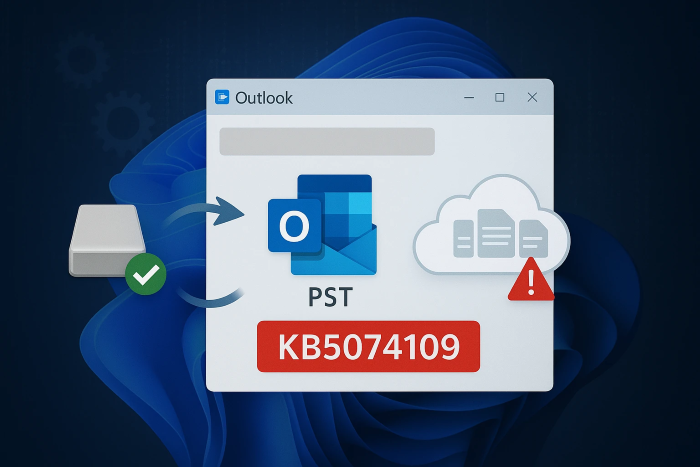
When emails suddenly stop appearing in your inbox, it can disrupt work, communication, and deadlines. Many users experience the Outlook not receiving emails problem without warning, even though everything seemed fine before.
The issue can stem from service outages, hidden filters, or account-level settings that quietly block incoming messages. This guide walks you through clear explanations and practical solutions to restore your Outlook inbox and recover missing emails safely.
Why Is My Outlook Not Receiving Emails?
Before jumping into fixes, it helps to understand why this problem happens. When users report Outlook email not receiving emails, the cause is often not a single failure but a combination of issues. Identifying the root cause helps you choose the correct fix instead of guessing. Common reasons include:
- Unstable or disconnected internet connection
- Temporary Outlook or Microsoft 365 service outage
- Outlook set to Offline Mode
- Emails redirected to Junk or another folder
- Blocked senders or aggressive filtering rules
- Inbox rules move emails automatically
- Mailbox storage reaching its limit
- Corrupted Outlook cache files
- Outdated Outlook version
- Profile corruption or account conflicts
Any of these can result in not receiving emails in Outlook, even though messages are being sent successfully.
13 Ways to Fix Outlook Not Receiving Emails
To solve Microsoft Outlook not receiving emails, it is best to follow a logical order. Start by checking external or service-related issues, then review any filtering or blocking settings, and finally address Outlook program or account-level configurations. This structured approach avoids unnecessary changes and helps isolate the real issue faster.
1Check Your Internet Connection
When emails stop syncing, the most basic issue is often overlooked. Outlook relies entirely on a stable internet connection to receive new messages from mail servers. Even brief connection drops can cause syncing to pause without obvious warnings.
Before changing Outlook settings, open a browser and confirm that websites load normally. If your connection is unstable, restart your router or switch networks. A stable connection often resolves cases where emails are not coming through Outlook suddenly.
2Check Outlook Service Status
Sometimes the problem is not your device or account at all. Outlook depends on Microsoft servers, and when those services experience outages, inboxes may stop updating. This can make it appear that the Outlook mailbox is not receiving emails, even though everything is configured correctly. You can check Outlook service status in three ways:
-
Visit the Microsoft 365 Service Status page to see official updates.
-
Search Twitter for the hashtag Outlookdown to see real-time user reports.
-
Use Down Detector to check whether others are reporting Outlook issues in your region.
3Switch to Online Mode
Outlook includes an Offline Mode that completely stops email syncing, even though the program looks normal. This mode is often enabled accidentally after network interruptions, laptop sleep cycles, or VPN changes.
When Offline Mode is active, Outlook does not send or receive emails at all. Many users mistake this for a server or account issue. Switching back online usually restores inbox activity instantly.
-
Open Outlook and look at the bottom status bar. Check whether it displays Working Offline.
-
Click the "Go Online" button at the top, and the "Work Offline" option will disappear as Outlook refreshes itself.
Confirm that Outlook reconnects and begins syncing.
4Check the Junk Folder
Outlook uses built-in spam filtering that can occasionally misclassify legitimate emails. When this happens, users assume they are not getting emails in their Outlook, even though the messages are already delivered.
This issue is especially common with automated emails or new senders. Junk filtering works silently in the background. Reviewing this folder helps uncover hidden messages quickly.
-
Open Outlook and click the Junk Email folder, and review recently received messages.
-
Right-click any legitimate email, then select "Not Junk/Spam” from the menu.
Confirm the sender if prompted to prevent future filtering.
5Check the Other Tab
Outlook automatically sorts emails into two inbox tabs named Focused and Other. The Focused tab shows messages Outlook considers important, while the Other tab stores everything else. Many users never realize the Other tab exists.
As a result, messages appear missing even though they were delivered successfully. This is a common cause of emails not being received in Outlook from a specific sender.
-
Open Outlook and go to your Inbox, and click the "Other" tab at the top.
-
Locate the missing email. Right-click the message and select "Move to Focused” and choose “Always Move” if prompted.
6Review the Block Sender List
Blocked senders are automatically filtered out before reaching your inbox. Over time, this list can grow without you noticing, especially if you block spam aggressively. This can result in Outlook stopping the receipt of mail from legitimate contacts.
Open Outlook and click “Settings”, then choose "Junk”.
-
Review the “Block Sender” list and select any trusted email address.
-
Now you need to remove the sender from the list and unblock it to get future emails in your inbox.
7Adjust the Filter Settings
Inbox filters can hide or redirect messages based on keywords, importance, or sender. These filters are easy to forget once created. When active, they can silently divert emails away from your inbox.
-
Open Outlook and click the “Filter” option, then choose the sorting type you want.
-
Review the active filtering option and change filters, then get a test email sent to you to confirm delivery to your inbox.
8Remove Existing Outlook Rules
Rules are powerful but risky when misconfigured. A single rule can automatically delete, move, or archive incoming emails. Users often create rules for organization and forget about them later.
-
Open Outlook and go to "Home > Move > Rules > Manage Rules & Alerts”.
-
Review all active options and disable unnecessary filters, then send a test email to confirm delivery.
9Check Storage Limit
When your mailbox storage is full, Outlook may stop receiving new messages. This is common for users with limited Exchange or IMAP storage. You may not receive a clear warning.
-
Open Outlook and go to "File", then select "Settings" and go to “Account” to check “Storage".
-
Check current storage usage and get more storage, or delete large attachments and unnecessary emails.
10Clear Extra Accounts
Having multiple email accounts in Outlook can cause syncing conflicts. If one account fails authentication, it can affect others. This sometimes leads to Outlook not receiving emails across all inboxes.
Open Outlook and click "Mail", and go to "Sync email”.
-
Review all listed connected accounts and remove unused or duplicate accounts.
Restart Outlook to apply changes.
11Clear Outlook Cache
Cache files store temporary data to speed up Outlook. Over time, these files can become corrupted and block syncing. Clearing the cache forces Outlook to rebuild fresh data.
Close Outlook completely.
Press Windows + R to open the Run dialog.
-
Enter %localappdata%\Microsoft\Outlook\RoamCache and press Enter.
-
In the RoamCache folder, press Ctrl + A to select all files, then press Delete.
-
Restart Outlook to allow it to rebuild the cache automatically.
12Update Outlook
Outdated versions of Outlook may contain bugs that interfere with mail syncing. Microsoft regularly releases fixes and improvements. Ignoring updates can cause persistent inbox issues. You can do this by going to Microsoft Store and go to "Library," then locate Outlook and update it.
13Create a New Profile
If none of the above fixes work, your Outlook profile may be corrupted. Profiles store account settings, rules, and data references. Corruption can cause Microsoft Outlook not receive emails repeatedly.
-
Open Outlook and go to "Account Settings," then go to "Manage Profiles."
-
Click the "Add" button and start creating/adding a new profile, and follow the on-screen steps to complete the setup.
⚡ How to Recover Deleted or Lost Outlook Emails?
When troubleshooting “Outlook not receiving emails”, some users realize important emails were accidentally deleted or lost during syncing errors. In these cases, recovery software becomes essential. 4DDiG Data Recovery is capable of scanning Outlook data files and storage locations to retrieve lost emails safely.
Secure Download
Secure Download
With the support for recovery from corrupted files, accidental deletions, and system issues, 4DDiG works locally on your computer, ensuring privacy while offering a preview and selective recovery.
Here’s how you can recover lost or deleted Outlook emails using 4DDiG:
-
Download and install 4DDiG to your computer, then launch it and select the drive or location where Outlook data files are stored to begin scanning it.
-
Start scanning and wait for the software to analyze deleted or lost email data. Meanwhile, you can select the “Email” file type to quickly get results.
-
Preview recoverable email files to confirm accuracy. Click “Recover” to recover those emails.
-
Select and save emails to a secure location different from the original drive by clicking “Save Now”.
Conclusion
When the “Outlook not receiving emails” issue disrupts your workflow, the issue is usually solvable with the right approach. By checking service status, filters, rules, and account settings, most inbox problems can be resolved quickly.
For cases involving lost or deleted emails, 4DDiG Windows Data Recovery provides a reliable way to restore important messages safely. Acting methodically and using trusted tools ensures your Outlook inbox stays dependable in 2026 and beyond.
Secure Download
Secure Download
💡 Summarize with AI:
You May Also Like
- Home >>
- Email Recovery >>
- [13 Solutions] How to Fix Outlook Not Receiving Emails in 2026
ChatGPT
Perplexity
Grok