10 Best Free Data Recovery Software for Windows & Mac 2026

5 mins read

Updated on 2026-09-10 14:30:45 to Data Recovery

Free data recovery software can often recover deleted photos, documents, videos, and other files from hard drives, SSDs, USB drives, SD cards, and more. However, "free" can mean unlimited recovery or a limited free trial.

Our team compared 10 of the best free data recovery software for Windows and Mac, including completely free data recovery software and freemium options. Below, you'll find the top free data recovery software based on recovery limits, supported devices, scan features, ease of use, and recovery capabilities.

best free data recovery software
Important:

Stop using the affected drive as soon as you notice data loss. New data can overwrite deleted files and make recovery much harder. When possible, install recovery software on another drive and save recovered files to a different storage device.

Best Free Data Recovery Software at a Glance

The 10 best free data recovery tools below cover both completely free recovery utilities and freemium programs with free recovery limits. The overall ranking considers not only how much data each program lets you recover for free, but also recovery capability, ease of use, supported devices, and useful features.

Rank Software Best For Free Type Free Recovery
1 4DDiG Data Recovery Best Overall Freemium Up to 2GB
2 Recuva Simple Windows Recovery Completely Free Unlimited
3 Disk Drill Extra Recovery Features Freemium Up to 100MB on Windows
4 PhotoRec Unlimited Free Recovery Open Source Unlimited
5 EaseUS Data Recovery Wizard Small Data Recovery Freemium Up to 2GB
6 Stellar Data Recovery Beginners Freemium Up to 2GB
7 TestDisk Lost Partitions Open Source Unlimited
8 DMDE Advanced Users Freemium Up to 4,000 files per operation
9 MiniTool Power Data Recovery Simple Recovery Freemium Up to 1GB
10 DiskGenius Recovery + Partition Management Freemium Limited free recovery

4 Best Completely Free & Unlimited Data Recovery Software

If you want completely free data recovery software without paying for an upgrade, the tools below are worth trying. Some of them offer free unlimited data recovery, but they can differ a lot in ease of use and recovery features.

The biggest downside is that free tools are not always easy for beginners. Recuva is one of the simpler options for Windows users, while PhotoRec and TestDisk require more technical knowledge. However, they can still be good choices when you need to recover files in more difficult situations.

1. Recuva — Best for Simple Windows Recovery

Recuva is one of the most recognizable free data recovery programs for Windows. It is designed primarily for recovering deleted files from internal drives, external storage devices, USB drives, and memory cards.

Its biggest advantage is the free recovery model. Unlike many freemium recovery programs, Recuva does not impose the same type of data quota on the free edition.

recuva free recovery software

Key Details:

  • Free Type: Completely free
  • Free Recovery Limit: Unlimited
  • Supported OS: Windows
  • Best For: Recently deleted files and basic recovery
  • Scan: Standard and deep scanning
  • Preview: Yes

User Experience:

Recuva is relatively easy to use, especially when you only need to recover files that were recently deleted.

Its recovery wizard guides you through selecting a file type and location before scanning. You can then review the results and select the files you want to recover.

The main limitation is that Recuva is less suitable for severely damaged drives or complicated partition problems. Its performance is stronger for straightforward deleted-file recovery than for seriously corrupted storage devices.

  • Pros
  • Cons
    • Completely free for basic recovery
    • Unlimited recovery
    • Easy to use
    • Fast scans for simple recovery cases
    • Useful for common file types
    • Windows only
    • Less capable for severely damaged drives
    • Not ideal for complex partition recovery
    • Interface feels outdated compared with newer tools

2. PhotoRec — Best for Unlimited Free Recovery

PhotoRec is an open-source data recovery utility developed as part of the TestDisk project. Despite its name, it can recover much more than photos, including videos, documents, archives, and other file types.

Instead of relying entirely on the file system, PhotoRec searches the underlying data for known file signatures. This allows it to work in situations where the file system has been damaged, reformatted, or corrupted.

photorec free data recovery

Key Details:

  • Free Type: Open source
  • Free Recovery Limit: Unlimited
  • Supported OS: Windows, macOS, Linux, and other platforms
  • Best For: Unlimited free recovery
  • Scan: Signature-based recovery
  • Preview: No

User Experience:

PhotoRec's biggest strength is its recovery capability, but its biggest weakness is also its interface.

The program is much more technical than typical Windows or Mac recovery applications. Users may need to understand drives, partitions, file systems, and recovery destinations before getting started.

Another important limitation is that recovered files may not retain their original filenames or folder structures because PhotoRec is recovering files based largely on their underlying signatures.

  • Pros
  • Cons
    • Completely free and open source
    • No recovery-size limit
    • Cross-platform
    • Can recover data from severely damaged file systems
    • Supports many file formats
    • Useful for formatted or corrupted storage
    • Not beginner-friendly
    • File names and folder structures may not be preserved
    • More technical recovery process
    • Recovered files may require manual organization

3. TestDisk — Best for Lost Partitions

TestDisk is another open-source recovery utility from the developers of PhotoRec. While PhotoRec focuses on recovering individual files, TestDisk is particularly useful for recovering lost partitions and repairing certain disk-structure problems.

testdisk free recovery tool

Key Details:

  • Free Type: Open source
  • Free Recovery Limit: Unlimited
  • Supported OS: Windows, macOS, Linux, and other platforms
  • Best For: Lost partitions and partition-related problems
  • Interface: Text-based
  • Target Users: Advanced users

User Experience:

TestDisk is most useful when the problem is larger than a single deleted file.

For example, if an entire partition has disappeared from File Explorer or Finder, TestDisk can analyze the disk and search for lost partitions.

Because TestDisk works at a lower level, it requires more technical knowledge than graphical recovery programs. Users should understand what they are changing before writing partition information back to a disk.

  • Pros
  • Cons
    • Completely free
    • Open source
    • Excellent for lost partition recovery
    • Useful for certain boot-sector and partition problems
    • Lightweight
    • Text-based interface
    • Steep learning curve
    • Not designed for beginners
    • Incorrect operations can cause additional problems

4. DMDE — Best for Advanced Users

DMDE is a powerful recovery and disk-management utility aimed at users who need more control over file systems and partitions.

It supports Windows, macOS, Linux, and DOS and includes features for file recovery, partition recovery, disk editing, and other advanced storage tasks.

dmde free recovery program

Key Details:

  • Free Type: Freemium
  • Free Recovery Limit: Up to 4,000 files per recovery operation
  • Supported OS: Windows, macOS, Linux, DOS
  • Best For: Advanced recovery and file-system analysis
  • Scan: Advanced file-system and partition scanning
  • Target Users: Experienced users

User Experience:

DMDE provides considerably more control than beginner-oriented recovery software.

It can be useful when you need to inspect partitions, analyze file-system structures, or recover data from complicated storage configurations.

The free edition has a 4,000-file-per-operation restriction. This means DMDE is generous for many recovery situations, but it should not be described as completely unlimited.

  • Pros
  • Cons
    • Powerful free edition
    • Supports multiple operating systems
    • Advanced partition recovery
    • Supports many file systems
    • Useful recovery controls
    • Suitable for technical users
    • Steep learning curve
    • Less beginner-friendly interface
    • Free edition has a per-operation file limit
    • Can be confusing for inexperienced users

6 Best Freemium Data Recovery Software

Freemium data recovery software lets you scan for lost files and recover a certain amount of data for free. If you need to recover more than the free limit or use advanced features, you'll need to upgrade to a paid version.

The main benefit is that these tools are usually easier to use than completely free data recovery software. They often have a cleaner interface, better file previews, more recovery options, and extra features to help you find and recover lost files.

1. 4DDiG Free Data Recovery — Best Overall

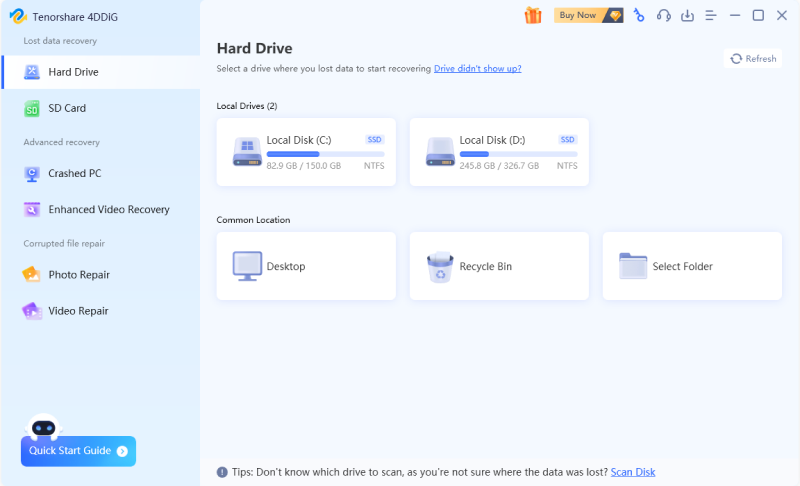
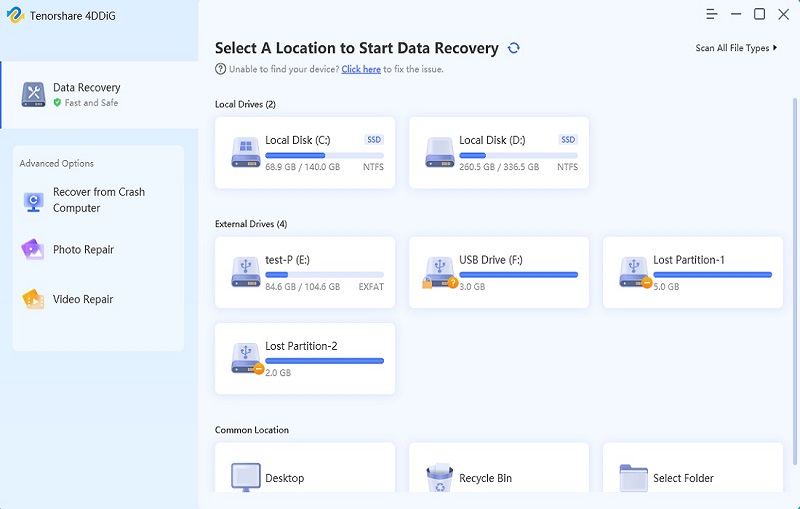
4DDiG Free Data Recovery is my top overall choice because it provides a strong balance between recovery capability, ease of use, and supported devices.

Unlike command-line recovery utilities, 4DDiG uses a graphical interface that makes the recovery process straightforward.

The software supports Windows and macOS and can handle common data-loss scenarios such as accidental deletion, emptied Recycle Bin, formatted drives, external storage problems, lost partitions, and some system-crash scenarios.

4ddig best free data recovery software

FREE DOWNLOAD

Secure Download

FREE DOWNLOAD

Secure Download

Key Details:

  • Free Type: Freemium
  • Free Recovery Limit: Up to 2GB
  • Supported OS: Windows 11/10/8.1/8/7 and all macOS versions
  • Supported File Systems: exFAT, NTFS, HFS/HFS+, FAT16/FAT32, and more
  • Supported Storage Devices: SSDs, HDDs, USB drives, memory cards, Recycle Bin, and more
  • File Types: 2,000+ file types, including photos, documents, emails, videos, and audio, archives, and more
  • Recovery Scenarios: Accidental deletion, file corruption, system crashes, formatting, virus attacks, and more
  • Scan: Quick and deep scanning
  • Free Preview Before Recovery: Yes
  • Best For: General-purpose data recovery and beginners

User Experience:

4DDiG's biggest advantage is that it combines a beginner-friendly interface with a relatively broad set of recovery scenarios.

Users do not need to understand partition tables, file signatures, or command-line syntax before starting a scan. The interface guides users through the recovery process and allows them to preview files before restoring them.

4ddig free data recovery software

The free version provides a limited amount of recovery, while the paid version removes the recovery limit and provides the full feature set.

  • Pros
  • Cons
    • Beginner-friendly graphical interface
    • Supports Windows and macOS
    • Supports more than 2,000 file types
    • Supports HDDs, SSDs, USB drives, SD cards, and other devices
    • Allows file preview before recovery
    • Handles multiple data-loss scenarios
    • Free recovery is limited

2. Disk Drill — Best for Extra Recovery Features

Disk Drill is a strong choice for users who want more than basic file recovery.

It supports Windows and macOS and can recover files from internal drives, external drives, USB devices, memory cards, and other storage media.

The current Windows free version allows up to 100MB of free recovery, while users can scan and preview recoverable files before deciding whether to upgrade.

disk drill data recovery software

Key Details:

  • Free Type: Freemium
  • Free Recovery Limit: Up to 100MB on Windows
  • Supported OS: Windows and macOS
  • Best For: Extra recovery and disk-management features
  • Scan: Quick and deep scanning
  • Preview: Yes

User Experience:

Disk Drill stands out because it combines data recovery with additional storage utilities.

Its feature set includes disk imaging, data protection, and other recovery-related functions. It also supports a broad range of file systems, including NTFS, FAT, exFAT, APFS, HFS+, EXT2/3/4, and others.

That makes it attractive for users who want one application for both recovering data and managing storage devices.

  • Pros
  • Cons
    • Windows and macOS support
    • Modern interface
    • Supports many file systems
    • File preview
    • Disk imaging and additional utilities
    • Suitable for more complicated recovery cases
    • Free Windows recovery is limited
    • Full recovery requires an upgrade
    • Some advanced features may be unnecessary for casual users

3. EaseUS Data Recovery Wizard — Best for Small Data Recovery

EaseUS Data Recovery Wizard Free is a popular freemium recovery tool designed for users who want a graphical recovery experience.

The free version is intended for smaller recovery jobs, while the paid version removes the free recovery limit.

easeus data recovery software

Key Details:

  • Free Type: Freemium
  • Free Recovery Limit: Up to 2GB
  • Supported OS: Windows and macOS
  • Best For: Small recovery jobs
  • Scan: Quick and deep scanning
  • Preview: Yes

User Experience:

EaseUS focuses on making the recovery process accessible to non-technical users.

The main drawback is the free recovery limit. If you have several gigabytes of photos, videos, or other large files to recover, the free edition may not be enough.

  • Pros
  • Cons
    • Beginner-friendly
    • Windows and Mac support
    • Supports common recovery scenarios
    • File preview and filtering
    • Free version has a recovery limit
    • Some advanced features are paid
    • The recovery time can be relatively long

4. Stellar Data Recovery — Best for Beginners

Stellar Data Recovery combines a beginner-friendly interface with more advanced recovery capabilities.

It supports Windows and Mac and can recover data from common storage devices such as HDDs, SSDs, USB drives, and SD cards.

stellar data recovery tool

Key Details:

  • Free Type: Freemium
  • Free Recovery Limit: Up to 2GB
  • Supported OS: Windows and macOS
  • Best For: Beginners
  • Scan: Standard and deep scanning
  • Preview: Yes

User Experience:

Stellar provides a relatively polished recovery workflow while still offering features for more complicated situations.

The software supports multiple file types and storage devices and lets users preview recoverable files before recovery.

  • Pros
  • Cons
    • Beginner-friendly interface
    • Windows and Mac support
    • Supports many file types
    • File preview
    • Deep scan capability
    • Free recovery allowance
    • Deep scans can take time
    • Free recovery is limited
    • Some advanced recovery features require a paid edition

5. MiniTool Power Data Recovery — Best for Simple Recovery

MiniTool Power Data Recovery Free is designed for Windows users who want a straightforward graphical recovery process.

The current free edition allows up to 1GB of data recovery and supports common situations such as accidental deletion, formatting, virus-related data loss, file-system errors, and some drive problems.

minitool data recovery software

Key Details:

  • Free Type: Freemium
  • Free Recovery Limit: Up to 1GB
  • Supported OS: Windows
  • Best For: Simple Windows recovery
  • Scan: Quick and deep scanning
  • Preview: Yes

User Experience:

MiniTool keeps the recovery workflow simple.

You select the location where the data was lost, scan it, preview the discovered files, and save the files to another location.

The 1GB free allowance is enough for many documents and smaller recovery jobs, but it may not cover large photo or video collections.

  • Pros
  • Cons
    • Easy-to-follow recovery process
    • Supports common data-loss scenarios
    • File preview
    • Suitable for Windows beginners
    • Windows-focused
    • Free recovery is limited to 1GB
    • Large recovery jobs require an upgrade

6. DiskGenius — Best for Recovery and Partition Management

DiskGenius combines data recovery with partition management, disk cloning, OS migration, and other storage utilities.

This makes it different from recovery programs that focus almost entirely on finding deleted files.

diskgenius data recovery program

Key Details:

  • Free Type: Freemium
  • Free Recovery Limit: Limited
  • Supported OS: Windows
  • Best For: Data recovery and partition management
  • Scan: File and partition scanning
  • Preview: Yes, with limitations

User Experience:

DiskGenius is a good choice if you need both data recovery and disk management tools. It can help you manage partitions, clone disks, and recover lost files from one application.

It is especially useful for advanced Windows users who need more control over their disks. However, its many features can make it feel complicated if you only want to recover a single deleted file.

  • Pros
  • Cons
    • Combines recovery and partition tools
    • Useful for advanced Windows users
    • Supports common Windows file systems
    • Includes disk-management features
    • File preview available
    • Windows only
    • More complicated than basic recovery software
    • Free recovery capabilities are limited
    • Not ideal for users who only need simple file recovery

Completely Free vs. Freemium Data Recovery Software

The biggest difference between completely free data recovery software and freemium tools is how much data you can recover without paying.

Completely Free Data Recovery Software

Completely free tools generally do not charge based on how much data you recover.

These tools are especially attractive when you have a large amount of data to recover and do not want to purchase a license.

However, completely free does not necessarily mean easier to use. Recuva is relatively beginner-friendly, while PhotoRec and TestDisk require considerably more technical knowledge.

Freemium Data Recovery Software

Freemium tools typically let you scan for free and recover a limited amount of data before asking you to upgrade.

The main advantage is convenience. These applications generally provide graphical interfaces, file previews, filtering, multiple scan modes, and additional recovery features.

Completely Free vs. Freemium: Which Is Better?

Feature Completely Free Freemium
Recovery cost Usually $0 Free up to a limit
Recovery volume Usually unlimited Limited
Ease of use Varies Usually easier
File preview Varies Usually available
Advanced features Varies Often available
Beginner-friendly Some are Usually
Best for large recovery jobs Yes Not always
Best for casual users Depends on tool Usually

If you need to recover a large amount of data without spending money, start with a completely free tool.

If you are a beginner and have only a small amount of lost data, a freemium program may provide a much easier recovery experience.

How We Tested and Ranked Free Data Recovery Software?

A recovery program should not be ranked only by its free data limit. A tool that lets you recover unlimited files is not necessarily the best choice if it is difficult to use or performs poorly in common recovery scenarios.

Our team evaluate free data recovery software based on several factors. These criteria help distinguish the best free data recovery tools from programs that simply advertise a free version.

📈 Recovery Performance

The most important factor is whether the software can actually find and recover lost files.

Useful recovery scenarios include:

🎁 Free Recovery Limit

I also compare how much data users can recover without paying.

Some programs are completely free, while others impose limits based on data volume, file count, or specific recovery features.

💾 Supported Devices and File Systems

A good recovery tool should work with the storage devices and file systems users actually have.

Important factors include support for:

  • HDDs
  • SSDs
  • USB flash drives
  • SD cards
  • External hard drives
  • NTFS
  • FAT32
  • exFAT
  • APFS
  • HFS+
  • EXT file systems

⚡ Scan Speed

Scan speed matters when searching through a large storage device.

Quick scans are useful for recently deleted files, while deep scans may take significantly longer but can find data that a standard scan misses.

🔍 File Preview and Recovery Quality

A scan result does not necessarily mean that a file is fully recoverable.

Previewing files before recovery allows users to check whether a photo, document, video, or other file is actually intact.

👍 Ease of Use

A powerful recovery tool is not very useful if the average user cannot understand how to operate it.

Graphical tools generally provide a smoother experience, while utilities such as TestDisk and PhotoRec are better suited to technically experienced users.

🧩 Additional Features

I also consider useful extras such as:

  • Disk imaging
  • Partition recovery
  • Drive monitoring
  • File filtering
  • Photo and video recovery
  • Disk cloning
  • Bootable recovery

These features can make a significant difference when dealing with complicated storage problems.

Which Free Data Recovery Software Should You Choose?

If you're comparing the best free data recovery software for a specific situation, use the recommendations below rather than choosing a tool based only on its free recovery limit.

If You Need... Choose...
Best overall recovery experience on Windows or Mac 4DDiG Data Recovery
Completely free Windows recovery Recuva
Unlimited free recovery PhotoRec
Lost partition recovery TestDisk
Advanced recovery controls DMDE
Extra disk tools Disk Drill
Small amount of data EaseUS Data Recovery Wizard
Beginner-friendly recovery Stellar Data Recovery
Simple Windows recovery MiniTool Power Data Recovery
Recovery + partition management DiskGenius

For users specifically looking for free unlimited data recovery software, start with Recuva, PhotoRec, or TestDisk.

Choose 4DDiG for the Best Overall Experience

If you want an easy-to-use recovery program with broad file and device support, 4DDiG is the strongest overall choice that comes with timely technical support.

Choose Recuva for Completely Free Windows Recovery

If you mainly need to recover recently deleted files from a Windows PC and do not want a recovery-size limit, Recuva is a practical option.

Choose PhotoRec for Unlimited Free Recovery

If recovery cost is your main concern and you are comfortable with a more technical workflow, PhotoRec provides completely free and open-source recovery.

Choose TestDisk for Lost Partitions

If an entire partition has disappeared rather than just a few files, TestDisk is one of the better free options to investigate the problem.

Choose DMDE for Advanced Recovery

If you understand file systems and partitions and want more control over the recovery process, DMDE is worth considering.

FAQs

Is free data recovery software really free?

It depends on the software.

Some programs, such as PhotoRec and TestDisk, are open source and completely free. Others use a freemium model and allow users to recover only a limited amount of data before requiring an upgrade.

What is the best completely free data recovery software?

Recuva and PhotoRec are two of the strongest completely free options, but they are designed for different users.

Recuva is easier for basic Windows file recovery, while PhotoRec is more powerful for difficult recovery situations but has a steeper learning curve.

What is the best free data recovery software for Windows 11?

For Windows 11, 4DDiG, Recuva and DMDE are all options depending on your recovery needs.

For beginners, a graphical tool such as 4DDiG is easier to start with. If you need completely free recovery, Recuva or PhotoRec may be better choices.

Can I recover permanently deleted files for free?

Sometimes. Permanent deletion usually means that the file is no longer visible through the normal file system. If the underlying data has not been overwritten, recovery software may still be able to find it.

Can free data recovery software recover files from a formatted drive?

Yes. Some recovery programs can recover files from formatted drives.

The results depend on the type of formatting, whether new data has been written afterward, and the condition of the file system.

Can I recover data from an SSD for free?

Sometimes, but SSD recovery can be more difficult than HDD recovery. SSD TRIM can cause deleted data to become permanently unavailable, meaning that recovery software may not be able to restore it.

If you accidentally delete important files from an SSD, stop using the drive and attempt recovery as soon as possible.

Should I save recovered files to the same drive?

No. Always save recovered files to a different storage device whenever possible. Saving recovered files to the source drive can overwrite other recoverable data.

Is unlimited data recovery always better?

Not necessarily. An unlimited recovery tool can be useful when you have a large amount of lost data, but usability and recovery capability are also important.

For example, PhotoRec provides unlimited recovery but is more difficult to use than graphical applications such as 4DDiG.

Conclusion

The best free data recovery software depends on how much data you need to recover and how easy you want the process to be.

4DDiG Data Recovery is a good overall choice for easy recovery, while Recuva and PhotoRec are better if you want completely free or unlimited recovery options. TestDisk and DMDE are better suited to advanced recovery tasks.

Before recovering files, stop using the affected drive and save recovered files to another storage device to avoid overwriting your lost data.

FREE DOWNLOAD

Secure Download

FREE DOWNLOAD

Secure Download

William Bollson (senior editor)

William Bollson, the editor-in-chief of 4DDiG, devotes to providing the best solutions for Windows and Mac related issues, including data recovery, repair, error fixes.

(Click to rate this post)

You rated 4.5 ( participated)