Gmail Got Hacked and Password Changed? Here's What to Do

5 mins read

Updated on 2026-08-17 18:59:57 to Data Recovery

A recent r/GMail discussion shows how stressful a hacked Gmail account can be. The user's Gmail was hacked, and the password was changed. Google then requested an 8-digit backup code or passkey that he did not have. Several Gmail accounts were hacked at the same time and showed suspicious login activity.

If your Gmail got hacked, act quickly. This guide explains how to recover a hacked Gmail account. It also explains what to do if your Gmail email was hacked and how to protect your devices and local files.

Gmail account got hacked warning

How Do You Know Your Gmail Was Hacked?

An unfamiliar location alone does not always mean your Gmail was hacked. However, a changed password, modified recovery information, unknown devices, or account settings you did not change are strong signs of unauthorized access.

Your Gmail Password No Longer Works

If your Gmail password suddenly stops working, especially after a password-change alert, your account may have been compromised. Check your recovery email and phone for Google security notifications, and avoid unexpected password-reset links.

Your Recovery Information Was Changed

An unfamiliar recovery email, phone number, passkey, or security method is a major warning sign. Attackers often change these details to make account recovery harder.

You See Unknown Devices or Login Activity

Check for unfamiliar devices, browsers, or sessions in your Google Account security settings. Suspicious login activity combined with password or security changes usually indicates unauthorized access.

Your Gmail or Google Services Were Modified

Attackers may change settings without immediately locking you out. Look for:

  • Emails sent from your account that you did not write
  • Unknown forwarding rules, filters, or delegated access
  • Deleted or hidden security alerts
  • Unexpected changes in Google Drive, YouTube, or other services
  • Unknown third-party apps with account access

What to Do Immediately After Your Gmail Is Hacked?

If your Gmail account was hacked, act in the right order. First, protect your account recovery process. Then, recover your account through Google and secure other accounts connected to your Gmail.

Stop Using a Potentially Compromised Device

If multiple accounts were hacked at the same time, your device may be part of the problem. This is especially possible after installing unknown software or browser extensions.

Use another trusted phone or computer to change passwords if possible. Do not download random "recovery" tools. Do not reset the device before saving important files or evidence. A reset may remove local documents, downloaded attachments, and other useful data.

Recover Your Google Account Through Official Recovery Options

Go directly to Google Account Recovery. Follow the steps and provide accurate information. Use the latest password you remember if Google asks for one.

For a better chance of recovery:

  • Use a device and browser you used before.

  • Try from a familiar location, such as your home network.

  • Avoid repeated attempts from different devices or locations.

  • Select Try another way if you cannot use the current option.

Google recommends using its official recovery process when a password or recovery information was changed. A changed password does not always mean the account is permanently lost.

Secure Other Accounts Connected to Your Gmail

Your Gmail account may be used to reset passwords for other services. If a hacker controls your inbox, those accounts may also be at risk. Secure these accounts first:

  • Recovery email and mobile carrier accounts
  • Banking, payment, shopping, and cloud storage accounts
  • Password managers and social media accounts
  • Services that use the same password or Google sign-in

Change passwords from a trusted device. Then check for unknown devices, recovery details, and active sessions.

Save Evidence Before Removing Suspicious Activity

Save important details before deleting suspicious settings or removing unknown access. This information can help you understand what happened. Keep records of:

  • Password or recovery-detail change notifications
  • Unknown forwarding addresses, apps, or permissions
  • Unauthorized messages, posts, or transactions

Never share your password, backup codes, or personal documents when asking for help online.

Gmail Asks for Backup Code or Passkey After Being Hacked

If Gmail asks for a backup code or passkey after a hack, do not panic. Do not enter any code on third-party websites. Use only Google's official sign-in and recovery pages.

What Is the 8-Digit Google Backup Code?

Google backup codes are one-time 8-digit codes used for 2-Step Verification. They help you sign in when your usual verification method is unavailable. Each code can only be used once.

If you saved backup codes before, check your secure storage, password manager, or saved documents. Never share a backup code with anyone claiming to be Google support.

8 digit Google backup code after Gmail account hacked

Check Available Recovery Methods Before Giving Up

Select Try another way and check if you can use any available option:

  • A prompt on a trusted phone or tablet
  • A code sent to your recovery phone or email
  • A passkey saved on your device or password manager
  • A physical security key
  • A previously generated backup code

A passkey may be stored on a phone, computer, or password manager you already use. If you do not recognize the passkey or verification method, continue with Google's official recovery process instead.

Avoid Fake Gmail Recovery Services

No third-party service can generate Google backup codes or bypass account verification. Be careful with people who promise guaranteed Gmail recovery.

Avoid phone numbers placed in comments, ads, PDFs, or unofficial "support" pages. Never share:

  • Your password or previous password
  • An 8-digit backup code
  • A verification code sent by email or text
  • Remote access to your device

Why Did Multiple Gmail Accounts Get Hacked?

If several Gmail accounts were hacked at the same time, they may share the same risk. The cause could be a compromised device, browser, password reuse, recovery account, or third-party access. Without checking the device and account activity, it is impossible to know the exact cause.

Stolen Browser Sessions or Infostealer Malware

Some infostealer malware can steal browser data, saved credentials, or active login sessions. If multiple Gmail accounts were signed in through the same browser, one infected device may put several accounts at risk.

Keep your operating system, browser, and security software updated. Remove suspicious programs and run a malware scan if you notice unusual account activity.

Phishing Pages That Steal Google Login Information

Phishing pages can look like real Google sign-in pages. They may steal your password, verification codes, or other account details.

Always check the website address before entering your Google password. Avoid signing in through links from unexpected emails, messages, or pop-ups.

Malicious Browser Extensions or Apps

Some extensions or apps request access to browsing activity, emails, notifications, or files. A harmful extension may affect every account used in the same browser.

Remove unknown extensions and apps. Also review third-party apps connected to your Google Account and remove access you do not recognize.

Password Reuse and Credential Stuffing

Using the same password on multiple websites creates a risk. If another service suffers a data breach, attackers may try those leaked credentials on Gmail.

Use a unique password for every account. A password manager can help create and store stronger passwords.

A Compromised Recovery Account

Your Gmail account may also be linked to other accounts as a recovery email. If that recovery account is hacked, attackers may use it to access more services.

Secure recovery accounts first. Check their security settings, forwarding rules, and connected apps to prevent further account takeover.

Does a Hacked Gmail Mean Your Phone/Computer Is Hacked?

No. A hacked Gmail account does not always mean your phone or computer has malware. Your account could be compromised through phishing, password reuse, browser sessions, or third-party apps.

However, if multiple accounts were affected at the same time, check your devices carefully. An unknown login location alone is not enough to prove that your phone was hacked.

Signs Your Android Phone May Be Compromised

Check your Android phone if you notice:

  • Unknown apps you did not install
  • Apps with unusual accessibility or device-administrator permissions
  • Unexpected pop-ups or fake login screens
  • Sudden battery, heat, or mobile-data usage increases
  • Security settings changing without your action
  • Multiple accounts showing suspicious activity

Update Android, remove suspicious apps, review app permissions, and run security checks. If you reset the phone, save important files first.

Signs Your iPhone or Computer May Be Compromised

On an iPhone, check for unknown profiles, VPN settings, apps, or devices connected to your Apple Account.

On Windows or Mac, look for suspicious browser extensions, unknown startup programs, unexpected software, or repeated security alerts from different accounts.

If you find suspicious activity, disconnect the device, protect important files, run security checks, and avoid entering new passwords until the device is safe.

What to Check After Recovering Your Gmail Account

Recovering your Gmail account is only the first step. Attackers may leave behind settings or access methods that allow them to return.

what to do after gmail is hacked

Change Your Password and Remove Unknown Devices

Create a new password that you have never used before. Then check your recent security activity and remove devices or sessions you do not recognize.

Also review your recovery email, phone number, passkeys, security keys, and backup methods. Delete any option that was added without your permission.

Check Gmail Forwarding Rules, Filters, and Delegates

Hackers may create hidden settings to read your emails or hide security alerts. Check these Gmail settings:

  • Forwarding settings for unknown email addresses
  • Filters that delete, archive, or redirect messages
  • Delegated accounts or send-as addresses you do not recognize

Remove suspicious settings and check your Trash, Spam, and archived emails for missing messages.

Remove Suspicious Third-Party Apps and Secure Your Account

Review apps and services connected to your Google Account. Remove anything you do not recognize or no longer use.

Also check Google Drive sharing, Google Photos, YouTube activity, and other Google services for unusual changes. Turn on 2-Step Verification again and use a passkey or security key if possible.

Download a Backup of Important Google Data

After securing your account, use Google Takeout to export important data from Gmail, Drive, Photos, and other Google services.

Keep the backup in a separate location, such as an external drive or another secure storage device. This helps protect important files if you lose access to your account again.

Lost Files After a Gmail Hack? Recover Local Data with 4DDiG

A Gmail hack affects your account access, but it may also lead to local data loss during cleanup or recovery. For example, you may delete files while removing suspicious software, lose downloaded attachments after a system reset, or accidentally remove a Google Takeout backup.

4DDiG Data Recovery can help scan local storage devices for deleted or lost files. It can recover local files from Windows PCs, Macs, hard drives, SSDs, USB drives, and memory cards.

When Can 4DDiG Help After a Gmail Hack?

4DDiG is useful when files stored on your device are lost during or after the incident, such as:

  • Downloaded Gmail attachments deleted by mistake
  • Google Takeout backup files removed from your computer
  • Documents, photos, or videos lost during system cleanup
  • Local email archive files deleted from Outlook or other email apps
  • Files lost from external drives or USB devices used for backups

Stop using the affected storage device after data loss. New files or installations may overwrite deleted data and reduce the chance of recovery.

How to Recover Lost Files with 4DDiG Data Recovery:

FREE DOWNLOAD

Secure Download

FREE DOWNLOAD

Secure Download

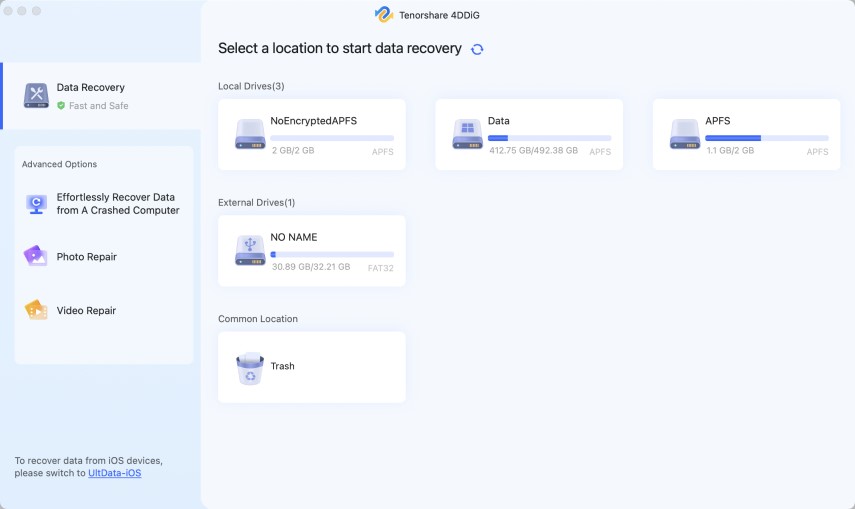
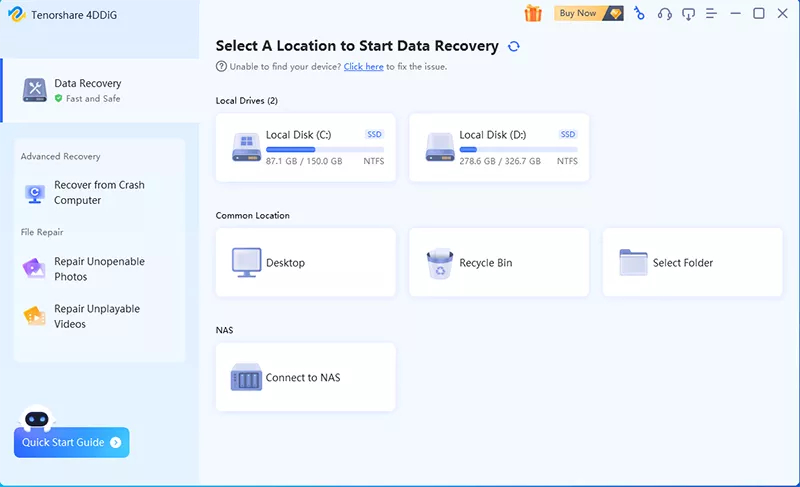
  • Install and launch 4DDiG. Select the drive where your lost Gmail attachments, Google Takeout files, or other local data were stored, then start scanning for recoverable files.

    launch 4ddig and enter interface
  • Filter the scan results by file type or search for file names to quickly find deleted documents, photos, videos, email archives, or backup files.

    filter scan results in 4ddig
  • Preview the found files to check their contents before recovery. Select the files you need and click "Recover".

    preview and recover files with 4ddig
  • Save the recovered files to a different storage location instead of the original drive to avoid overwriting existing data.

    save the recovered files

How to Prevent Another Gmail Hack in the Future

No single security setting can block every attack. Use multiple protections to reduce the risk of another Gmail takeover.

Use a Unique Password and Password Manager

Create a unique password for your Google Account. Do not reuse it on other websites.

A password manager can help you create and store strong passwords without remembering every login.

Enable 2-Step Verification or Passkeys

Turn on 2-Step Verification and set up recovery methods you control. Passkeys or physical security keys can provide stronger protection against many phishing attacks.

Keep your devices and browsers updated to reduce security risks.

Keep Backup Codes in a Safe Place

Save backup codes somewhere safe outside your Gmail account. You can store them offline or in a trusted password manager.

If backup codes may have been exposed, create a new set after securing your account.

Review Account Activity and Third-Party Access

Regularly check signed-in devices, security events, recovery methods, and connected apps. Remove anything you do not recognize.

Also check Gmail forwarding rules and filters to make sure no hidden settings were added.

Avoid Suspicious Software and Browser Extensions

Only install apps and browser extensions from trusted sources. Review the permissions they request before giving access.

Be careful with pirated software, unknown installers, fake security tools, and unexpected Google sign-in pages.

FAQ

Can I recover a Gmail account after the password was changed?

Yes, you may still recover it. Use Google's official account recovery process and verify your identity with available recovery options.

What should I do if I don't have my Gmail backup code?

Select Try another way during recovery. You may be able to use a trusted device, recovery email, recovery phone, passkey, or security key instead.

Does a hacked Gmail account mean my phone is hacked?

No. A hacked Gmail account does not always mean your phone has malware. Check your device only if you notice unknown apps, unusual permissions, or other suspicious activity.

Conclusion

If your Gmail got hacked and the password was changed, start with Google's official account recovery process. After you regain access, secure your account and check the devices connected to it.

If you lost local attachments, Google Takeout files, or email archives during the recovery process, 4DDiG can help scan your device for recoverable files. Remember that Google restores account access, while 4DDiG helps recover deleted files stored on your own devices or storage media.

FREE DOWNLOAD

Secure Download

FREE DOWNLOAD

Secure Download

William Bollson (senior editor)

William Bollson, the editor-in-chief of 4DDiG, devotes to providing the best solutions for Windows and Mac related issues, including data recovery, repair, error fixes.

(Click to rate this post)

You rated 4.5 ( participated)