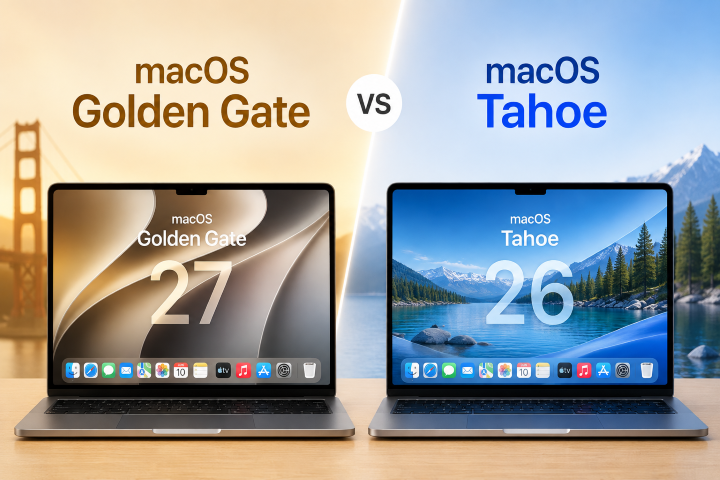
macOS 27 Update Not Showing Up? 9 Ways to Get the Update to Appear

5 mins read

Updated on 2026-09-10 17:26:03 to Mac Update

macOS 27 Golden Gate brings new features and system improvements, but the upgrade may not appear in Software Update for every Mac. If you are dealing with a macOS 27 update not showing up issue, your Mac may not meet the compatibility requirements, or Software Update may not be detecting the upgrade correctly.

This guide explains why the macOS 27 update may be missing and what you can do to make the upgrade appear.

macos 27 update not showing up

Why Is macOS Golden Gate Update Not Showing Up?

There are several possible reasons why macOS 27 does not appear in Software Update.

Your Mac Is Not Compatible with macOS 27

macOS 27 has stricter hardware requirements than some previous macOS versions. If your Mac is not supported, Software Update will not offer the upgrade, which can make the macOS 27 update missing from your Mac.

Intel-based Macs are not supported by macOS 27. If you are using an Intel Mac, this is likely why the upgrade does not appear in Software Update.

Software Update Hasn't Refreshed

Software Update automatically checks for available updates, but the check may not refresh properly. As a result, a compatible Mac may still show that it is up to date even when a newer upgrade is available.

Your Internet Connection Is Unstable

Your Mac needs a stable internet connection to check for and download macOS updates. A weak connection or temporary network problem can interfere with the update process.

Your Mac Doesn't Have Enough Storage

A major macOS upgrade needs free space for the download and installation process. If your startup disk is nearly full, the upgrade may not download or install properly.

Your Mac Is Managed by an Organization

Work and school Macs may have update restrictions set by an administrator. An organization can delay major macOS upgrades, so macOS 27 may not appear even when the Mac itself is compatible.

How to Fix macOS Golden Gate Update Not Showing Up?

Try the following troubleshooting tips before installing macOS 27 on your Mac.

1 Check If Your Mac Supports macOS 27

First, make sure your Mac is compatible with macOS 27. To identify your model, go to "Apple menu > About This Mac".

Then compare your Mac with the supported models:

macos 27 compatibility list

If you have an Intel-based Mac, macOS 27 is not supported. In that case, Software Update will not show the upgrade.

2 Check for the macOS 27 Update Manually

If your Mac is compatible, manually check for the upgrade may solve this problem.

  • Open the Apple menu and select "System Settings".

  • Click "General".

  • Select "Software Update".

    refresh macos software update
  • Wait for the update check to finish.

  • If macOS 27 does not appear, click "Check for Update".

  • You can also press Command-R or close and reopen Software Update.

If the macOS 27 update is still not appearing, continue with the next troubleshooting steps.

3 Restart Your Mac

Restarting your Mac can clear temporary system issues that may interfere with Software Update.

  • Open the Apple menu.

  • Select "Restart".

    restart mac directly
  • Wait for your Mac to start again.

  • Open "System Settings > General > Software Update".

  • Check for macOS 27 again.

4 Check Your Internet Connection

Make sure your Mac has a stable internet connection before checking for the upgrade again.

You can try:

  • Reconnecting to Wi-Fi.

  • Switching to another reliable network.

  • Restarting your router if other devices also have connection problems.

  • Temporarily disconnecting a VPN.

After fixing the connection, open Software Update and check again. A stable internet connection is also required when downloading and installing macOS.

5 Free Up Storage Space

Check your available storage if your Mac is running low on space.

  • Open the Apple menu.

  • Go to "System Settings > General > Storage".

    check mac storage
  • Review your storage usage.

  • Remove unnecessary apps, downloads, and large files.

  • Empty the Trash and return to Software Update and check again.

Freeing up storage can also help if macOS 27 fails to install though it appears normally.

6 Check Software Update Settings

Review your Software Update settings to make sure your Mac can download and install system updates normally.

  • Open "Apple menu > System Settings".

  • Select "General > Software Update".

  • Open the settings for Automatic Updates.

  • Review the available update options.

    mac check software update settings
  • Return to the main Software Update page and check again.

Automatic Update settings control how your Mac downloads and installs available updates. They do not, however, make an incompatible macOS version available.

7 Check for Managed Software Updates

If you are using a Mac from work or school, check whether it is managed by an organization.

An administrator may have configured a policy that delays major macOS updates. If that is the case, the macOS 27 update may not be available on your Mac until the administrator allows the upgrade.

If you are not responsible for managing the Mac, contact your IT department rather than trying to remove or bypass the management settings.

8 Try Safe Mode

If your Mac is compatible and macOS 27 still does not appear, try checking Software Update in Safe Mode.

Safe Mode starts your Mac with only the software needed for basic operation. It can help rule out some software that may interfere with the update process.

For a Mac with Apple silicon:

  • Shut down your Mac.

  • Press and hold the power button until the startup options appear.

  • Select your startup disk.

  • Hold the Shift key.

  • Click "Continue" in Safe Mode.

    continue in safe mode mac

For an Intel-based Mac:

  • Restart your Mac.

  • Immediately press and hold the Shift key.

  • Release the key when the login window appears.

Once your Mac starts in Safe Mode, open "System Settings > General > Software Update" and check again.

9 Check for macOS Updates Using Terminal

You can also check whether macOS detects available updates through Terminal.

Open Terminal from Applications > Utilities and run the following command:

softwareupdate -l

Press Return and wait for the results.

If macOS detects available updates, Terminal will list them. This can help determine whether the problem is limited to the Software Update interface.

However, Terminal cannot make an unsupported Mac compatible with macOS 27. If your Mac does not meet Apple’s compatibility requirements, the upgrade will not become available through this method.

How to Recover Missing Files After macOS 27 Update?

If you successfully upgrade to macOS 27 but later discover that some files are missing, check the Trash, iCloud Drive, and your backups first.

If the files are still missing, 4DDiG Mac Data Recovery can scan supported Mac storage for files missing after the update. It supports common file types such as photos, videos, documents, and audio, and can also work with connected storage devices such as external drives and SSDs.

FREE DOWNLOAD

Secure Download

FREE DOWNLOAD

Secure Download

  • Download and install 4DDiG on your Mac, then launch it. Select the Mac drive or external SSD where the missing files were stored.

    4ddig mac data recovery interface
  • After you select the drive, 4DDiG automatically starts scanning for lost files. You can filter the scan results by file type or path to find specific files more quickly.

    scan the external drive with 4ddig
  • Browse the scan results and preview the files you want to recover. Select the needed photos, videos, documents, or other files, then click "Recover".

    preview and recover files with 4ddig
  • Choose a different internal or external drive to save the recovered files. Avoid saving them to the same location where the missing files were stored.

    save recovered files with 4ddig

FAQs About Missing macOS 27 Update

How do I force my Mac to check for macOS 27 updates?

Go to Apple menu > System Settings > General > Software Update and select Check for Update. If nothing appears, press Command-R or close and reopen Software Update, then check again.

Why does my Mac say it is up to date when macOS 27 is available?

Your Mac may say it is up to date because Software Update only shows macOS versions that are compatible with your Mac. If your Mac does not support macOS 27, the upgrade will not appear even though macOS 27 is available for supported Macs.

Can I install macOS 27 if it doesn't appear in Software Update?

Yes, but only if your Mac is compatible with macOS 27. Apple provides other installation methods, including macOS Recovery, Terminal, and a bootable installer. These methods cannot make an unsupported Mac compatible with macOS 27.

Conclusion

When the macOS 27 update is not showing up, start by checking your Mac's compatibility. Supported Macs can then refresh Software Update, restart the system, and check the internet connection and available storage.

If you lose files after updating to macOS 27, check your backups first. When there is no available backup, 4DDiG Mac File Recovery can scan supported Mac storage for recoverable files.

FREE DOWNLOAD

Secure Download

FREE DOWNLOAD

Secure Download

William Bollson (senior editor)

William Bollson, the editor-in-chief of 4DDiG, devotes to providing the best solutions for Windows and Mac related issues, including data recovery, repair, error fixes.

(Click to rate this post)

You rated 4.5 ( participated)