[12 Proven Methods] How to Fix USB Not Showing Up on Mac?

5 mins read

Updated on 2026-03-17 17:40:45 to USB Recovery

Many Mac users face the frustrating situation where a USB drive simply doesn’t appear after being plugged in. Whether it’s a flash drive used for transferring files or an external storage device, the issue of a USB not showing up on a Mac can interrupt your workflow and make it difficult to access important data.

The good news is that this problem usually has clear causes and solutions. In this guide, we’ll explore why the issue occurs and walk you through practical methods to fix it.

Why Is My USB Not Showing Up on Mac?

Before trying to fix the issue, it is better to understand the possible reasons behind it. If your USB drive is not showing up on your Mac, the problem may come from hardware issues, system settings, or compatibility limitations. Some common causes include:

  • Sometimes the issue is as simple as a damaged port or adapter. If the connection is unstable, the USB device may not show up at all.
  • macOS cannot fully support some file systems, especially Linux-based formats. If your USB flash drive is not showing up, the file system may not be compatible.
  • When a USB device is inserted, macOS first detects it and then mounts it. If the mounting process fails, the USB may appear in Disk Utility but not in Finder.
  • In some cases, the USB may not appear on a Mac simply because Finder is configured not to show external drives.
  • Older system versions may fail to recognize newer devices, causing the flash drive to not be recognized by the Mac.
  • If the USB drive has file system errors, macOS might detect it but prevent access.
  • A physically damaged USB drive may cause the USB drive not to be detected on a Mac, even when connected correctly.

Understanding these causes will help you apply the right solution rather than trying random fixes.

How to Check File System Compatibility?

Sometimes your USB drive or external storage device may not appear because the file system format isn’t fully supported by macOS. Therefore, before applying complicated fixes, it’s important to check whether the file system is compatible with Mac. Below is a simple comparison of common file systems.

  • File System
  • Compatibility with macOS
  • FAT32 / exFAT
  • Fully compatible with macOS
  • NTFS
  • Read-only on macOS (cannot write without extra software)
  • APFS / HFS+
  • Native Mac file systems
  • EXT3 / EXT4 / XFS
  • Linux formats are not supported by macOS

If the USB drive uses NTFS or a Linux file system, macOS may detect the hardware but limit its functionality. As a result, the USB may not appear on Mac Finder or may only be partially accessible. Try the steps below to check the file system of a USB drive:

  • Insert the USB drive into your Mac and open “Disk Utility” from Applications.

  • Look for your USB drive in the left sidebar.

  • Select the drive name and check the File System information shown in the details panel.

If the drive is formatted with NTFS or a Linux format, the system might detect the hardware but restrict normal access. This is a common reason why a USB drive is not showing up on Mac Finder.

Basic Troubleshooting Methods to Fix USB Not Showing Up on Mac

Once you confirm the file system compatibility, you can try several simple troubleshooting steps. These methods resolve many situations where a USB drive is not detected on a Mac.

Method 1: Check Physical Connection

Before diving into system settings, verify the hardware connection. Sometimes the issue occurs because the USB device is not properly connected. Try these quick fixes:

  • Remove the USB drive and insert it again firmly.
  • A faulty port may cause the USB device not to show up on the Mac, so you must try another port.
  • Replace the USB adapter or hub if you are using one.
  • Test the USB drive on another computer. This helps to determine whether the issue is with the USB drive or the Mac.

If the drive works on another device but not on your Mac, the problem is likely system-related.

Method 2: Restart Your Mac

Restarting your Mac may seem simple, but it often resolves hardware detection problems. Temporary system errors or background processes may prevent the system from recognizing external devices.

  • Click the Apple icon in the top-left corner and select “Restart”.

    restart your mac directly
  • Wait for the Mac to reboot completely, then reinsert the USB drive.

After restarting, macOS reloads hardware drivers and system services, which can fix situations where the USB drive is not detected on the Mac.

Method 3: Check Disk Utility

Disk Utility is one of the most useful tools when diagnosing USB problems. When a USB device is inserted into your Mac, two processes occur:

  • macOS detects the hardware device.

  • macOS mounts the device so it appears in Finder.

If the device is detected but not mounted, the USB may appear in Disk Utility but remain invisible in Finder. Here are the steps you need to follow:

  • Open Disk Utility and locate the USB drive in the left sidebar, and click the drive name.

  • If it shows Not Mounted, click “Mount”.

    mount the drive on disk utility
  • Wait for macOS to read the file system.

Once mounted successfully, the USB should appear in Finder and on the desktop.

Method 4: Show USB on Mac Desktop

Even when a USB drive is correctly connected and mounted, it may still not appear on the desktop. This often happens because Finder settings are configured to hide external drives by default.

As a result, the system detects the device but simply does not display it visually. Before changing these settings, make sure the USB drive is already mounted in Disk Utility. Once mounted, enabling the correct Finder option will allow the USB drive to appear on the desktop.

  • Open Finder and click “Finder” in the menu bar.

  • Select “Preferences or Settings” and open the “General” tab, then check the option “External disks”.

    show external disks on desktop

Once enabled, your USB drive should appear on the desktop.

Method 5: Show USB on Finder Sidebar

In some cases, the USB drive is successfully detected and mounted, but still does not appear in Finder's sidebar. This can make it seem like the device is missing even though it is accessible in the system.

Finder includes settings that control which devices are displayed in the sidebar under Locations. If external disks are disabled in these settings, the USB drive will remain hidden from the navigation panel. Enabling this option ensures that connected USB drives are always visible in Finder.

  • Open Finder, then click “Finder” and go to “Settings or Preferences."

  • Select the “Sidebar” tab and enable “External disks” under Locations.

    show external disks on finder sidebar

This will ensure that the USB drive appears in Finder whenever it is connected.

Advanced Solutions to Fix USB Drive Not Showing Up on Mac

If the basic solutions don’t work, more advanced troubleshooting may be required. However, some repair methods, such as running disk repairs or formatting, can potentially cause data loss. For this reason, it is recommended to recover important files first.

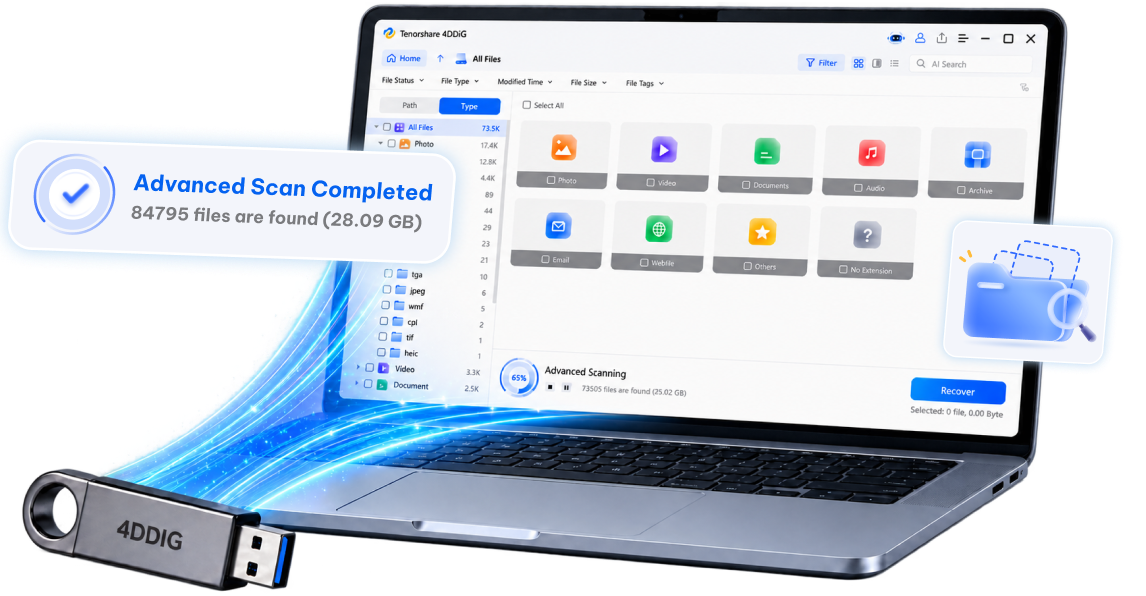
Instead of manual data recovery, try the effective recovery software - 4DDiG Mac Data Recovery, which can recognize, scan inaccessible USB drives and extract files even when the system cannot open them normally. This is particularly useful if a USB drive is not appearing on a Mac but is still detected by Disk Utility.

  • Recover data from inaccessible/formatted/corrupted USB drives.
  • Fully compatible with all Mac devices including latest M4-equipped or older T2-secured Macs.
  • Data Recovery from Windows/Mac/SD cards/USB flash drives/external hard drives/digital camera.
  • 100% safe and fast, with up to 99.8% success rate to recover files form the USB flash drive.
FREE DOWNLOAD

Secure Download

FREE DOWNLOAD

Secure Download

  • Download and install 4DDiG on your Mac, then connect the USB drive to the computer and launch the software. Select the USB drive from the list of storage devices, and its scanning will begin automatically.

    4ddig mac main interface
  • When the scan is complete, use the Filters, Search, or Path/Type options to find the exact files that you want to recover.

    preview all recoverable files on mac 4ddig
  • Click the files to see their preview and click “Recover” for the files that you want to restore.

    click to recover files on mac 4ddig
  • Select a save location for saving these files, then click "Save Now”.

    save recovered files on mac 4ddig

After securing your data, you can proceed with the following repair solutions.

Method 1: Run First Aid in Disk Utility

First Aid checks and repairs disk errors. It is useful when the USB drive is not showing up on a Mac due to file system corruption.

  • Open “Disk Utility” and select the USB drive in the sidebar.

  • Click “First Aid” at the top and confirm by clicking “Run," then wait for the process to finish.

If successful, macOS may repair the errors preventing the drive from mounting.

run first aid on mac disk utility

Method 2: Update macOS

Outdated system software can cause compatibility problems with newer USB devices.

  • Click the “Apple menu” and select “System Settings”.

  • Go to “General", then choose “Software Update” and install any available updates by clicking “Restart Now”.

    update macos on settings

Updating macOS may resolve problems where a USB flash drive is not showing up on the Mac due to outdated drivers.

Method 3: Reset NVRAM / PRAM

NVRAM and PRAM store small pieces of system information that help manage hardware settings on your Mac. These memory areas keep track of things like display preferences, startup disk information, and connected hardware behavior.

Sometimes, incorrect values stored in NVRAM can interfere with device detection, including USB drives. Resetting NVRAM clears these stored settings and restores them to default values. This can help fix cases where external devices are not recognized correctly.

  • Shut down your Mac, then turn it on and immediately hold “Option + Command + P + R”.

    reset nvram via keys
  • Hold the keys for about 20 seconds, then release them and allow the Mac to boot normally.

After resetting, reconnect the USB drive and check if it appears.

This fix can resolve issues where a USB drive is not showing up on a Mac due to hardware compatibility problems.

Method 4: Format the USB Drive

If the USB drive is severely corrupted, formatting may be the only way to restore functionality. Note that ️formatting erases all data, so ensure files are recovered first.

  • Open Disk Utility and select the USB drive, then click “Erase”.

  • Choose your desired “Name” and “Format” for the USB and click “Erase”.

    erase your usb drive on disk utility
  • Confirm the formatting process and wait until it is complete.

After formatting, the USB should appear normally on a Mac.

Method 5: Seek Professional Help

If none of the solutions work, the USB drive may have hardware damage. Consider professional repair services when:

  • Disk Utility cannot detect the drive at all
  • The USB device overheats or makes unusual noises
  • The drive is not recognized on multiple computers

In these cases, specialized data recovery labs may be required.

Conclusion

USB not showing up on Mac can be frustrating, especially when important files are stored on the drive. Fortunately, the issue is often caused by simple factors such as Finder settings, mounting errors, or compatibility problems.

By following the troubleshooting steps in this guide, from checking connections to repairing the drive, you can usually restore access. If data is at risk, tools like Tenorshare 4DDiG Data Recovery provide a reliable way to recover files before attempting repairs.

FREE DOWNLOAD

Secure Download

FREE DOWNLOAD

Secure Download

William Bollson (senior editor)

William Bollson, the editor-in-chief of 4DDiG, devotes to providing the best solutions for Windows and Mac related issues, including data recovery, repair, error fixes.

(Click to rate this post)

You rated 4.5 ( participated)