Solved in 2026! Unable to Format USB Drive in Windows 10/11

5 mins read

Updated on 2026-04-21 15:08:18 to USB Recovery

Many users face the problem of being unable to format a USB drive when trying to fix errors or clear data. This issue can happen for several reasons, such as corruption, write protection, or system errors. It can be frustrating, especially when the USB becomes unusable. In this guide, you will learn the common causes and simple solutions to fix this problem step by step.

unable to format usb drive

Why You Are Unable to Format a USB Drive?

Before fixing the issue, it is important to understand why it happens. When you know the cause, it becomes easier to apply the right solution. USB drives can fail to format due to software errors, hardware problems, or incorrect settings. This section explains the common reasons and the signs you should look for.

Why can't I format a USB Drive?

There are several reasons why a USB drive won’t format. The drive may be write-protected, corrupted, or infected with malware. Sometimes, the file system becomes unreadable. In other cases, system tools may fail due to internal errors.

Symptoms That Your USB Drive Cannot Be Formatted:

You may notice one or more of the following issues:

  • Windows was unable to complete the format
  • The disk is write-protected
  • USB shows as RAW in Disk Management
  • Drive not accessible or asking to format repeatedly
  • USB is not recognized properly

These signs clearly show that your USB drive needs attention.

Basic Fixes for the Can't Format USB Drive Issue

Before using advanced methods when you can’t format a USB drive, it is best to try simple fixes. These solutions are quick and often resolve common issues. They do not require technical skills and can save time. If the problem is minor, these steps may fix it immediately.

Method 1: Try a Different USB Port or Computer

Sometimes, the issue is not with the USB drive itself. It may be caused by a faulty USB port or system error. Trying another port or computer helps confirm this. This is a simple step but very useful. It helps you quickly identify whether the problem is hardware-related.

Method 2: Try Formatting via File Explorer

File Explorer is the easiest way to format a USB drive. It works well when the drive is still accessible. This method is suitable for beginners and does not require advanced tools. If the format option works here, you can avoid more complex steps.

  • Insert your USB drive and open “This PC."

  • Right-click the USB drive and select “Format."

    format a usb drive in file explorer
  • Choose a file system (FAT32 or NTFS), then click “Start”. Confirm and wait for the process to complete.

    start formatting a usb drive in file explorer

Method 3: Use Disk Management to Format USB

If Windows can’t format a USB in File Explorer, Disk Management is a better option. It provides more control over storage devices. You can format, delete, or create partitions here. This method works well when the drive shows but cannot be formatted normally.

  • Right-click Start and select “Disk Management."

  • Find your USB drive and right-click it, then select “Format." Confirm the action and begin.

    use disk management to format a usb

How to Fix a USB Drive Unable to Format Using Command Prompt?

When basic methods are unable to format a USB stick, Command Prompt can help. It allows deeper control over storage devices. Using Diskpart, you can clean and format the USB drive completely. This method is powerful but should be used carefully. It is best when the drive is severely corrupted or unresponsive.

  • Search for "CMD" in Windows Search and right-click "Command Prompt" to select "Run as Admin”.

    format a usb in command prompt
  • Run the following commands one by one:

"diskpart"

"list disk"

"Select disk X," where "X" will be the letter of your USB.

"clean"

"Create partition primary."

"Select partition 1."

“format fs=ntfs quick”

"Assign letter X."

"exit"

Tip:

This method will erase all data. Make sure to back up your files first. If data is already lost or inaccessible, you can use 4DDiG to recover important files before proceeding.

How to Fix a Write-Protected USB Drive?

When a USB drive is write-protected, you cannot format or modify it. This protection prevents changes to the drive, and the USB stick cannot be formatted. It can be caused by a physical switch or system settings. Removing write protection is necessary before formatting.

1Check Physical Lock Switch

Some USB drives have a physical lock switch. If it is enabled, the drive becomes read-only, and you can’t format the thumb drive. This prevents formatting or file changes. Checking this switch is quick and easy. It should always be your first step.

  • Remove the USB drive and look for a small switch on the side.

  • Slide it to the unlock position, then reinsert the USB drive and try formatting again

2Remove Write Protection via Diskpart

If there is no physical switch, the issue may be software-related. Diskpart can remove write protection settings. This method works for system-level restrictions. It requires careful execution.

  • Open Command Prompt as administrator

  • Type “diskpart”

  • Type “list disk”

  • Select the USB with the command "select disk X."

  • Type “attributes disk clear readonly”

    remove write protection of usb drive via diskpart
  • Now you can format this drive by running the following commands:

  • "clean > Create partition primary > format fs=ntfs quick > Exit"

How to Fix a USB Drive Showing RAW or Unallocated?

A RAW file system means the drive is not recognized properly. Windows cannot read or format it normally. This usually happens due to corruption or improper removal. When a USB shows as RAW or unallocated, formatting may fail. You can fix this by assigning a new file system using Disk Management.

  • Open "Disk Management" and locate your USB drive.

  • Right-click the RAW or unallocated space and select "New Simple Volume."

    click to create new simple volume
  • Follow the wizard, then choose a file system (NTFS or FAT32).

    format the partition settings
  • Complete the process and click "Finish." This will restore the drive to a usable state.

How to Fix a Corrupted USB Drive That Cannot Be Formatted?

If your USB drive is corrupted, formatting may fail repeatedly. Corruption can happen due to improper removal, virus attacks, or system crashes. Fixing corruption is important before formatting when you can’t format a USB flash drive. The following methods can help repair the drive.

1Run CHKDSK Command

CHKDSK scans and repairs file system errors. It is useful when the drive has minor corruption. This tool can fix bad sectors and restore access. It is safe and easy to use.

  • Open Command Prompt as administrator

  • Type chkdsk X: /f. Replace X: with the letter assigned to your USB drive, press Enter and wait for the scan to finish.

    run the chkdsk prompt

2Update USB Drivers in Windows

Outdated drivers can cause USB issues. Updating them can fix compatibility problems. This method ensures your system communicates properly with the device. It is useful when the drive is detected but not working correctly.

  • Open "Device Manager" by right-clicking the "Start Menu."

  • Expand "Disk drivers" and right-click your device.

  • Select "Update driver" then choose "Search automatically for drivers". Let the update complete and restart your system.

    update usb driver in device manager

3Scan for Malware or Viruses

Malware can damage USB drives and block formatting. Running a full system scan can detect and remove threats. Use a trusted antivirus program for this step. This helps protect both your USB drive and system.

⚡ How to Recover Data After Formatting a USB Drive?

Formatting a USB drive can sometimes lead to data loss. Even failed formatting attempts can make files inaccessible. In such cases, recovery becomes necessary before using the drive again.

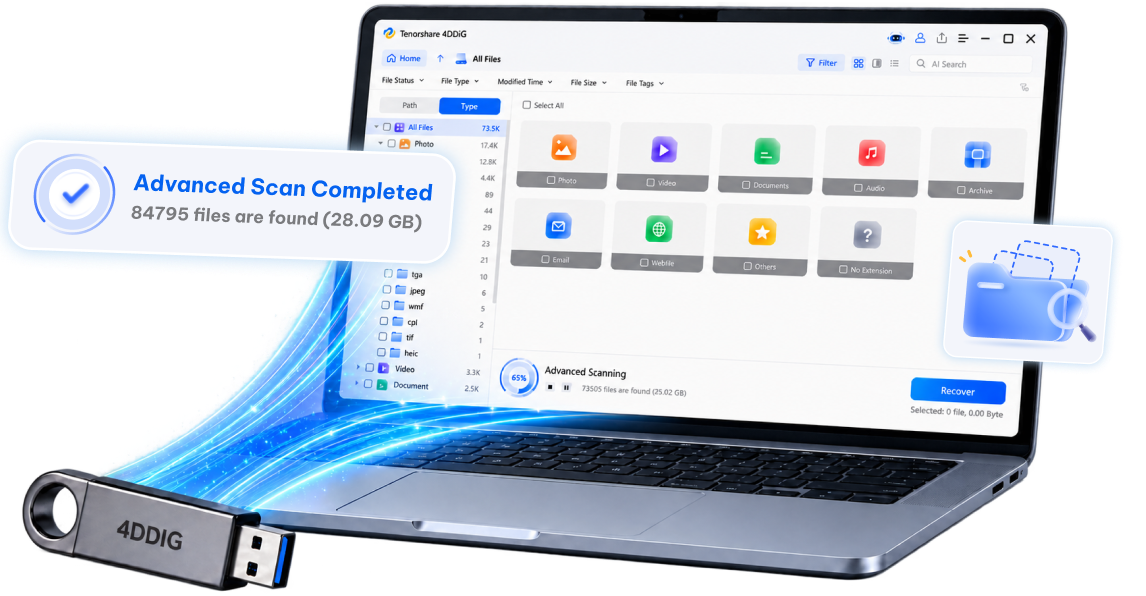
A reliable tool like 4DDiG Data Recovery can help restore lost files from USB drives. It is designed to handle cases like accidental formatting, corruption, or system errors.

The tool supports deep scanning to find lost data. It works with USB drives, external storage, and more to recover documents, photos, videos, and other file types.

FREE DOWNLOAD

Secure Download

FREE DOWNLOAD

Secure Download

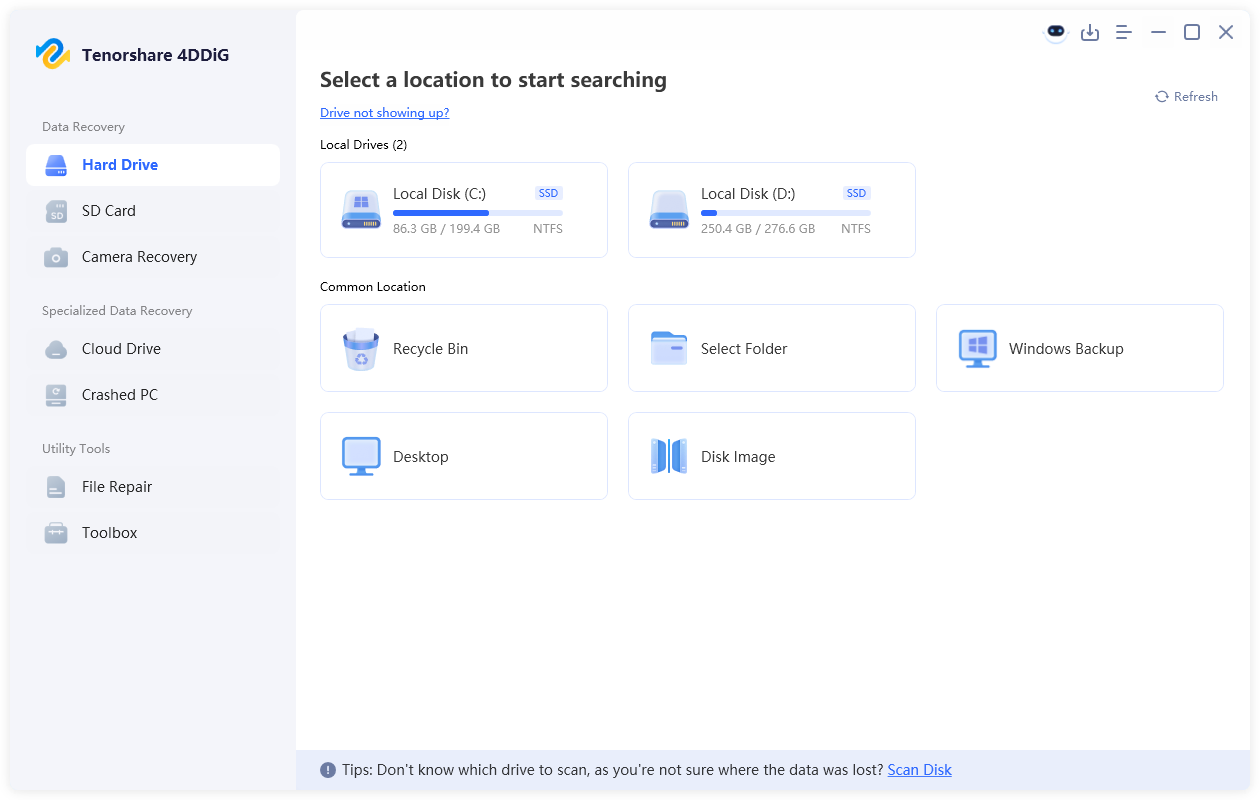
  • Install and open the 4DDiG Windows Data Recovery software. Connect your USB drive to the PC and select the USB device.

    launch 4ddig and enter interface
  • 4DDiG will begin scanning your USB. Meanwhile, you can select the “File Type” to quickly find the desired files.

    click type to see all files 4ddig
  • Preview found files by clicking them and clicking the "Recover” button for those you want to recover.

    preview and recover the files
  • Now, select a location and click “Save Now” to save the recovered file.

    save the recoverable files

How to Prevent USB Drive Formatting Issues in the Future?

To avoid future problems, it is important to take care of your USB drive. Simple habits can help prevent errors and data loss.

  • Always eject the USB safely before removal.
  • Avoid using the drive on infected systems
  • Keep your system and drivers updated
  • Do not interrupt file transfers
  • Scan USB regularly for viruses

Conclusion

Facing the issue of being unable to format a USB drive can be frustrating, but it is usually fixable. By understanding the causes and using the right methods, you can restore your USB drive easily. From simple fixes to advanced tools, each step helps resolve different problems. If you lose important data during the process, 4DDiG USB Data Recovery offers a reliable way to recover your files safely.

FREE DOWNLOAD

Secure Download

FREE DOWNLOAD

Secure Download

William Bollson (senior editor)

William Bollson, the editor-in-chief of 4DDiG, devotes to providing the best solutions for Windows and Mac related issues, including data recovery, repair, error fixes.

(Click to rate this post)

You rated 4.5 ( participated)