[2026 Tutorial] How to Fix a USB Stick in Any Situation?

5 mins read

Updated on 2026-02-10 19:41:21 to USB Recovery

A USB stick usually works silently in the background until one day it suddenly refuses to open, shows strange errors, or disappears completely. When that happens, panic sets in fast because important files may be trapped inside. Do you also want to fix USB stick errors, recover lost data, or understand why your drive stopped working?

Knowing the right methods and correct steps makes all the difference. This guide walks you through every major USB failure scenario in a clear and practical way.

What Causes a Damaged USB Stick?

Before attempting to repair anything, it is important to understand why USB drives fail in the first place. A USB stick is a compact piece of hardware that relies on delicate internal memory chips and controllers. Logical issues often come from software errors, while physical damage is caused by external force or wear.

Different problems require different solutions, and applying the wrong fix can make things worse instead of better. The table below outlines common reasons a USB drive becomes damaged, what those reasons mean, how they usually appear, and which solution works best.

Reasons Explanation Common Scenarios Corresponding Solutions
File system corruption USB shows RAW or asks to format The file structure becomes unreadable by Windows USB shows RAW or asks to format USB shows RAW or asks to format Run CHKDSK or error checking
Malware infection USB shows RAW or asks to format Virus modifies or blocks access to files Files disappear, or shortcuts appear USB shows RAW or asks to format Run Virus and threat protection scan
Unsafe removal USB shows RAW or asks to format Drive unplugged during write operation USB not opening after removal USB shows RAW or asks to format Restart the system, then run error checking
Driver issues USB shows RAW or asks to format USB driver becomes outdated/corrupted USB not recognized USB shows RAW or asks to format Update the driver in Disk Management
Physical damage USB shows RAW or asks to format The connector or board is bent or broken USB feels loose or cracked USB shows RAW or asks to format Physical inspection and repair attempt
Bad USB port USB shows RAW or asks to format Port fails to deliver stable power USB works on another computer USB shows RAW or asks to format Use a different port or repair port
Read-only state USB shows RAW or asks to format Controller locks the drive to protect data Cannot delete or format files USB shows RAW or asks to format Remove the read-only attribute via the command
Partition damage USB shows RAW or asks to format The partition table is broken USB shows 0 bytes USB shows RAW or asks to format Reformat or recover data first

Understanding these causes helps you decide whether to fix the damaged USB stick logically or physically and whether recovery should come before repair.

⚡ How to Recover Data from a Corrupted USB Stick?

When a USB drive becomes corrupted, the most important priority is protecting your data. Attempting to format or repair the drive before recovery may permanently erase files. This is where professional recovery software becomes essential. 4DDiG Data Recovery is designed to scan corrupted, unreadable, or inaccessible USB drives and retrieve files safely before any fixes are applied.

FREE DOWNLOAD

Secure Download

FREE DOWNLOAD

Secure Download

This software is capable of restoring documents, photos, videos, and system files from USB sticks affected by corruption, RAW errors, accidental formatting, or malware damage. It works even when Windows cannot open the drive, making it ideal if you want to fix a USB stick without losing data.

Steps to recover data from a corrupted/damaged USB memory tick using 4DDiG:

  • Download and install 4DDiG on your computer. Insert the corrupted USB stick and launch the program. Select the USB drive from the list of available storage devices, and 4DDiG will scan it.

    launch 4ddig and enter interface
  • The software will begin a deep scan automatically, you can use the left pane to make the search results as per your needs with the “Filters” and “Search” options from the top.

    click type to see all files 4ddig
  • When the scan is complete, preview the recoverable files. You can click the “Recover” button for the files that you are satisfied with.

    preview and recover the files
  • Choose a different location to save the files and click the “Save Now” button to finish the process.

    save the recoverable files

After recovery is complete, you can safely proceed with repair steps to fix USB memory stick issues without risking permanent data loss.

How to Fix a USB Memory Stick?

Once your data is safe or if the drive does not contain important files, you can focus on the repair. Below are the most common USB problems and how to fix them step by step.

1How to Fix a USB Stick Infected with Malware

Malware infections often go unnoticed at first, especially when a USB stick has been used on public or shared computers. If files suddenly disappear, turn into shortcuts, or the drive behaves abnormally, a virus may be interfering with normal access. Running a full system scan is the safest way to regain control.

  • Insert the USB stick into your computer and open “Windows Security”.

  • Click “Virus and threat protection” in the menu.

    virus threat protection
  • Then choose “Scan options” and select “Full scan”, then start by clicking “Scan Now” and selecting your USB.

    full scan virus threat protection
  • Remove any detected threats by following the on-screen instructions to fix your USB.

This method helps fix USB stick problems caused by viruses without formatting.

2How to Fix a USB Drive Showing as RAW

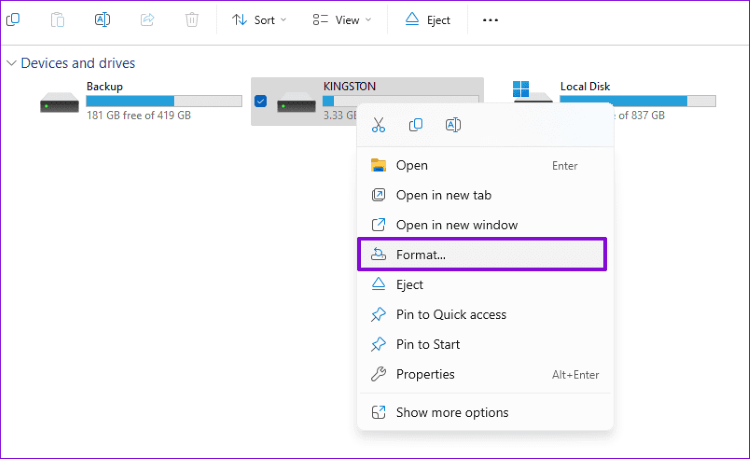
When a USB appears as RAW, Windows cannot recognize its file system. At that time, you can try to format it via File Explorer, which works to fix damaged USB stick errors caused by file system corruption and also applies when a USB flash drive shows 0 bytes.

  • Open File Explorer and right-click the USB drive. Select “Format”.

    format a usb drive in file explorer
  • Choose your desired file system and other formatting options, then click “Start."

    start formatting a usb drive in file explorer

3How to Fix a USB Stick That Needs to Be Formatted

Seeing a format prompt every time you insert a USB stick usually signals internal file system errors. Windows detects inconsistencies and assumes the structure is broken. Before accepting the format, running a repair command like CHKDSK may repair internal errors and helps to fix a corrupted USB stick logically.

  • Press the Windows key and search “Command Prompt", then right-click this option and select “Run as administrator”.

    run command prompt as administrator
  • Type “chkdsk F: /f /r” and press Enter. Replace F with your USB drive letter

    type chkdsk

4How to Fix an Unreadable USB Drive

Sometimes a USB drive becomes unreadable due to temporary system glitches rather than permanent damage. These issues often occur after sleep mode crashes or interrupted system updates.

You can restart your computer and re-insert the USB drive to refresh the USB services and resolve the problem instantly. This basic reset may resolve this temporary failures when figuring out how to fix a USB stick that is not working.

5How to Fix a Read-Only USB Flash Stick

A USB stick may enter read-only mode to protect itself from further damage. This prevents changes but also blocks file deletion or formatting. Removing the read-only attribute allows normal use again when the drive hardware is still healthy. Here’s how to modify files and fix USB memory stick restrictions.

  • Open Windows PowerShell as administrator and run the following commands one by one:

    • “diskpart”
    • “list disk”
    • “select disk #” (replace # with the number of your USB)
    • “attributes disk clear readonly."
    • “exit”
    run powershell as administrator
  • Now, you may check if the USB is fixed or not.

6How to Fix a USB Drive Not Showing Up in File Explorer

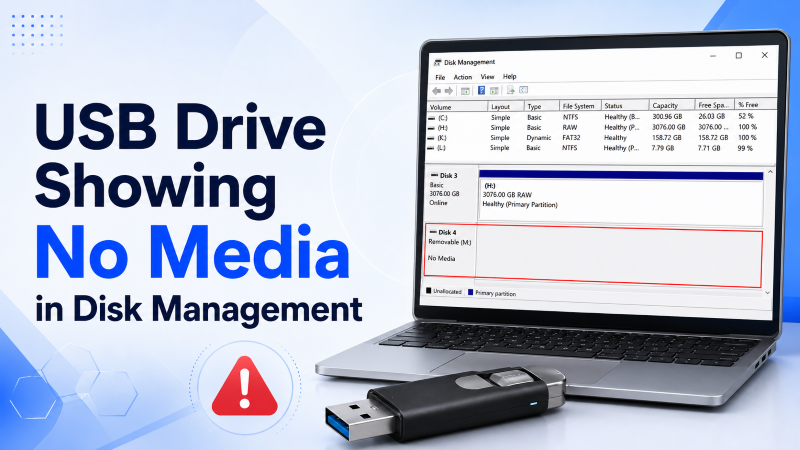
If a USB drive is detected by the system but does not appear in File Explorer, it may lack a usable drive letter. Windows can recognize the device, but does not assign it a visible path. Manually assigning a drive letter usually fix a USB stick that is not recognized by File Explorer.

  • Right-click Start and open “Disk Management”, then locate the USB drive.

    open the disk management window
  • Right-click and select “Change Drive Letter and Paths".

    click change drive letter and paths
  • Click "Change" to assign a new drive letter for the USB drive, then click "OK" and close Disk Management to check the USB.

    click assign the following drive letter

7How to Fix a USB Stick Not Recognized

When Windows fails to recognize a USB stick entirely, outdated or corrupted drivers are often responsible. The hardware may still be functional, but the system cannot communicate with it properly. Updating the driver restores compatibility and access.

  • Press "Win + X" to open Device Manager and expand the Drives section.

    open the device manager
  • Right-click the USB device and select “Update driver."

    click to update the driver
  • Choose “Search automatically for updated drivers” and let the USB drivers update. This can fix a USB stick that is not recognized at the system level.

    choose to search automatically for drivers

8How to Fix a Broken USB Port

USB ports wear out over time, especially when frequently used or exposed to dust. A faulty port can cause connection drops or complete failure, even when the USB stick itself is fine. Testing other ports helps isolate whether the problem lies in the computer rather than the drive.

  • Try another USB port or try the USB on another device.

  • Clean dust using compressed air

  • Avoid loose or unstable ports

  • Use a powered USB hub if needed

9How to Fix a Bent USB Device

A bent USB connector can interrupt the electrical connection required for proper data transfer. This usually happens when the drive is bumped or forced into a tight space. Careful straightening may restore contact, but patience is essential to avoid snapping the connector. You can follow the steps to fix a bent USB stick without causing further damage.

  • Power off the computer, then gently straighten the connector using minimal force.

  • Test on another port and avoid repeated bending or using too much force

10How to Fix a Corrupted USB Stick

Corruption occurs when the USB drive’s internal structure becomes inconsistent or damaged. This often follows unsafe removal or interrupted writing processes. Using built-in error-checking tools can repair these inconsistencies and helps to fix a corrupted USB stick caused by logical inconsistencies.

  • Open File Explorer and right-click the USB drive, then select Properties.

  • Go to “Tools” and click “Check” under Error check.

    error checking the drive
  • Click “Scan drive” to let the tool completely scan and fix the drive.

    error checking scan drive

Conclusion

USB issues can look intimidating, but most problems are recoverable with the right approach. Whether you are dealing with corruption, malware, or physical wear, understanding the cause allows you to fix USB stick issues safely.

Always recover your data first before applying for repairs. Tools like 4DDiG Windows Data Recovery provide a reliable safety net, ensuring your files stay protected while you restore full functionality to your USB drive.

FREE DOWNLOAD

Secure Download

FREE DOWNLOAD

Secure Download

William Bollson (senior editor)

William Bollson, the editor-in-chief of 4DDiG, devotes to providing the best solutions for Windows and Mac related issues, including data recovery, repair, error fixes.

(Click to rate this post)

You rated 4.5 ( participated)