Mac Stuck on White Screen? 7 Ways to Get It Working Again

5 mins read

Updated on 2026-09-18 16:20:04 to Mac Problems

If you're dealing with a Mac stuck on white screen issue, your Mac may power on but fail to complete startup. The white screen can appear after the Apple logo, during an update, or as soon as the Mac starts.

Before trying major fixes such as reinstalling macOS, check whether your important files are backed up. If they are not, protect your data first, then work through the troubleshooting steps below.

mac stuck on white screen

Why Is My Mac Stuck on a White Screen?

A Mac can get stuck on a white screen when macOS cannot complete the startup process. Below are some common reasons:

  • macOS startup problems: A system error can prevent macOS from loading normally, leaving the screen white during startup.
  • Failed or interrupted updates: A macOS update that does not complete correctly can cause startup problems and leave your Mac on a white screen.
  • Startup disk errors: File system or disk errors can prevent the Mac from reading the files it needs to finish starting up.
  • Connected devices or software: An external drive, USB device, display, or startup software can sometimes interfere with the startup process.
  • Display or graphics hardware problems: A damaged display or graphics-related hardware can cause a white screen, especially when you also see flickering, lines, or other visual problems.

You may encounter the white screen at different points, such as:

  • The Mac starts up and shows a plain white screen.

  • The Apple logo appears, then the screen turns white.

  • The progress bar stops, followed by a white screen.

  • The mac screen is white after a macOS update or restart.

  • The Mac stays on a white screen with lines, flickering, or other display abnormalities.

These symptoms can point to different causes, so the troubleshooting steps below start with simple checks before moving on to disk repair, macOS Recovery, or hardware service.

What to Do Before Fixing the White Screen on Your Mac

When your Mac is stuck on a white screen, you may not be able to access your files or create a new Time Machine backup. Before trying steps such as reinstalling macOS, or sending the Mac for repair, check whether you already have a recent backup.

If you do not have a usable backup, 4DDiG Mac Data Recovery can scan your Mac internal SSDs or HDDs for inaccessible or lost files, such as photos, videos, documents, audio files, and other data.

This lets you check for important files before making major changes to the system. Once you have recovered the files you need, you can continue troubleshooting the white screen with less risk to your data.

FREE DOWNLOAD

Secure Download

FREE DOWNLOAD

Secure Download

Follow these steps to scan your Mac and recover the files you need:

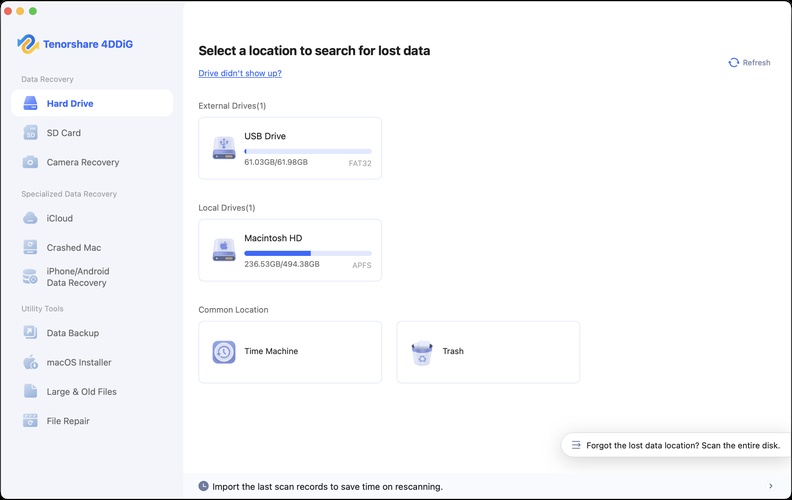
  • Download and open 4DDiG. Select your Mac's internal drive or the connected storage device where the important files were stored.

    select a mac drive to recover lost files
  • 4DDiG automatically starts scanning the selected drive. Use the file type filters or search to quickly find important documents, photos, videos, and other files.

    find files on mac with 4ddig
  • Preview the files found by the scan and select the ones you want to recover. Click the "Recover" button to restore them.

    preview and recover files
  • Save the recovered files to another drive or a safe location before continuing with troubleshooting or sending your Mac for repair.

    save recovered files
Important:

Do not save recovered files to the same drive. Use another drive or a safe location such as OneDrive or Google Drive to reduce the risk of overwriting other recoverable data.

How to Fix a Mac Stuck on a White Screen

1. Disconnect External Devices and Restart Your Mac

External devices can sometimes interfere with startup. Disconnect hubs, printers, external drives, and external displays from your Mac.

  • Shut down your Mac. If it does not respond, press and hold the power button for up to 10 seconds.

  • Disconnect all external devices except the power adapter.

  • Turn on your Mac and check whether it can get past the white screen.

If the Mac starts normally, reconnect your devices one at a time. This can help identify whether a specific accessory is causing the problem.

2. Start Your Mac in Safe Mode

Safe Mode starts your Mac with only the software needed for startup. It can help you check whether recently installed software or other startup items are contributing to the Mac white screen of death issue.

On a Mac with Apple silicon:

  • Shut down your Mac.

  • Press and hold the power button until you see the startup options screen.

  • Select your startup volume.

  • Press and hold the Shift key, then click "Continue in Safe Mode".

    continue in safe mode mac

On an Intel-based Mac:

  • Shut down your Mac.

  • Turn it on and immediately press and hold the Shift key.

  • Release the key when you see the login window.

If your Mac starts in Safe Mode, restart it normally. If your Mac stays on white screen, check recently installed apps, extensions, or other software that may load during startup. If you still cannot start normally or the Mac won't boot into Recovery Mode, check this guide for more.

3. Use macOS Recovery and Run First Aid

If the white screen continues, use macOS Recovery to check the startup disk. Disk Utility's First Aid can find and repair certain formatting and file system errors that may affect startup.

On a Mac with Apple silicon:

  • Shut down your Mac.

  • Press and hold the power button until the startup options screen appears.

  • Select "Options", then click "Continue".

    click continue under options

On an Intel-based Mac:

  • Shut down your Mac.

  • Turn it on and immediately press and hold Command-R.

  • Release the keys when you see the Apple logo or another startup screen.

After entering macOS Recovery, use Disk Utility to check the startup disk:

  • Open "Disk Utility" and choose "View" > "Show All Devices" if available.

  • Select the startup volume and click "First Aid", then choose "Run".

    run first aid on mac
  • Repeat First Aid for the other relevant volumes, containers, and the physical storage device if they are listed.

  • When the checks are complete, restart your Mac and see whether it can get past the white screen.

First Aid can fix some disk errors, but it cannot repair every storage problem. If Disk Utility cannot repair the disk or does not detect it, move on to the next troubleshooting step or consider service.

4. Reset NVRAM or PRAM on an Intel Mac

NVRAM stores certain startup settings. Resetting it can help with some startup-related problems on Intel-based Macs.

  • Shut down your Intel-based Mac.

  • Turn it on and immediately press and hold Option-Command-P-R.

    reset nvram on intel mac
  • Keep holding the keys for about 20 seconds, then release them and let the Mac start normally.

Check whether the Mac can now complete startup. This traditional NVRAM reset does not apply to Apple silicon Macs in the same way, so skip this method if your Mac has an Apple silicon chip.

5. Reset the SMC on an Intel Mac

The System Management Controller (SMC) handles functions related to power, charging, and other hardware behavior. Resetting the SMC may help with certain startup or power-related problems on Intel-based Macs.

Apple silicon Macs do not require the traditional manual SMC reset. For an Intel Mac, the procedure depends on whether it has an Apple T2 Security Chip and whether it is a notebook or desktop.

For an Intel Mac with a T2 Security Chip:

  • Shut down your Mac.

  • Press and hold Control-Option-Shift for 7 seconds.

  • While holding those keys, press and hold the power button for another 7 seconds.

  • Release all keys, wait a few seconds, then turn on your Mac normally.

Other Intel Mac models use different SMC reset procedures. Check Apple's instructions for your specific Mac model before resetting the SMC. If you have an Apple silicon Mac, skip this step.

6. Reinstall macOS from Recovery

If the earlier steps do not resolve the problem, reinstalling macOS can replace system files without requiring you to erase the startup disk first.

Before reinstalling macOS, back up your important files whenever possible. If you cannot access your files and do not have a backup, consider checking for recoverable data with 4DDiG before making major system changes.

To reinstall macOS:

  • Start your Mac in macOS Recovery using the Apple silicon or Intel steps above.

  • Connect to the internet if prompted.

  • Select "Reinstall macOS", then click "Continue".

    reinstall macos from recovery
  • When asked to select a disk, choose your current macOS volume, usually "Macintosh HD".

  • Follow the onscreen instructions and allow the installation to finish.

Do not choose an erase option unless you have confirmed that you no longer need the data on the startup disk or have a usable backup. Apple notes that reinstalling macOS does not remove personal data, but backing up first is still recommended.

7. Check for Hardware or Display Problems

If your Mac remains on a white screen after the software checks above, use a few simple tests to narrow down whether the problem may involve the display or other hardware.

  • Check the screen for physical damage, lines, flickering, or other display artifacts.

  • Disconnect all external displays and accessories, then start the Mac again.

  • If possible, connect the Mac to an external display and check whether it shows the normal startup screen.

  • Try to enter macOS Recovery. If Recovery opens normally, the issue may not be a complete display or hardware failure.

  • In Recovery, open Disk Utility and check whether the startup disk appears.

If the Mac cannot enter Recovery, the startup disk is not detected, or the white screen continues after these checks, the Mac may need hardware inspection or service.

How to Prevent the Mac White Screen of Death Problem

Once your Mac is working normally again, a few habits can reduce the chance of similar startup problems:

  • Keep macOS updated to a compatible version.
  • Avoid software that is incompatible with your macOS version.
  • Keep enough free storage available for system updates and normal operation.
  • Safely eject USB or other external storage devices before disconnecting it.
  • Maintain regular backups of important files.

Conclusion

A Mac stuck on white screen does not always mean the display is damaged. Start with the simpler fixes first, then move to macOS Recovery or hardware service when needed.

Before trying advanced fixes, make sure your important files are backed up or recovered. If you do not have a usable backup, 4DDiG can scan your Mac storage and preview recoverable files before you make major system changes.

FREE DOWNLOAD

Secure Download

FREE DOWNLOAD

Secure Download

William Bollson (senior editor)

William Bollson, the editor-in-chief of 4DDiG, devotes to providing the best solutions for Windows and Mac related issues, including data recovery, repair, error fixes.

(Click to rate this post)

You rated 4.5 ( participated)