How to Fix Error Code 0x0 on Mac: 3 Effective Solutions

5 mins read

Updated on 2026-08-17 18:59:59 to Mac Problems

If Microsoft Office apps such as Word, Excel, PowerPoint, or Outlook show "Unknown Error 0x0" on your Mac, the issue is usually related to Office activation or licensing rather than damaged documents. This error often appears when Office cannot verify your license or the installed version is no longer supported.

Before reinstalling Office or removing license files, check your macOS version, Office version, license type, and installation source. Then follow the appropriate fixes to restore Office activation without affecting your existing files.

error code 0x0 on mac

What Does Error Code 0x0 Mean on a Mac?

In this context, error code 0x0 usually means that Microsoft Office cannot complete license validation on your Mac. It may appear when you launch an Office app or try to sign in, sometimes alongside "License Not Found" or a notice that Office can open files but cannot edit or save them.

The current Office for Mac activation issue is related to an expired Microsoft licensing certificate on July 13, 2026. Older Office builds without the updated certificate may enter reduced functionality mode, allowing users to open and view files but preventing editing, saving, or creating new files.

Microsoft lists macOS 12 Monterey and Office version 16.83 as the minimum requirements for this certificate update.

This explanation applies to the current Microsoft 365 and Office for Mac activation issue. It does not mean that every 0x0 message produced by any Mac app has the same cause.

What Should You Check Before Fixing Error Code 0x0?

Check four details before changing your Office installation. They determine whether an update can fix the problem and which update method you should use.

What to check How to check it Why it matters
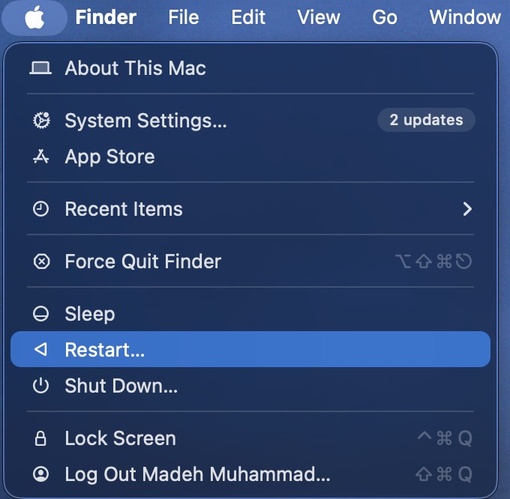
macOS version Select the Apple menu and choose "About This Mac". The certificate update requires at least macOS 12 Monterey.
Office version and license Open an Office app, select its name in the menu bar, then choose "About Word", "About Excel", or the equivalent. Version 16.83 or later contains the required certificate. The dialog also helps identify Microsoft 365, Office 2021, or Office 2019.
Installation source Recall whether you downloaded Office from Microsoft or installed individual apps from the Mac App Store. Microsoft downloads use Microsoft AutoUpdate, while App Store installations update through the App Store.
Online license status Sign in to the Microsoft account or work/school portal associated with Office. This confirms that you still have access to the account and license needed for reactivation.

If Office will not stay open long enough to check its version, start with your macOS version and installation source. You can check the Office build again after updating.

Important:

Do not remove license files yet. Microsoft's license removal tool removes all Office licenses from the Mac, so you should first confirm the correct account email address and password. Likewise, do not uninstall Office until you have checked the unsupported scenarios below and backed up any Outlook data stored only on the Mac.

How to Fix Error Code 0x0 on a Mac?

Use these fixes in order. Updating is the official solution for the current known issue on supported systems; license removal and reinstallation are fallbacks for a supported installation that remains unable to activate.

1 Update Every Office App

Start with an update because supported Office builds include the renewed licensing certificate. Update every installed Office app, not only the one showing error 0x0, then test before making more changes.

If You Installed Office from Microsoft

Office downloaded from Microsoft uses Microsoft AutoUpdate. Even if Word or Excel will not open normally, you can launch the updater directly from Finder.

  • Quit any opened Office apps. Use Command–Q rather than merely closing their windows.

  • Open "Finder > Applications > Microsoft AutoUpdate".

    microsoft autoupdate office
  • If Microsoft AutoUpdate is not in Applications, select "Go > Go to Folder" in Finder and enter:

    /Library/Application Support/Microsoft/MAU2.0/

  • Open Microsoft AutoUpdate and select "Update All". Allow every listed Office update to finish.

  • Reopen an Office app and sign in if prompted.

  • Open the app's "About" dialog and confirm that it is version 16.83 or later.

💡 Tip:

If Microsoft AutoUpdate is missing or damaged, Microsoft provides a current installer for it. Avoid downloading an updater from an unofficial software site.

If You Installed Office From the Mac App Store

Mac App Store installations receive updates from Apple, not Microsoft AutoUpdate. Use this branch when you originally installed the Microsoft tools as individual App Store apps.

  • Quit all Office apps completely.

  • Open the "App Store", select "Updates" in the sidebar.

    update office app in app store
  • Update the app individually, or select "Update All".

  • Reopen an Office app and sign in with the Microsoft account linked to your subscription.

  • Check the app version and test whether you can create, edit, and save a document.

If the apps are updated but Office remains in read-only mode, quit the affected app completely, reopen it, and sign out and back in through its account settings. If error 0x0 still appears on a supported build, continue to the license reset.

2 Reset the Office License on Your Mac

If every Office app is current but activation still fails, Office may be reading an old or incorrect license stored on the Mac. Microsoft's official license removal tool can clear that state so you can activate again with the intended account.

Important:

Before proceeding, sign in at Office.com or your Microsoft account page and confirm that you know the email address and password associated with the license. The tool removes all Office licenses from the Mac, including one-time-purchase and subscription licenses.

  • Quit all Office apps.

  • Open Microsoft's official Office license removal instructions and download the license removal tool from that page.

  • Open the downloaded .pkg file and follow the installer prompts. You may need your Mac administrator password.

  • When the tool reports that the licenses have been removed, close it.

  • Open an Office app and sign in with the account that owns your Microsoft 365 or supported Office license.

  • After activation succeeds, restart the Mac and verify that you can edit and save.

This reset will not make an unsupported Office 2019 installation compatible with the renewed certificate. If you have Office 2019, go to the unsupported-version section instead of repeatedly removing and restoring its license.

3 Reinstall Office Only if the Earlier Fixes Fail

Reinstallation is the final software-level fallback for a supported Mac when updates and a license reset have not restored activation. It takes longer and can remove local Outlook data, so complete the safety checks before uninstalling anything.

Warning:

Before removing Office licenses or reinstalling Office, make sure you can sign in to the Microsoft account linked to your Office license and that your Mac supports a compatible Office version.
If you use Outlook, back up any locally stored files first, as some troubleshooting steps may remove data stored only on your Mac. Cloud-based Microsoft 365, Exchange, and IMAP data can usually sync again after signing in.

Then reinstall from the source associated with your license:

  • Quit all Office apps.

  • Open Finder > Applications. Select the Microsoft Office apps installed on your Mac, right-click, and choose "Move to Trash".

    move office to trash
  • Remove remaining Office support files. In Finder, press Command + Shift + G, enter ~/Library, and click Go. Open the Containers folder and move Office-related folders, and com.microsoft.Office365ServiceV2 to Trash if they exist.

  • Go back to the Library folder, open the Group Containers folder, and remove Office-related folders such as UBF8T346G9.ms, UBF8T346G9.Office, and UBF8T346G9.OfficeOsfWebHost if they are present.

  • Empty Trash and restart your Mac to complete the uninstall process.

  • Sign in to your Microsoft account and reinstall Office from the Services & Subscriptions area or the original installation source.

  • Update every Office app after installation, then open an Office app and test whether you can sign in, edit, and save files normally.

What If Your Mac Cannot Fix Error Code 0x0?

If your Mac or Office version no longer supports the required license update, common fixes like updating, resetting licenses, or reinstalling Office may not work. In this case, you need to use another supported way to access Office.

why error code 0x0 cannot be fixed

Your situation Why the fix does not work What you can do
Your Mac cannot run macOS 12 Monterey or later The Mac cannot install the Office version required for the license update. Use Microsoft 365 for the web, upgrade macOS if supported, or use another supported device.
You have Office 2019 for Mac The version does not support the required license update. Use Microsoft 365 for the web or move to a newer Office version.
You have Office 2021 for Mac It may work now, but support ends on October 13, 2026. Update while supported and prepare for a newer version.

Your Mac Cannot Run macOS 12 or Later

If your Mac only supports macOS 11 Big Sur or earlier, it cannot meet the minimum requirement for the updated Office license certificate. Reinstalling Office may not help if your Mac cannot install a supported version.

You can still use Word, Excel, PowerPoint, and other Office apps through Microsoft 365 for the web in a supported browser. If your Mac supports macOS 12 or later, updating macOS may allow you to install the required Office version.

You Have Office 2019 for Mac

Office 2019 for Mac no longer receives support. Its final supported build is below the Office version required for the 2026 certificate update, so updating or reinstalling Office 2019 will not restore full editing features.

Your documents are not deleted by this limitation. You can open them with Microsoft 365 for the web or move them to a device with a supported Office version.

Cannot Find Your Office Files After Fixing Error 0x0? Recover Them with 4DDiG

Error code 0x0 is usually related to Office activation and does not delete your Word, Excel, or PowerPoint files. However, documents may become missing after reinstalling Office, removing license data, or other troubleshooting steps. If you cannot find your files in Finder, Trash, cloud storage, or backups, a data recovery tool may help.

Warning:

Avoid saving new files to the affected drive before recovery. New data may overwrite the space used by deleted documents and reduce the chance of successful recovery. Save recovered files to another location whenever possible.

4DDiG Mac Data Recovery can help recover deleted, lost, or inaccessible Office files from Mac storage devices. It supports recovery of more than 2,000 file types. With deep scanning and preview features, you can check recoverable files before restoring them.

To recover missing Office files after fixing Error Code 0x0, follow these steps:

FREE DOWNLOAD

Secure Download

FREE DOWNLOAD

Secure Download

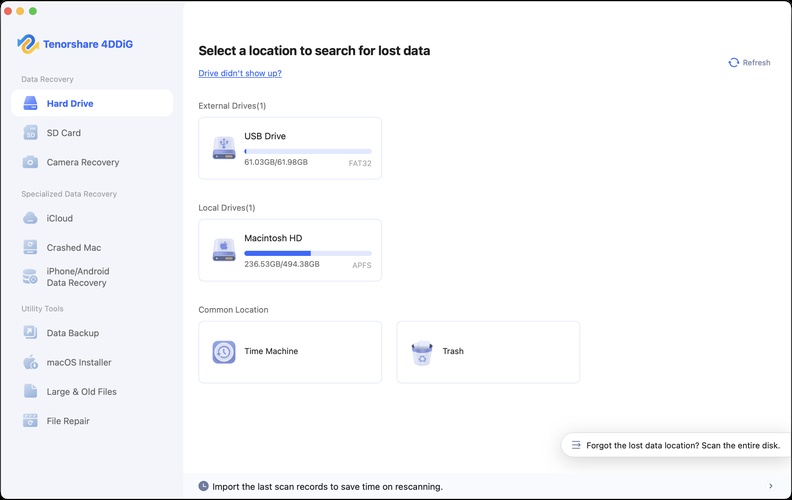
  • Download and open 4DDiG. Select the drive where your Word, Excel, or PowerPoint files were originally stored, then start the scan.

    4ddig mac main interface
  • 4DDiG will scan your drive for recoverable files. Use the file filters or search function to quickly find missing Office documents after the scan completes.

    preview all recoverable files on mac 4ddig
  • Preview the found files to check whether the document content is recoverable. Select the files you need and click the “Recover” button.

    click to recover files on mac 4ddig
  • Choose a different location to save the recovered files. Avoid saving them back to the original drive to prevent possible data overwriting.

    save recovered files on mac 4ddig

FAQs About Error Code 0x0 on Mac

Are my Office files or Microsoft 365 subscription lost?

No. Error code 0x0 caused by Office license validation issues does not delete your files or cancel your Microsoft 365 subscription. Check the Microsoft account linked to Office to confirm your license status.

Does error 0x0 affect Windows or Android?

No. The certificate-related error 0x0 issue discussed in this guide affects Office apps on macOS. Windows and Android use different license validation methods and are not affected by this specific issue.

What if Microsoft AutoUpdate is missing?

Check the Microsoft AutoUpdate folder at /Library/Application Support/Microsoft/MAU2.0/ first. If it is missing or damaged, reinstall Microsoft AutoUpdate from Microsoft Support. Office apps installed through the Mac App Store update through the App Store instead.

When should I contact Microsoft or my IT administrator?

Contact Microsoft Support or your IT administrator if error 0x0 continues after updating Office, signing in again, and resetting the license. This is especially important for work or school accounts managed by an organization.

Conclusion

Error code 0x0 on Mac is usually caused by an Office activation or license validation issue, not by damaged files. Check your macOS version, Office build, and license type first, then update Office through the correct source or follow Microsoft's recommended fixes.

If your Office files are missing after troubleshooting, 4DDiG Mac File Recovery can help scan your Mac storage, preview recoverable documents, and restore lost Word, Excel, or PowerPoint files when available.

FREE DOWNLOAD

Secure Download

FREE DOWNLOAD

Secure Download

William Bollson (senior editor)

William Bollson, the editor-in-chief of 4DDiG, devotes to providing the best solutions for Windows and Mac related issues, including data recovery, repair, error fixes.

(Click to rate this post)

You rated 4.5 ( participated)