Mac Charges but Won't Turn On? 7 Ways to Fix It

5 mins read

Updated on 2026-09-29 11:45:41 to Mac Problems

When your Mac charges but won't turn on, pressing the power button may not bring up the Apple logo or macOS. Start with the basic power checks, then move on to startup troubleshooting if the Mac remains unresponsive. Follow the steps below to find the cause and get your Mac working again.

mac charges but wont turn on

Why Is My Mac Charging but Not Turning On?

Several problems can cause this situation. The signs you see can help tell whether the Mac is not starting or the screen is simply staying black.

  • Power connection: A damaged cable or faulty charger may prevent the Mac from getting enough power to start.
  • Blank screen: Your Mac may already be running even though the display stays black. Startup sounds, fan noise, or keyboard response can show that the Mac is on.
  • Startup problem: The Mac may receive power but fail to load macOS because of a startup disk or software issue.
  • Hardware problem: The Mac may have a hardware issue when it shows no response after basic troubleshooting.

These problems can look similar, so start with the basic checks before reinstalling macOS or erasing the Mac.

How to Fix a Mac That Charges but Won't Turn On

1 Check the Charger, Cable, and Power Connection

Start with the power connection. A charging icon or light does not always mean the Mac is getting enough power to start.

  • Try a different working power outlet.
  • Check the cable and power adapter for visible damage.
  • Reconnect the cable firmly to the Mac and power adapter.
  • Try another compatible cable or adapter if available.

For USB-C Macs, use a charger that provides enough power for your Mac model. A low-power charger may also show a "Slow Charger" message in macOS.

If the Mac still does not respond, move on to the next step.

2 Disconnect Accessories and Force Restart Your Mac

Disconnect external devices such as USB drives, hubs, displays, and other accessories.

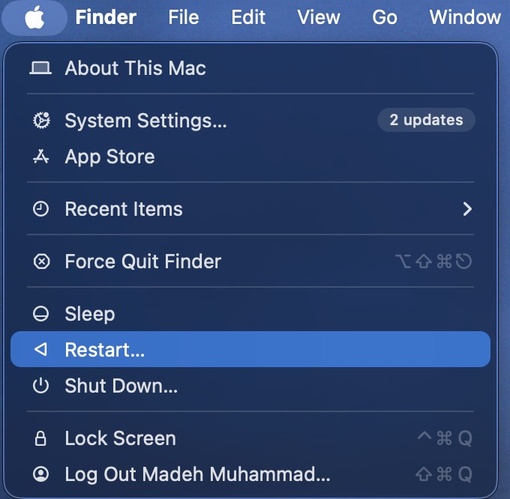
Then press and hold the power button for about 10 seconds. On a Mac with Touch ID, the Touch ID button is also the power button. Release it, wait a few seconds, then press the power button normally.

If your Mac won't turn on but is charging, this can check whether the Mac responds to a fresh startup attempt.

3 Check Whether Your Mac Is Actually On

A black screen does not always mean that your Mac is off. The Mac may be running while the display stays blank.

Check for signs of activity, such as fan noise or keyboard response. An external display can also help you check whether the Mac is running.

If you see signs of activity but the screen stays black, focus on the display or startup process instead of repeatedly restarting the Mac.

4 Start macOS Recovery and Run First Aid

Use macOS Recovery when your Mac has power but cannot start macOS normally. From Recovery, you can use Disk Utility to check and repair the startup disk.

On an Apple silicon Mac:

  • Press and hold the power button.

  • Keep holding it until the startup options screen appears.

  • Select "Options," then select "Continue."

    click continue under options

On an Intel-based Mac:

  • Press the power button to turn on or restart the Mac.

  • Immediately press and hold Command (⌘)-R.

  • Keep holding the keys until you see the Apple logo or another startup screen.

After macOS Recovery opens:

  • Select "Disk Utility."

  • Select the startup disk or relevant volume.

  • Select "First Aid" and follow the on-screen instructions.

    run first aid on mac
  • Wait for First Aid to finish, then restart the Mac.

First Aid can repair some file system and disk structure problems, but it cannot fix every hardware issue. If the Mac still will not start while charging, you can return to Recovery and consider reinstalling macOS. Do not erase the startup disk when important files are not backed up.

5 Try Safe Mode for Startup Problems

Safe Mode can help when your Mac shows signs of starting but cannot complete the normal startup process.

On an Apple silicon Mac:

  • Press and hold the power button until the startup options appear.

  • Select your startup volume.

  • Hold Shift, then select "Continue in Safe Mode."

    continue in safe mode mac
  • Sign in when the login screen appears.

On an Intel Mac:

  • Press the power button to turn on or restart the Mac.

  • Immediately press and hold Shift.

  • Release the key when the login window appears.

  • Sign in to your Mac.

Once you enter Safe Mode, restart your Mac normally and check whether it can start. If it starts normally after that, a startup software or login item may be causing the problem.

6 Reset the SMC on an Intel Mac

Resetting the System Management Controller (SMC) can help with certain power-related problems on Intel-based Macs. Apple silicon Macs do not need a separate SMC reset.

For a Mac laptop with the T2 chip:

  • Press and hold Control + Option on the left side and Shift on the right side.

  • Keep holding all three keys for 7 seconds, then press and hold the power button as well.

  • Keep holding all four keys for another 7 seconds, then release them.

    reset smc on intel mac
  • Wait a few seconds, then press the power button to turn on your Mac.

For other Intel-based Macs:

  • Press and hold Shift + Control + Option on the left side and the power button at the same time.

  • Keep holding all four keys for 10 seconds.

  • Release the keys, then press the power button to turn on your Mac.

If your Intel Mac has a removable battery, the SMC reset procedure is different. Check Apple's instructions for that specific Mac model before proceeding.

7 Run Apple Diagnostics

Apple Diagnostics can help check for hardware problems when your Mac still will not turn on when it's charging.

On an Apple silicon Mac:

  • Press and hold the power button until the startup options appear.

  • Keep holding Command (⌘)-D until Apple Diagnostics starts.

  • Follow the on-screen instructions to check your Mac.

  • Write down any reference code that appears.

    apple diagnostics reference code

On an Intel Mac:

  • Press the power button to turn on or restart the Mac.

  • Immediately press and hold D.

  • Release the key when Apple Diagnostics starts.

  • Follow the on-screen instructions and write down any reference code.

If Apple Diagnostics finds a problem, keep the reference code when contacting Apple or an authorized service provider. When the Mac shows no response and cannot start Apple Diagnostics or macOS Recovery, hardware service may be needed.

How to Recover Data If Your Mac Still Won't Turn On

If important files are not backed up and your Mac still won't start, avoid erasing the startup disk or restoring the Mac before recovering the data.

When your Mac is charging but not turning on, 4DDiG Data Recovery can scan the Mac's SSDs or HDDs for lost or deleted files, even when you cannot access them normally. You can preview the recoverable files before saving them to another drive.

This gives you a way to get important photos, documents, videos, and other files back before trying more advanced repairs or reinstalling macOS.

SCAN FOR LOST FILES

Secure Download

SCAN FOR LOST FILES

Secure Download

  • Download and install 4DDiG on your Mac, then open it. Select the drive where the missing files are stored.

    select a mac drive to scan
  • 4DDiG automatically scans the selected drive for lost or deleted files. Use the file type filters or search feature to find photos, videos, documents, and other data.

    find files lost or deleted with 4DDiG
  • Preview the files found by the scan, select the files you need, and click "Recover."

    preview and select recoverable files
  • Save the recovered files to another drive or a safe location. Avoid saving them back to the same storage device.

    save recovered files

Conclusion

This article covers 7 ways to identify and troubleshoot the Mac charges but won't turn on problem, from basic power checks to startup and hardware diagnostics.

If important files are not backed up, avoid erasing the Mac before recovering them. For lost or deleted files you can no longer access normally, 4DDiG can scan supported storage and help recover them to another location.

William Bollson (senior editor)

William Bollson, the editor-in-chief of 4DDiG, devotes to providing the best solutions for Windows and Mac related issues, including data recovery, repair, error fixes.

(Click to rate this post)

You rated 4.5 ( participated)