SaaS Data Recovery: How to Recover Lost Data and Stop It Happening Again

5 mins read

Updated on 2026-10-23 14:59:07 to Data Recovery

A rep deletes 400 contacts from your CRM to "clean up duplicates." Three days later, finance asks where Q3's pipeline went. Nobody touched a hard drive. Nothing crashed. And yet a chunk of your business data is simply gone — no file to undelete, no disk to scan, no backup you're sure about.

That's SaaS data loss, and it behaves nothing like the data loss people are used to. The data lives on someone else's infrastructure. You can't plug it in and run a recovery tool. What you get instead is whatever the vendor built in, plus whatever copy you kept yourself — and most teams find out which one they have only after it matters.

Here's how SaaS data recovery actually works, how to get your data back, and how to make sure the next incident costs you minutes instead of months.

Illustration of SaaS data recovery with a cloud, laptop, and security shield

Part 1: What Is SaaS Data Loss?

SaaS data loss is any deletion, overwrite, or disappearance of data that lives inside a cloud application — your CRM records, your documents, your ticket history, your workflow automations. It is not the same as the provider going down. Outages are the vendor's problem and they fix them. Losing your data is yours.

Three things make it different from ordinary data loss.

  • The primary copy isn't yours. A deleted local file sits on your drive until something overwrites it, and you can go get it. A deleted CRM record is gone from a database on infrastructure you can't inspect. Whether it comes back depends on what the vendor exposes — a trash bin, version history, an admin console — and how long each of those keeps anything.

  • Local copies are a partial safety net, not a backup. File-based apps like Google Drive and OneDrive usually keep a synced copy on your machine, and that copy is recoverable with ordinary disk tools when sync goes wrong. It won't help you with records, and it won't help when the sync has already propagated the deletion. Treat it as a second chance, not a plan.

  • The damage is often silent. A crashed drive is obvious. A bulk import with one column mapped wrong rewrites thousands of records and leaves everything looking perfectly normal. You find out when a report comes back wrong or a customer gets called by the wrong name.

The Five Ways It Happens

  • Accidental deletion. One bad click, a folder instead of a file, 400 records instead of 4.

  • Bulk edits and imports. The most damaging category and the least visible. A CSV import mapping error or a mass update rewrites data in seconds without anything looking broken.

  • Sync reversals. A local folder syncs the wrong direction. A laptop offline for a month reconnects and pushes its stale copy over the current state.

  • Account and ownership changes. Someone leaves, the account is removed, and every file, record and workflow they owned leaves with it — usually without anyone tracking what those were.

  • Configuration drift. An automation rule edited by someone who misunderstood it. An integration deleted as "unused." A custom field removed that a downstream report quietly depended on.

Five common SaaS data loss causes: accidental deletion, bulk edits, sync reversals, ownership changes, and configuration drift

Before You Recover: Confirm It's Actually Gone

A permission change, a broken share link, or an active filter can make data invisible without touching it. The test is simple: can a colleague with different access still see it? If yes, you have an access problem, and running a recovery process over intact data can overwrite something that was never lost.

Part 2: How to Recover Lost SaaS Data

If what you've lost is a file — a document, a spreadsheet, a project file — 4DDiG Data Recovery is built for exactly this situation: your data is no longer where it should be, the app's own recycle bin has already come up empty, and there's no backup you can rely on.

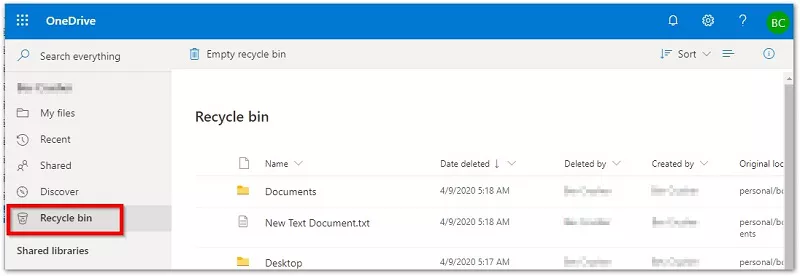
Recover directly from the cloud. 4DDiG connects to your cloud drive account — iCloud, Google Drive, OneDrive and Dropbox are all supported — and scans it for missing files. You're not limited by whatever retention window the app happens to offer, or by whether anyone remembered to leave the file in the trash.

Recover from the local copy. If the file was synced or downloaded to a Windows PC and later vanished from that machine, 4DDiG scans the disk directly, exactly as it would recover any deleted file.

The second route matters more than people expect. Files that live in a SaaS app are usually also sitting in a local sync folder somewhere — and when a sync goes wrong, the local copy is often the only surviving version of what you lost.

FREE DOWNLOAD

Secure Download

FREE DOWNLOAD

Secure Download

Step 1 — Choose Where to Look

Open 4DDiG and select Cloud Drive, then pick your provider from the list. Working from a local sync copy instead? Select that drive directly.

Select Cloud Drive in 4DDiG Data Recovery

Step 2 — Scan and Inspect

The scan starts immediately. Let it run, then filter the results by file type or search by name to cut through everything you don't need. You can pause or stop the scan as soon as you've found what you're looking for.

Review scan results in tree view

Step 3 — Recover to Your Computer

Select the files and recover them to a local folder. Don't save back into the same synced location while you're still checking what's missing — you'll overwrite the data you just recovered.

Save recovered files to a local drive

Part 3: How to Prevent Accidental Data Loss in SaaS

Recovering after the fact is expensive. These five controls are what stop it happening — each one with an owner, an action, and a way to check it actually works.

1. Limit Deletion Permissions and Audit High-Risk Access

Restrict delete, admin, and bulk-change rights to the people who genuinely need them. Then look at your connected apps — an integration authorized to write carries the same destructive power as a person, and almost nobody reviews those permissions after setup.

Where the platform supports it, require an approval step before large destructive actions. This lowers risk. It doesn't remove it, because the person who deletes 400 records by accident usually has every right to be there.

2. Keep Independent Backups and Actually Test Restores

Own a copy of critical SaaS data, stored somewhere the application can't reach or purge. Decide who owns it, how often it runs, and what a restore has to include. Then test it: restore a folder, open the records, confirm the relationships survived.

A green backup job with an untested restore is not a backup. Set up automated backup for anything you'd struggle to rebuild by hand, and put the test on a calendar — because the moment you need it is the worst possible moment to discover it was capturing empty folders.

3. Check Recovery Windows Before You Need Them

Every app keeps a different amount of history, and none of the windows are generous.

Google Drive holds deleted files in Trash for 30 days, then gives admins another 25 days after a user empties it before Google purges the data from its systems — our guide to recovering deleted files from Google Drive walks through that window step by step. OneDrive keeps personal accounts at 30 days and work or school accounts at 93, unless an admin has changed the setting. Dropbox ranges from 30 to 365 days depending on your plan.

Document what each of your apps actually offers, note which role can perform the restore, and review it once a year. Knowing your window is five minutes of work; discovering it closed is a permanent loss.

Google Drive Trash with the Restore option selected

4. Export and Verify Before Bulk Operations

Before any migration, mass overwrite, or large deletion, produce a readable export and open it to confirm the data you care about is actually in there. Run the change on a small sample first where you can.

Be honest about what an export is, though. A CSV dump often omits relationships, permissions, and metadata — and getting it back in can need its own reimport procedure. A CSV export is not a full backup, and treating it like one is how teams end up with a file full of contacts nobody can reconnect to anything.

5. Transfer Ownership Before Removing Accounts

Offboarding is where a lot of SaaS data quietly disappears. Before an account is deleted, identify the files, records, and workflows it owns, transfer ownership through the platform's supported process, and confirm the new owner can actually open them. Hunting for data after the account is gone is dramatically harder than transferring it first.

FAQs

Can permanently deleted SaaS data always be recovered?

No. It depends on the app's native retention, whether a backup existed beforehand, and whether another copy survives anywhere. Once a provider purges data at the end of its retention window, no tool can pull it back — that's a policy boundary, not a product limitation.

Does 4DDiG recover CRM records or an entire SaaS account?

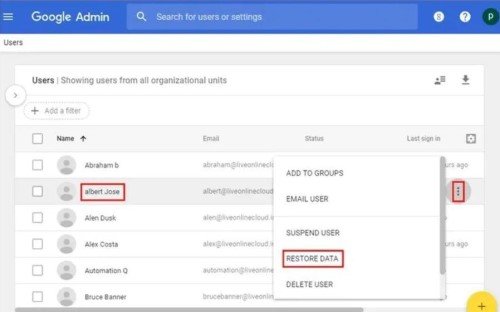
No. 4DDiG recovers files — documents, images, spreadsheets, project files — from supported cloud drives and local disks. It won't restore CRM records, rebuild an entire SaaS tenant, or reach data the provider has already purged. For records and application-level data, you need the app's own recycle bin, an administrator, or an independent backup.

What's the difference between SaaS backup and SaaS recovery?

Backup is creating the copy; recovery is using it. Every SaaS product gives you some recovery — a trash bin, version history, a limited admin restore — but that's the vendor's convenience feature, not your backup. The part you own is the part that survives when the vendor's window closes.

Does DLP replace SaaS backup?

No. Data loss prevention controls who can see or move data and blocks risky actions. It prevents exposure. It doesn't maintain a restorable historical copy, so you can block a leak and still have nothing to restore after a bad import.

Final Words

SaaS data loss is a category problem before it's a tooling problem. Identify what you lost first — a file, a record, or a configuration — because each one has a different recovery path and a different person who can perform it.

For files, the best data recovery tool,4DDiG, pulls them back from supported cloud drives or from a local synced copy, including after the app's own trash has given up. For records and application data, it's the app's recycle bin, your administrator, or an independent backup.

Then close the loop on prevention: restrict who can delete, test the restore you're actually relying on, and check each app's recovery window before the incident instead of during it.

FREE DOWNLOAD

Secure Download

FREE DOWNLOAD

Secure Download

William Bollson (senior editor)

William Bollson, the editor-in-chief of 4DDiG, devotes to providing the best solutions for Windows and Mac related issues, including data recovery, repair, error fixes.

(Click to rate this post)

You rated 4.5 ( participated)