Claude Code Deleted Files? 5 Ways to Recover Them

5 mins read

Updated on 2026-10-23 14:59:07 to Data Recovery

Claude Code deleted files from your project, and you need them back. Maybe it ran rm -rf on the wrong folder, maybe a “cleanup” went further than you asked. Either way, the folder is empty.

Don’t ask Claude Code to fix it yet. Every new write to that drive can overwrite what you lost. The good news is that the files are often still recoverable — from the drive itself, from Git, or from a snapshot your editor kept.

What matters is how they were deleted: through Claude Code’s own file-editing tools, or by a terminal command. That decides which method works.

Claude Code deleted files recovery on Windows and Mac

Why Did Claude Code Delete My Files?

Claude Code can run shell commands on your machine, and a destructive command is the usual cause. It’s rarely a mystery failure. It’s a command that ran against a bigger target than you meant. The common ways it happens:

  • A cleanup or refactor task. Asking it to “remove unused files” or “clean up the project” can lead to rm commands on folders you wanted to keep.

  • A command run in the wrong directory. rm -rf or git clean -fd removes whatever is in the folder it runs from.

  • Approvals skipped. When command approvals are bypassed or broadly allowed, a destructive command runs before you see it.

  • Moved, not deleted. Sometimes the files are still on disk under a new path, so search before you recover.

Whatever the cause, the first move is the same: stop writing to the drive.

Before You Recover: Stop Writing to the Drive

Interrupt the task and stop builds, cleanup tools, and anything else writing to the affected drive. Note the missing folder’s location and the command Claude Code ran — it’s in the session.

Then check the easy places. See whether the folder was moved or renamed, and look in the Recycle Bin or Trash (a terminal delete usually skips both). If another device has an untouched copy of the project, pause its sync and copy that version to separate storage. And don’t install recovery software onto the affected drive, or reinstall Claude Code on it.

5 Ways to Recover Claude Code Deleted Files

Method 1 Recover Claude Code Deleted Files with 4DDiG

When Claude Code deletes files with a terminal command, they skip the Recycle Bin and checkpoints can’t bring them back. 4DDiG Data Recovery scans the drive the files were on and can still find them, as long as nothing has overwritten the data yet. You can filter the results by path or file type and preview files before you recover them.

Install it on a different drive from the one you’re recovering, and save the recovered files to separate storage too.

FREE DOWNLOAD

Secure Download

FREE DOWNLOAD

Secure Download

  • Select the original location. Open 4DDiG, choose the drive or folder that held the project, and start the scan. If the project was on an external disk, connect it first. The screenshots show the Windows version; the Mac version follows the same three steps.

    Select the original project location in 4DDiG Data Recovery for Windows
  • Scan and preview. Let the scan run, then browse by folder or file type and filter for the files you’re missing — source files, config files, assets. Preview supported files to confirm they’re the right ones.

    Inspect and preview 4DDiG scan results
  • Recover to another drive. Select the files, click Recover, and pick a location on a different drive. Keep the recovered copy apart from the damaged project until you’ve checked it.

    Save recovered project files to another drive

Method 2 Restore a Claude Code Checkpoint

Use this when Claude Code removed the files through its own file-editing tools and the checkpoint still exists. Checkpoints don’t track shell commands, so anything removed with rm or a similar command can’t be undone with /rewind. If that’s how your files went, skip to Method 3.

  • Copy the current project to separate storage first, so you don’t lose what’s left.

  • In the Claude Code session, type /rewind, or press Esc twice with the prompt empty.

  • Pick a checkpoint from before the change and choose Restore code (or Restore code and conversation).

  • Check the restored files. Restoring the conversation alone leaves your code as it is.

    Claude Code rewind checkpoint options

    Example rewind confirmation in Claude Code. Current wording may differ.

No restore-code option, or the files are still missing? Move on to Method 3, 4 or 5. A checkpoint only covers the files Claude Code tracked.

Method 3 Recover a Committed Version from Git

Git can bring back any file that was committed, even if the working copy is gone. It can’t recover work that was never committed — that’s what Methods 1, 4 and 5 are for.

  • Find the file in Git. Run these from the repository root, using the path of your missing file.

    git status --short
    git log --all -- "src/example.js"

  • Restore it. If the file is in your latest commit, restore just that path:

    git restore --source=HEAD --worktree -- "src/example.js"

    If you need an older version, swap in its commit ID:

    git restore --source=COMMIT_ID --worktree -- "src/example.js"

These commands overwrite that one path with the committed version, so check the path and commit first. Don’t run a whole-project reset when you only need a few files.

Open the file and check it has the work you expected. If the whole repository was deleted, clone it again from the remote to get everything that was pushed. Local-only commits and uncommitted files need another method.

Method 4 Find a Saved Version in Editor History

Your editor may have kept a copy even if Git didn’t. In VS Code, Local History saves snapshots as you work, so a recent version may be waiting there.

  • Open the project in VS Code, then open the Command Palette: Ctrl+Shift+P on Windows, Cmd+Shift+P on Mac.

  • Run Local History: Find Entry to Restore and search for the missing file.

  • Open the entries, check the contents, and restore the version that has your work.

    VS Code Timeline filtered to Local History

    Filter the VS Code Timeline to show Local History.

If the file still exists but was overwritten, select it in Explorer and open its Timeline to see the Local History entries. Save the current version somewhere first. A version that was never recorded can’t be recovered, and installing a history extension now won’t create it.

Method 5 Restore an Existing System Backup

This only works if the backup captured your project before it was deleted. Check the actual folder and the backup date — having backups switched on doesn’t mean this folder was included.

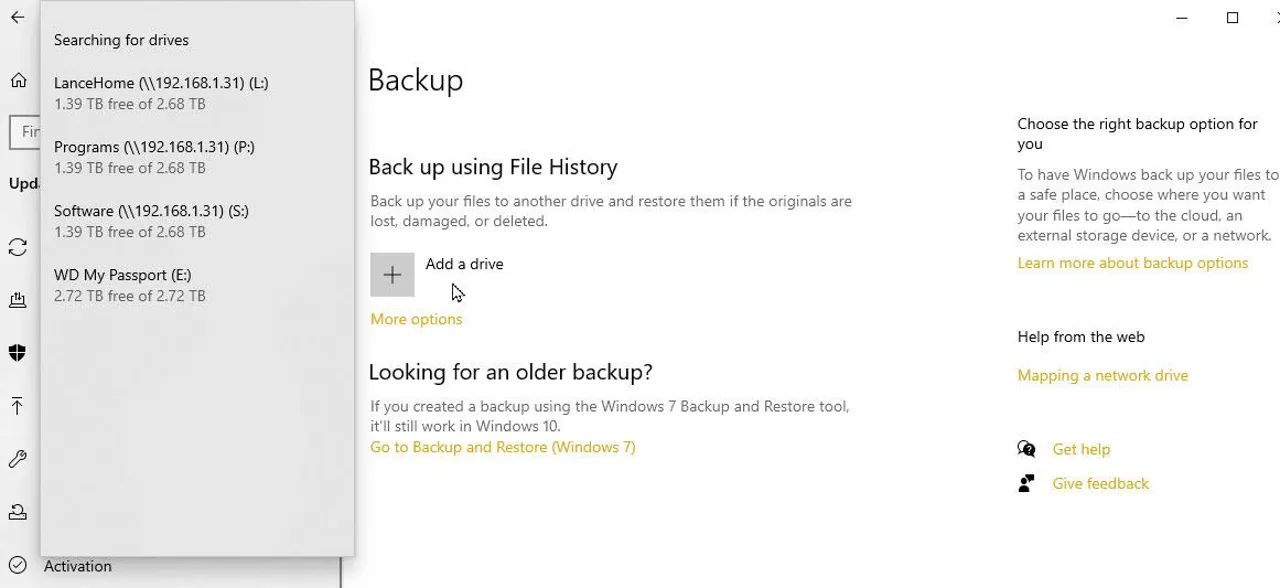
On Windows: connect the File History drive, open Control Panel > System and Security > File History, and select Restore personal files. Browse to the project folder, pick an earlier version, and check the files before you restore. The File History guide has the full walkthrough.

Windows File History restore personal files

Windows File History: Restore personal files, when a backup exists.

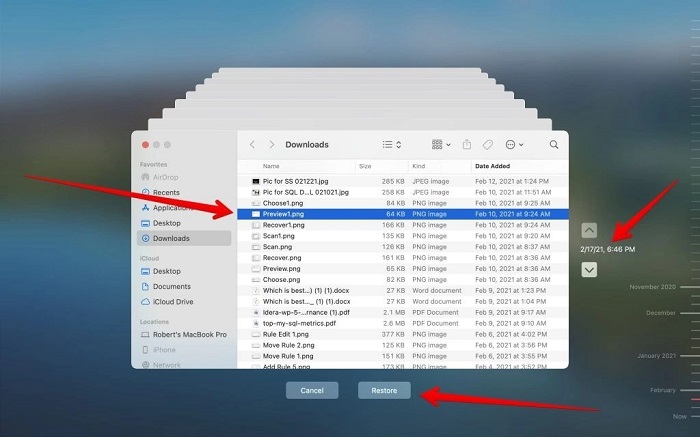
On Mac: connect the Time Machine disk, open the folder that held the project, and open Time Machine. Browse to a backup from before the deletion, select the files, and click Restore. They go back to their original location, so copy anything newer somewhere safe first. See how to restore from Time Machine for other scenarios.

Check the Recovered Project Before You Run It

Keep the recovered copy separate while you check it. Open the source files, config, and assets and make sure they have real content — a familiar file name proves nothing. Compare the folder structure with another copy or the repository if you have one.

Run installs, builds, and tests only after the recovered files are safely copied and you no longer need to scan the original drive. Keep the recovery output until the working project is confirmed.

How to Stop Claude Code Deleting Your Files Again

  • Commit before big tasks. Commit before any cleanup or large refactor, so Git has a version to go back to. Keep a separate backup for untracked files and assets.

  • Read commands before you approve them. Check any rm, git clean, or move command before it runs, and work from a limited project folder. Don’t skip approvals for destructive tasks.

  • Add deny rules. You can block commands like rm in Claude Code’s permission settings so they can’t run at all.

  • Back up outside the project folder. A copy inside the folder Claude Code can modify goes down with it. Turn on File History on Windows or Time Machine on Mac for the whole project.

Frequently Asked Questions

Can I Recover Claude Code Deleted Files from an SSD?

Often, yes, if you act fast. SSDs can clear deleted data on their own (TRIM), and once that happens nothing can bring it back. Stop using the drive straight away and scan it as soon as you can.

Can 4DDiG Undo What Claude Code Did?

No. It doesn’t reverse the command — it scans the drive for the deleted files themselves. It can’t recreate code that was never saved to disk, and it won’t repair a damaged Git repository.

Can I Recover Files Deleted Inside WSL or on a Remote Server?

Work out where the files actually lived. A Windows folder, a WSL virtual disk, a container volume, and a remote server are different recovery targets. Start with that environment’s own snapshots, repository, or backups. Scanning your Windows project folder won’t bring back data that only existed on a remote server.

Will Reinstalling Claude Code Bring the Files Back?

No. It doesn’t restore deleted project files, and it writes to the drive, which can overwrite them. Keep the surviving session data and project copies, then recover from a file version or the original drive.

Can the Conversation Recreate the Entire Project?

Partly. The conversation may contain useful code, but it can miss assets, config, and your latest edits. Treat anything rebuilt from it as unverified: compare it with any saved version and test it on a separate working copy.

Conclusion

When Claude Code deleted files, stop writing to the drive first, then match the method to what happened: checkpoints for Claude Code’s own edits, Git for committed work, editor history for snapshots, and a backup if you have one. If a terminal command wiped the files and none of those exist, the best file recovery tool, 4DDiG can scan the drive to find them. Save the results to a different drive, check the project, and set up an independent file backup before your next coding session.

William Bollson (senior editor)

William Bollson, the editor-in-chief of 4DDiG, devotes to providing the best solutions for Windows and Mac related issues, including data recovery, repair, error fixes.

(Click to rate this post)

You rated 4.5 ( participated)