Microsoft 365 Data Recovery After a Cyberattack: 5 Ways

5 mins read

Updated on 2026-10-23 14:59:07 to Data Recovery

Half your team's documents won't open. The ones that do are full of unreadable characters. Your inbox is missing three weeks of client threads, and there's a text file on the shared drive that nobody remembers creating.

A cyberattack against Microsoft 365 rarely announces itself. It shows up as data that's gone, data that's scrambled, or data that looks fine until someone opens it. And the first instinct — restore everything, fast — is often the move that destroys your best remaining copy.

What you can recover depends on two questions: was the data deleted or encrypted, and which copies still exist. Those answers decide your route, your window, and whether the attacker already closed the door behind them.

Microsoft 365 data recovery after a cyberattack

Part 1: Before Recovery — Contain the Attack and Identify What Was Lost

Don't restore anything until the incident is contained. Restoring into a live compromise means the attacker's still-active access encrypts or deletes your restored data on the way back in.

Four things, with IT:

  • Isolate affected accounts and devices. Revoke active sessions, not just passwords. If credentials were stolen, the attacker holds a valid token and a password change alone won't evict them.

  • Preserve evidence. Logs, ransom notes, and file timestamps are how IT finds the entry point — and whether it's safe to restore yet depends on that.

  • Pin down the timeline. When did encryption or deletion actually start? Every recovery window is measured backwards from that moment, so an approximate answer costs you recoverable versions.

  • Work from a clean device. Restoring files onto an infected machine puts them straight back in the blast radius.

Deleted or Encrypted? This Changes Everything

This is the distinction that decides your whole approach, and it's the one people get wrong.

  • Deleted means the file is gone from its location. The recycle bin, version history, and a disk scan can all potentially reach it, because a copy or a remnant exists somewhere.

  • Encrypted means the file is still there. Same name, same size, same location — wrong contents. The recycle bin won't help, because nothing was deleted. A disk scan recovers the encrypted state, because that's what's on the disk. Only a version from before the encryption, or a backup, gets you the real file back.

How to tell which you're dealing with:

  • Filenames changed with an unfamiliar extension, or a ransom note dropped in multiple folders — encryption.

  • Files present but unopenable, or opening as garbage characters — encryption.

  • Large numbers of files with modified dates clustered into a few minutes — bulk encryption, even if the contents still look normal.

  • Files simply absent from where they were — deletion.

Encryption also comes with a second problem: attackers routinely empty recycle bins and delete version history as part of the attack, specifically to remove the recovery paths you're about to try. If your bins are suspiciously empty for an incident this recent, that's not a coincidence.

Part 2: How to Recover Microsoft 365 Data After a Cyberattack

Method 1: Recover Lost Local Copies with 4DDiG Data Recovery

If the attack left files missing from your computer — including documents previously downloaded or synced from Microsoft 365 — you can try scanning the original storage location with 4DDiG Data Recovery.

This works because Microsoft 365 data lives a second life on your own disk. Open a OneDrive file and it's cached locally. Download an attachment and it lands in your Downloads folder. Those copies don't vanish when the cloud copy is deleted or encrypted — and in an attack where the cloud side has been wiped, the local remnants are sometimes all that's left.

4DDiG reaches them two ways:

  • Scan the local disk. 4DDiG scans the storage device directly, so it finds files that were deleted from the Recycle Bin, removed by a script, or lost when a sync propagated the wrong direction. Filter results by file type, preview candidates before committing, and recover to a separate location.

  • Connect to the cloud drive. If no usable local copy exists, 4DDiG can connect directly to OneDrive — alongside iCloud, Google Drive and Dropbox — and scan the account for missing files, so you're not limited to whatever the app's recycle bin still holds.

FREE DOWNLOAD

Secure Download

FREE DOWNLOAD

Secure Download

  • Choose where to look and start scanning. Select Cloud Drive and pick OneDrive, then sign in through the browser page to authorize access and start the scan. If the files were synced to this computer, select the local drive instead and scan it. That local route is usually faster.

    Select Cloud Drive in 4DDiG Data Recovery for Windows
  • Inspect and filter. Filter by file type or search by name, and preview candidates to confirm you've found the right version.

    Inspect and filter recovered files in tree view
  • Recover to a safe location. Save to a location other than the source — and don't save back into the same synced folder, or you'll overwrite what you just recovered.

    Save recovered files to a local drive

Method 2: Restore OneDrive Files to a Clean Version

For OneDrive, the route depends entirely on the deleted-versus-encrypted answer.

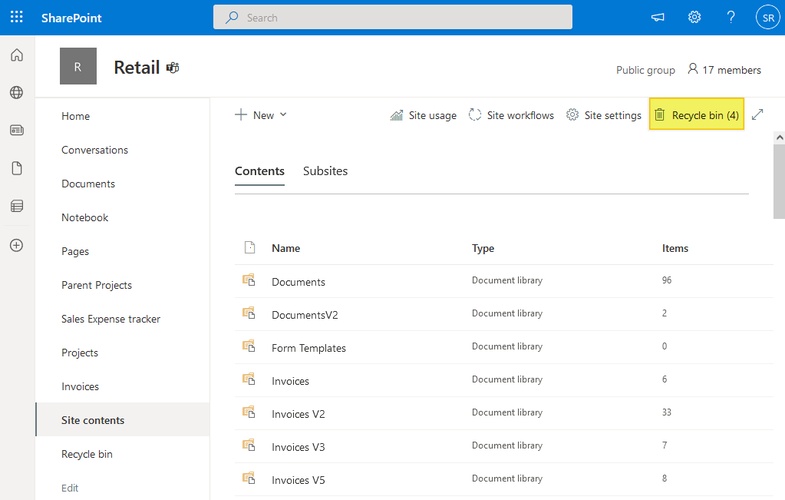
If files were deleted, the recycle bin is the first stop, then the second-stage bin behind it. Business accounts retain deleted files for 93 days by default, personal accounts for 30 — unless the attacker emptied the bin, which is common.

If files were encrypted, the recycle bin is irrelevant. What matters is version history on the individual file: find the last version from before the encryption started and restore it. Restore your OneDrive rolls the entire drive back to a chosen date, which handles a mass encryption event but also discards every legitimate change made since that point.

The critical detail in an attack: your recovery point must predate the encryption, not just the discovery. If encryption ran for two days before anyone noticed, a restore point from "yesterday" restores encrypted files.

If version history has been cleared or doesn't reach back far enough, only a backup will help.

Method 3: Restore Affected SharePoint Documents or Libraries

The split here is between a few documents and a whole library.

  • Individual documents. Check the site recycle bin, then the second-stage recycle bin. For an overwritten or encrypted file, version history is the cleaner route — it restores one document without touching the rest of the library.

  • A whole library or site. A library-level restore rolls everything back to a point in time, discarding all changes since. In an attack, that's often what you want, but confirm the restore point sits before the encryption began, and get sign-off from whoever owns the content.

Site owners and SharePoint administrators can restore; regular members usually can't see the bin at all. If you're getting "access denied" on a recovery screen, that's a permissions issue, not a missing file.

For the deletion-specific walkthrough, see how to recover deleted SharePoint files.

SharePoint recycle bin showing the second-stage recycle bin link

Method 4: Recover Deleted Emails in Outlook or Exchange Online

Email recovery runs in three stages and most people stop at the first.

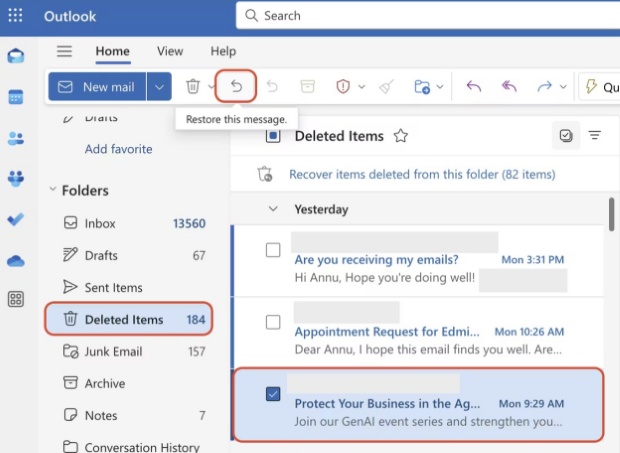
Deleted Items, then Recoverable Items — the "recover items deleted from this folder" option, which shows what Exchange still holds server-side. Exchange Online keeps those for 14 days by default, extendable to 30 by an administrator.

For an attack, the third stage is usually the real one: an Exchange administrator running a content search or mailbox restore. That's the only route when the mailbox itself was affected or the retention window has closed.

Server-side recovery is not the same as recovering a local PST file. If a disk scan turns up an Outlook data file, that's a local copy — a recovery tool can help with it, but it won't pull anything back from Exchange Online.

See how to recover deleted emails in Outlook for the full walkthrough.

Method 5: Restore from an Existing Microsoft 365 Backup

The prerequisite is absolute: a backup that was running before the incident and captured the affected workload.

If one exists, it's the most reliable route available — a known-clean state rather than a hope that a bin still holds something. Pick a recovery point from before the encryption started, then restore the smallest scope that solves the problem.

Two decisions before you run it:

  • In place or alternate location. In place is faster but overwrites whatever is currently there, including post-incident work. Restoring to an alternate location lets you compare first, and that's almost always worth the step.

  • Overwrite or merge. A full overwrite cleanly replaces everything; a merge keeps newer items but can leave encrypted files sitting alongside clean ones.

One attack-specific caution: if the attacker had administrative credentials, they may have deleted or corrupted your backups before encrypting anything. Verify the backup platform's own integrity before you rely on it — and check whether copies are immutable or offline. A backup the attacker could reach was never a backup.

If no pre-incident backup exists, this method… and Methods 1–4 are the whole toolkit.

Part 3: Verify Your Recovered Data Before Resuming Work

A restored file with the right name proves nothing. Open it.

  • Files: confirm the content matches what you expected, check the modified date, and look for truncation at the end of large documents. If a "recovered" file still opens as garbage, you restored an encrypted version — try an earlier version or a different backup point.

  • Email: open the body, not the subject. Verify attachments actually open, and that folder structure came back where it matters.

  • Access and links: confirm sharing permissions still resolve, and that linked content — embedded images, cross-referenced files — still points somewhere real.

Then get IT to confirm the environment is clean and account access is properly restored before normal syncing resumes. Restoring data into a compromised tenant is how people end up doing this twice.

Part 4: FAQs About Microsoft 365 Data Recovery After a Cyberattack

Does restoring files remove the attacker's access?

No. Restoring data and evicting the attacker are separate jobs. Even after a successful restore, IT still needs to address compromised accounts, active sessions, persistence mechanisms, and affected devices — otherwise the attack simply repeats.

Can data recovery reverse a Microsoft 365 data leak?

No. Recovery restores your copy. It can't retract copies already ex-filtrated, and it doesn't undo a disclosure. That side is handled through incident response and legal guidance, not recovery tools.

How long does Microsoft 365 data recovery take?

It depends on the volume and scope of data, how far back a usable recovery point sits, whether you're restoring a file or a whole library, and how long verification takes. One document from version history is minutes. A tenant-wide backup restore with validation is a project measured in days.

Conclusion

Get the diagnosis right before you restore anything: deleted or encrypted decides which of these routes can actually work. Deleted data goes to recycle bins, version history, and — for local copies — a disk scan with the best file recovery tool, 4DDiG. Encrypted data goes to a version from before the encryption, or to a backup. An attacker who emptied your bins has narrowed your options to the last one.

Whichever route you take, verify the content came back clean, and confirm the environment is clean before normal work resumes.

FREE DOWNLOAD

Secure Download

FREE DOWNLOAD

Secure Download

William Bollson (senior editor)

William Bollson, the editor-in-chief of 4DDiG, devotes to providing the best solutions for Windows and Mac related issues, including data recovery, repair, error fixes.

(Click to rate this post)

You rated 4.5 ( participated)