M4A File Repair: Fix Damaged or Corrupted M4A Audio Quickly

5 mins read

Updated on 2026-10-19 19:09:10 to Audio Repair Solutions

Corrupted M4A files can turn useful recordings or music tracks into unplayable files. This often happens after an interrupted transfer, a sudden app crash, or incomplete saving. The problem is common with smartphone voice memos and downloaded audio. This guide explains the main causes and reviews three practical options for M4A file repair. You will see clear methods to recover your audio while keeping as much original quality as possible.

Part 1. Why Do M4A Files Become Corrupted?

M4A is a container format commonly used for AAC or ALAC audio. Like other media files, it depends on both the audio data and important container information being written correctly. If that structure is interrupted or damaged, a player may fail to recognize the file even when some audio data is still present.

Common causes of M4A corruption include:

  • Interrupted recording: A phone, voice recorder, or computer shuts down before the recording is properly finalized.
  • Incomplete file transfers: Disconnecting a USB drive, SD card, phone, or external disk while an M4A file is being copied can leave the file incomplete.
  • Storage device errors: Bad sectors, file system problems, or a failing SD card can damage parts of an audio file.
  • Unexpected app or system crashes: Recording or editing software may fail before it writes the required file information.
  • Improper editing or conversion: An unsuccessful audio conversion, export, or metadata operation can damage the M4A container.
  • Incomplete downloads: Network interruptions may produce an M4A file that appears normal in size or name but is missing essential data.
  • Malware or accidental modification: File contents or metadata can sometimes be altered, making the audio unreadable.

In many cases, the best approach depends on the type of damage. A partially corrupted container may respond well to remuxing, while a badly damaged recording may require a dedicated corrupted M4A file repair program.

Part 2. 3 Best M4A File Repair Tools You Can Try

There is no single repair method that works equally well for every damaged audio file. A desktop repair program is usually better for multiple files or more serious corruption, while an online tool is convenient for a quick one-off repair. FFmpeg can also help when the audio stream is still intact but the M4A container has structural problems.

Here are three options worth trying.

1. 4DDiG Audio Repair

4DDiG Audio Repair is a dedicated program designed for corrupted M4A file repair and other audio formats. It analyzes the file, rebuilds playable structure where possible, and can also clean up noise or distortion. The process is largely automatic, so most users finish in a few minutes after a simple import and repair step. You can preview the result before saving.

This makes it a practical choice when you need to repair corrupted M4A files from voice recorders, smartphones, cameras, downloaded sources, or other devices without working with command-line tools.

FREE DOWNLOAD

Secure Download

FREE DOWNLOAD

Secure Download

4ddig audio repair

Main Features of 4DDiG Audio Repair:

  • Repairs corrupted, broken, or unplayable audio, along with other audio issues.
  • Can address issues such as distortion, noise, audio dropouts, clicks, pops, and other errors.
  • Supports M4A, MP3, AAC, WAV, FLAC, and other popular formats.
  • Provide multiple output audio format options: MP3, WAV, or the original
  • Repairs multiple audio files in one batch instead of processing them individually.
  • Provides an Advanced Repair option for more seriously damaged audio.
  • Allows you to preview repaired audio before saving it.
  • Works with files from phones, recorders, and other sources while aiming to keep original quality.
  • Pros
  • Cons
    • Easy-to-use interface without technical knowledge.
    • Suitable for both individual files and larger batches.
    • Designed specifically for audio corruption rather than simple format conversion.
    • Preview helps you check the repair result before exporting.
    • Fast results on typical corruption cases and support for multiple input and output formats.
    • Paid software after the trial period.
    • Requires software installation.

Best for: Users with several damaged recordings, severely corrupted files, or anyone who wants an automated M4A file repair workflow instead of using commands.

2. OnlineConvert.com

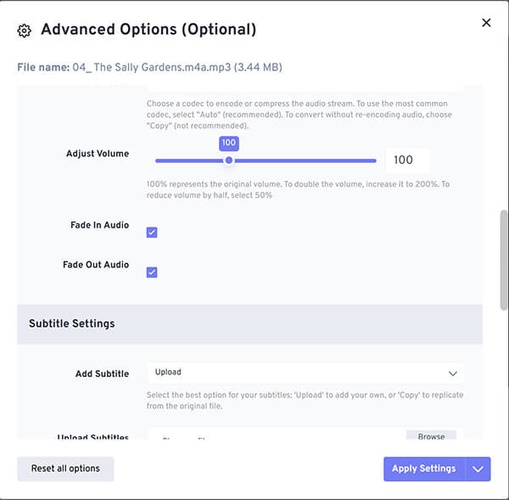
OnlineConvert.com provides a free browser-based service that targets truncated or corrupted M4A files. You upload the damaged file and can choose a "No Reference Audio" or "Have Reference Audio" option. The tool tries to extract usable data and delivers the result as an MP3 file. It is useful when you want to avoid installing software and only need a quick recovery attempt.

onlineconverter m4a file repair online
  • Pros
  • Cons
    • Completely free and requires no installation.
    • Simple upload process with options for reference and non-reference repair modes.
    • Suitable for casual users who need a fast, free online method to repair corrupted m4a files.
    • Maximum upload file size is 200 MB.
    • Output is always MP3 rather than the original M4A container.
    • Cannot handle encrypted or protected files, and more serious corruption may not be repairable.
    • Files must be uploaded to an online service.

Best for: Someone who wants to repair a corrupted M4A file online free and only has one relatively small file to process.

3. Repair or Remux a Corrupted M4A File with FFmpeg

FFmpeg is a free, open-source command-line tool that can remux a damaged M4A file into a new container or re-encode the audio stream. A common approach is to copy the existing stream into a fresh file, which often fixes container-level problems such as a missing moov atom.

If that fails, re-encoding to AAC or another format can recover playable audio, though slight quality changes may occur. The method is powerful for technical users but requires comfort with terminal commands.

ffmpeg m4a file repair
  • Pros
  • Cons
    • Completely free, open source, and highly effective for container corruption.
    • Stream-copy remux preserves original quality when it works.
    • Widely used and supported across Windows, Mac, and Linux.
    • Fast when only the container structure needs rebuilding.
    • Requires command-line knowledge and installation of FFmpeg.
    • Not ideal for beginners and may not recover files with heavy data loss.
    • Re-encoding can introduce minor quality trade-offs.
    • Not designed as an automated M4A corrupt repair solution.

Best for: Technical users dealing with a playable or partially readable audio stream whose M4A container may be damaged.

These three options give most people a clear path forward. Desktop software like 4DDiG works well for repeated or batch needs, while the online and FFmpeg methods suit one-off or technical fixes. The next section shows how to use 4DDiG for batch repairs when you have multiple damaged files.

Part 3. How to Repair Corrupted M4A Files in Batch with 4DDiG

If you have several damaged files to fix at once, 4DDiG Audio Repair makes the process straightforward. The software supports batch processing, so you can import multiple M4A files from phone, recorder, SD card, or other storage devices and repair them together instead of handling each one separately. Download and install the tool from the official site, then follow these simple steps.

FREE DOWNLOAD

Secure Download

FREE DOWNLOAD

Secure Download

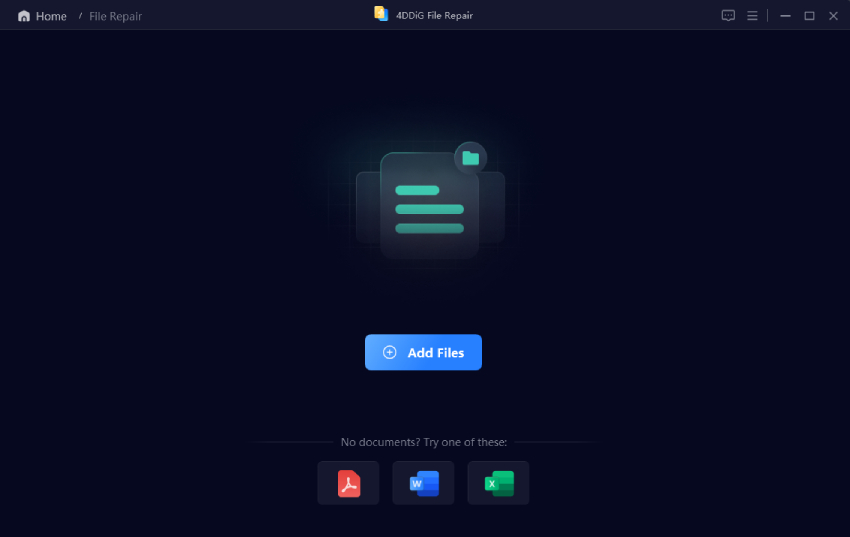
  • Open 4DDiG File Repair on your computer. Go to the "More Repair Tools" section on the left and select Audio Repair.

    open 4ddig audio repair
  • Click "Add Audio" or drag and drop the damaged files into the window. You can select one file or multiple files at the same time for batch repair. The tool supports M4A along with other common formats such as MP3, AAC, WAV, and FLAC.

    add corrupted m4a audio files
  • Click the "Repair All" button. The software automatically analyzes the files and begins fixing issues such as unplayable structure, noise, clicks, or distortion. Wait a short time for the process to finish.

    start repairing corrupted m4a files
  • Once the repair is complete, use the preview function to listen to each restored file. Check that the audio plays smoothly and that unwanted problems have been reduced.

    preview repaired m4a files
  • Choose your preferred output format if needed, then click "Save" for individual files or "Save All" to export everything at once.

    save repaired m4a files in suitable format

Conclusion

Corrupted M4A files do not have to stay unplayable. Understanding the common causes helps you choose the right approach, and the three tools covered here give solid options for different needs. Free online services and command-line methods work for occasional or simple cases, while dedicated software delivers more consistent results for batch jobs and tougher damage.

For reliable corrupted M4A file repair, especially when you need to fix multiple files quickly and with good quality, 4DDiG Audio Repair stands out as a practical choice. Try the steps above and restore your important audio with confidence.

FREE DOWNLOAD

Secure Download

FREE DOWNLOAD

Secure Download

William Bollson (senior editor)

William Bollson, the editor-in-chief of 4DDiG, devotes to providing the best solutions for Windows and Mac related issues, including data recovery, repair, error fixes.

(Click to rate this post)

You rated 4.5 ( participated)