KB5101650 Update: Dell PC Shutdowns and KB5121767 Fix!

5 mins read

Updated on 2026-07-22 15:56:10 to Windows Update

On July 14, 2026, Microsoft released KB5101650, a cumulative update for Windows 11. It includes important security fixes, feature improvements, and quality updates designed to make Windows more stable and reliable.

However, some Dell PCs with Intel processors experienced unexpected shutdowns, overheating, and rapid battery drain after recent Windows updates. Microsoft released the emergency out-of-band update KB5121767 on July 18 to resolve the compatibility issue.

This article covers the new features, improvements, and known issues in KB5101650. It also explains how to install KB5121767, troubleshoot update failures, and recover data if your PC no longer starts.

windows 11 kb5101650 update

Overview of Windows 11 KB5101650 Update

KB5101650 is the July 2026 security update for Windows 11 versions 24H2 and 25H2. After installation, Windows 11 25H2 moves to OS Build 26200.8875, while Windows 11 24H2 moves to OS Build 26100.8875.

The update is part of Microsoft's July 2026 Patch Tuesday release, which addressed 571 security vulnerabilities across Microsoft products. KB5101650 includes the relevant Windows 11 security fixes, along with the features and quality improvements previously released in the KB5095093 preview update.

Windows 11 versions 24H2 and 25H2 receive essentially the same changes. However, some features are rolling out gradually and may not appear immediately after the update is installed.

New Features

  • ① Point-in-Time Restore: This feature periodically saves the state of Windows, installed applications, settings, and personal files. If an update, driver, or configuration change causes a problem, users can restore the PC to an earlier state through the Windows Recovery Environment.
  • ② More Flexible Windows Update Pausing: Windows Update now includes a calendar that lets users choose exactly when updates should resume. Updates can be paused for up to 35 days.
  • ③ A Cleaner Widgets Panel: Microsoft has redesigned parts of the Widgets experience to reduce notifications, clutter, and accidental interruptions. The panel also receives clearer settings and reliability improvements.
  • ④ Screen Tint: This accessibility feature lets users apply a custom color tint to the display. Unlike Night Light, which mainly uses a warmer color temperature, Screen Tint provides more control for users who are sensitive to certain colors or brightness levels.
  • ⑤ Adjustable Touchpad Right-Click Area: On supported devices, users can choose a Default, Small, Medium, or Large right-click zone under Settings > Bluetooth & devices > Touchpad.

Improvements

  • ① File Explorer: Faster Home page loading, a more reliable address bar, and support for paths containing double backslashes or quotation marks.
  • ② Bluetooth: Faster reconnection after sleep or hibernation, improved AirPods pairing, headset microphone-state memory, and a more stable Bluetooth settings page.
  • ③ Multiple displays: Smoother scrolling and more reliable application of color profiles on some multi-monitor systems.
  • ④ WSL networking: Better compatibility between VPNs and WSL mirrored networking mode.
  • ⑤ Phone Link: Improved audio routing during calls.
  • ⑥ Printing: Newly installed modern printers now use Internet Printing Protocol by default.
  • ⑦ Touchpads: More control over the size of the right-click response area.

Bug Fixes

  • ① Fixed an issue that caused the CapabilityAccessManager.db-wal file to grow excessively and consume hundreds of gigabytes of storage.
  • ② Fixed OneDrive shortcuts not working when File Explorer was opened with administrator privileges.
  • ③ Fixed the File Explorer address bar closing unexpectedly after an item was selected.
  • ④ Fixed some PCs taking much longer than expected to shut down.
  • ⑤ Fixed certain third-party applications failing to launch Microsoft Office or open documents through OLE Automation.
  • ⑥ Fixed Recycle Bin confirmation dialogs displaying an internal file name instead of the original name.
note Note

The update enforces stricter registration requirements for third-party TDI network transports. Applications that depend on an unregistered TDI transport may lose network functionality after the update.

Known Issues with KB5101650 Update

As of July 16, the main confirmed issue affected a limited number of Dell computers using Intel Innovation Platform Framework drivers. Affected devices could experience:

  • Unexpected shutdowns or unusual system behavior
  • Reduced performance
  • Excessive heat and constantly running fans
  • Rapid battery drain
  • A yellow warning icon beside an Intel IPF component in Device Manager

The problem was caused by an incompatibility between recent Windows changes and certain Intel IPF components. Microsoft therefore placed a safeguard hold on affected Dell PCs and temporarily stopped offering KB5101650 to those devices.

Status Update

Microsoft released KB5121767 on July 18, 2026, to address the confirmed Intel IPF compatibility issue. Information published before that date may no longer reflect the current situation.

KB5121767 Emergency Update Fixes Dell PC Compatibility Issues

To fix the compatibility issue, Microsoft released the emergency out-of-band update KB5121767 on July 18, 2026. It updates Windows 11 25H2 to OS build 26200.8894 and Windows 11 24H2 to 26100.8894, resolving the conflict between KB5101650 and Intel Innovation Platform Framework (Intel IPF) drivers on affected Dell PCs.

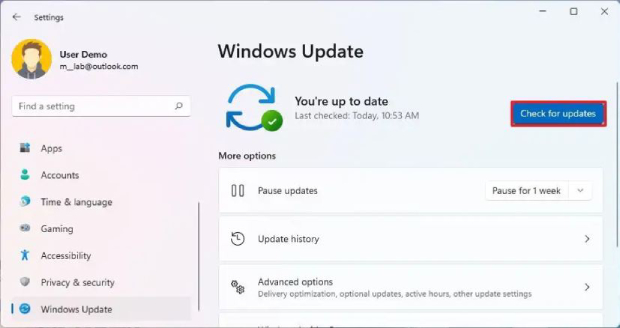
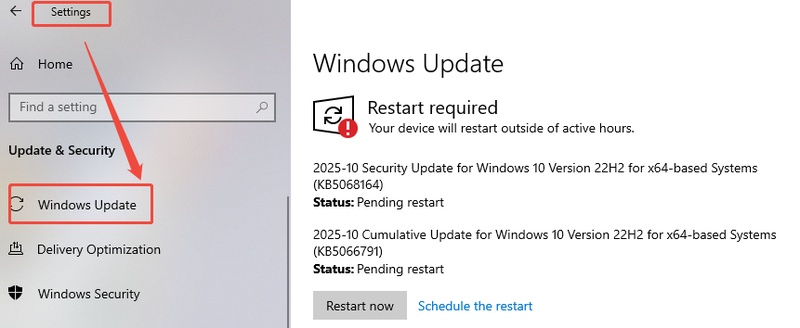
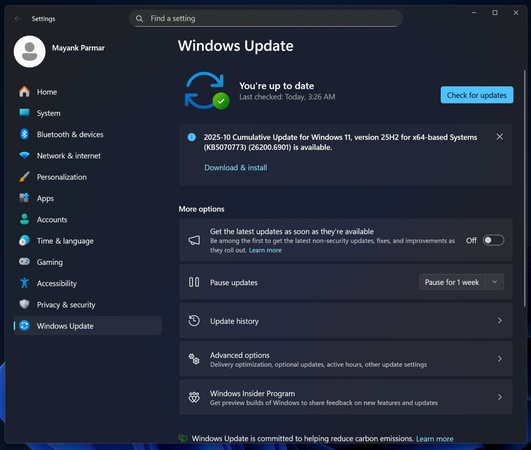
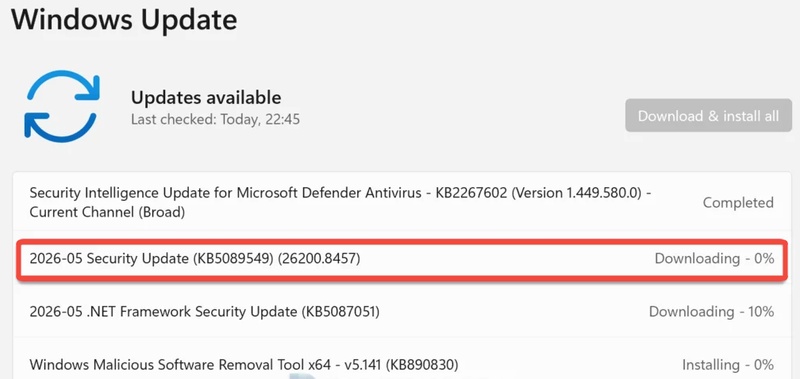
KB5121767 is a cumulative update that includes the security and quality improvements from KB5101650, along with the additional compatibility fix. Devices with "Get the latest updates as soon as they're available" enabled may receive it automatically. Otherwise, users can check for the update through Windows Update or download it manually from the Microsoft Update Catalog.

install kb5121767

📝 Note:

Microsoft recommends KB5121767 only for affected devices. No additional action is required on PCs that do not have the compatibility issue. Windows 11 users with non-Dell computers can simply install KB5101650 (or a later security update) as usual.

If your Dell PC did not receive KB5101650 because of a compatibility safeguard, do not bypass the block by manually installing the original update. Check for KB5121767 instead.

How to Fix KB5101650 Update Problems

Before troubleshooting, connect the computer to power and back up important files. Dell users should also check whether KB5121767 is available.

Method 1: Install KB5101650 Manually

Manual installation can help when Windows Update repeatedly fails because of a download or cache problem. Do not use this method to bypass a compatibility hold on an affected Dell PC.

install kb5101650 from microsoft update catalog
  • Open the Microsoft Update Catalog.

  • Search for "KB5101650".

  • Select the package that matches your Windows version and system architecture, such as x64 or ARM64.

  • Download the appropriate .msu file.

  • Double-click the file and follow the installation prompts.

  • Restart the computer.

The standalone package may be larger than 5GB, so make sure the PC has enough free storage and a stable internet connection.

Method 2: Use the Windows 11 Repair and Reinstall Feature

If damaged system files are preventing the update from installing, Windows 11 can reinstall the current system version while keeping personal files, applications, and settings.

reinstall kb update
  • Open "Settings > System > Recovery".

  • Find "Fix problems using Windows Update".

  • Select "Reinstall now".

  • Keep the PC connected to power and the internet.

  • Follow the on-screen instructions.

  • Check Windows Update again after the repair is complete.

The option may not appear if the computer is managed by an organization, is not connected to power, or does not support the feature. Although the process is designed to preserve files, creating a backup beforehand is still recommended.

Method 3: Uninstall the KB5101650 Update

If the PC became unstable immediately after KB5101650 was installed and KB5121767 is not yet available, you can temporarily uninstall the update.

uninstall kb5101650
  • Open "Settings > Windows Update > Update history".

  • Select "Uninstall updates" to find the KB5101650.

  • Select "Uninstall" and confirm.

  • Restart the PC.

  • Pause updates temporarily and check for newer Microsoft, Dell, or Intel fixes.

If Windows cannot start normally, enter the Windows Recovery Environment and select "Troubleshoot > Advanced options > Uninstall Updates > Uninstall latest quality update".

Security Note

Removing KB5101650 also removes its security protections. Treat this as a temporary workaround and install KB5121767 or a newer cumulative update as soon as the system is stable.

How to Recover Data from a Crashed Dell PC

KB5101650 may cause affected Dell PCs to experience repeated crashes, pink screen, unexpected shutdowns, or even prevent Windows from starting normally. If these system failures result in lost photos, documents, videos, or other important files, recovering your data should be the first priority before uninstalling updates or performing major repairs.

4DDiG Data Recovery is designed to recover lost data caused by sudden shutdowns, system crashes, accidental deletion, formatting, and other common data-loss situations. Even if your Dell PC becomes unstable or cannot boot properly after the KB5101650 issue, you can use 4DDiG to scan your device and attempt to recover important files.

FREE DOWNLOAD

secure download Secure Download

FREE DOWNLOAD

secure download Secure Download

  • Supports more than 2,000 file types, including photos, videos, documents, audio files, archives, and emails.
  • Recovers data from HDDs, SSDs, USB flash drives, SD cards, and other storage devices.
  • Creates bootable recovery media for crashed or unbootable Windows computers.
  • Lets you preview detected files and select only the items you want to recover.
  • Use another working computer and prepare a blank USB drive with more than 1.5GB of space, or a blank CD/DVD. Install 4DDiG Windows Data Recovery on the working computer.
  • Connect the USB drive to the working computer, launch 4DDiG, select Recover from Crashed Computer on the main interface and click "Get Started". choose crashed pc from 4ddig
  • Select the connected USB drive or CD/DVD and click "Create". The selected device will be formatted, so back up any existing files and do not disconnect or use it during creation. create a bootable drive 4ddig
  • Insert the bootable USB or disc into the crashed Dell computer and restart it. When the Dell logo appears, press F12 to open the boot menu, then choose the USB or CD/DVD as the boot device. bootable drive created
  • Wait for the recovery environment to load and for 4DDiG to launch automatically. Select the affected drive, scan and preview the recoverable files, then save the selected data to a separate external drive instead of the original system disk. save the recovered files from windows

Conclusion

KB5101650 is an important Windows 11 security update, but an Intel IPF driver conflict caused serious problems on some Dell PCs. Microsoft resolved the issue with KB5121767, which affected users should install instead of forcing KB5101650.

If the update fails, try manual installation, Windows repair, or a temporary rollback. If a crash prevents Windows from starting, 4DDiG can create bootable recovery media and retrieve important files before system repairs. Regular backups remain the best protection against unexpected update failures.

William Bollson (senior editor)

William Bollson, the editor-in-chief of 4DDiG, devotes to providing the best solutions for Windows and Mac related issues, including data recovery, repair, error fixes.

(Click to rate this post)

You rated 4.5 ( participated)