INSV File Not Opening in Insta360 Studio?

5 mins read

Updated on 2026-11-10 09:38:16 to Video Recovery

Copied your Insta360 footage to a Windows PC and found an INSV file that your usual player won’t open? Use Insta360 Studio to view and edit the original, then export an MP4 for sharing. If Studio also fails, first check whether the recording is complete, incompatible, or corrupted. Missing or deleted originals need a different approach: file recovery.

INSV File Not Opening in Insta360 Studio Windows troubleshooting illustration with a 360 camera, microSD card, INSV file warning and 4DDiG branding

What Is an INSV File?

An INSV file is an original video file used by Insta360 cameras for 360-degree recordings. It stores footage and camera information that Insta360 software uses for stitching, stabilization, and reframing. Keep it as your editing source; export a separate video when you want to watch or share the finished result.

The filename extension is .insv. Other files beside it serve different purposes:

FileMain purposeCan it replace the INSV original?
INSVOriginal footage for the Insta360 editing workflowKeep the complete recording set
MP4A playable or shareable export; some recording modes also create MP4 originalsAn export is not a substitute for all original editing data
LRVLow-resolution preview and analysis proxyNo; it cannot recreate missing full-quality footage

File layout varies by camera and recording mode. If a recording has paired lens files, both matter; an apparent duplicate may contain the other lens’s footage.

For example, Insta360’s paired-file repair example uses VID_20230914_181040_00_072.insv and VID_20230914_181040_10_072.insv. The matching timestamp and clip number identify the take. This is an example, not a rule that every camera produces two INSV files. Keep all segments of longer recordings, too.

How to Open an INSV File on Windows

Insta360 Studio is the practical starting point for opening INSV files on a PC. Download the Windows version from Insta360’s Downloads page and install it.

  • Connect the camera’s microSD card using a card reader. For a readable card, copy the complete recording set to a local folder, keeping the original filenames and companion files together.

  • Launch Insta360 Studio and drag the copied INSV files into its window. Use the Media page to locate the imported clip.

  • Play the recording and drag within the preview to inspect the 360 view. Check the beginning, middle, end, and audio before editing.

    Insta360 Studio Media workspace on Windows with an INSV clip loaded for preview

An ordinary video player failing to open INSV does not prove corruption. Test the original in Studio before looking for INSV file repair. If files are already missing, stop using the card for recording and go to the recovery section below.

An empty Media list after restarting Studio does not mean the originals were deleted. Re-import them from their saved folder; Studio does not automatically restore this list. Keep the source folder available while editing.

How to Convert an INSV File to MP4

To convert INSV to MP4, export it through Studio. Renaming .insv to .mp4 does not stitch the lenses or render your edits.

  • Import and select the clip. For a conventional video, choose your framing and edits; for an interactive panorama, choose a 360 output.

  • Right-click the clip and select Export or Start Export, depending on the interface version. The upper-right Export button is another entry point.

  • In Video Export Settings, choose Video for a reframed flat result or 360 Video for panoramic output where offered. Select H.264 for an MP4 export, set the resolution, and choose a local destination.

    Insta360 Studio Windows Video Export Settings with Video and 360 Video output options
  • Start the export. Open Task Center → Export Records to locate the completed file. Check flat video in a normal player and 360 output in a player that supports panoramic viewing.

If exporting 360 video from the Project page, set the project’s aspect ratio to 2:1 (360° Panorama). Keep the INSV originals available for future edits.

What to Do If Your INSV File Won’t Open or Export

Match the fix to the symptom. A missing lens file, outdated Studio version, and damaged recording require different actions.

Find Originals That Appear to Be Missing

In File Explorer, check the card’s DCIM folder and Camera01 subfolder where present. Search for .insv and inspect other dates: an incorrect camera clock can put footage outside the expected date. If you recorded with a Quick Reader, check its card as well. If cloud auto-delete was enabled after syncing, look for the uploaded original in your Insta360+ library. These checks can find an existing copy before a recovery scan is necessary.

Check for Missing or Renamed Recording Files

If Studio reports that one of two video files cannot be retrieved, locate the matching file from the same recording and import the complete pair together. Restore original names from a backup if they were changed. If an INSV original’s extension was changed, restore its original .insv extension before re-importing. Follow the actual recording’s file layout rather than guessing a suffix.

If the error says no master file corresponds to an LRV, find the INSV original. A playable LRV is only a preview, not proof that the full-quality recording is intact.

Check Insta360 Studio Compatibility

For a message about an unsupported offset version, update Studio from Insta360’s Downloads page, restart it, and re-import the local copies. This error can mean the software is too old for the camera’s footage, rather than that the recording is damaged.

Repair a Corrupted INSV File

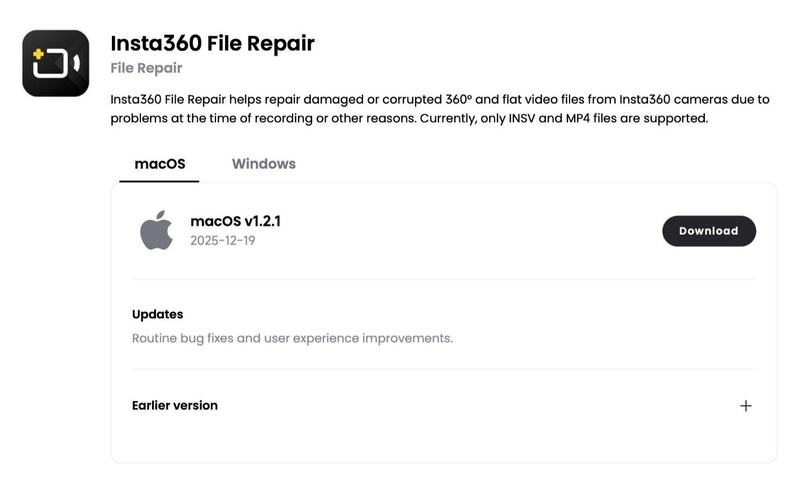
For a surviving but corrupted original, copy the recording set and try Insta360 File Repair, the separate Windows utility found near the bottom of Insta360’s Downloads page. Add the damaged footage and requested companions, then healthy reference footage from the same camera, shooting mode, resolution, and frame rate. Use existing healthy footage or a different card for a new reference recording. Click Repair, save separately, and reopen the output in Studio.

The documented repair workflow requires suitable reference files; an LRV cannot replace them. With Repair stabilization off, keep the default output names so Studio can recognize the repaired set. With it on, expect only basic stabilization. If the correct set still fails, preserve it for Insta360 Support. For isolated red “Corrupted Frame” sections in Studio, trim those portions from the Project page instead.

People Also Read:

☞ Insta360 File Repair Guide

Troubleshoot Export Failures When the Clip Still Plays

Use the message to choose the next check:

Export symptomCheck firstNext action
Stuck at 0%, error 14/1024, or hardware decoder errorPC compatibility, Studio version, and GPU driverUpdate as needed; open Menu → Settings → Preferences → Codecs and test changed codec/hardware acceleration settings
Outdated driver or insufficient memory messageGPU driver and other running applicationsUpdate the driver and close demanding apps, then retry
Target file/directory missing, or source deleted messageWhether the original drive and file are availableCopy readable originals locally and re-import; reconnect storage if necessary, then select an available export destination

These messages do not by themselves establish INSV corruption. If the original is genuinely missing, continue with recovery.

How to Recover Deleted INSV Files from an SD Card

If an INSV file was deleted or disappeared after formatting, stop recording to the card. Check existing computer copies and backups first. A file-repair utility needs surviving footage to work with; finding a deleted original requires scanning its storage instead.

Cancel any format prompt while you still need the footage. If the card is absent, try another reader or USB port. A card Windows cannot detect at all, or one that repeatedly disconnects, needs professional diagnosis rather than repeated software scans.

4DDiG Data Recovery offers a Windows SD-card scan-and-recovery workflow for deleted or lost files. Use it to search the original card for your missing Insta360 footage, narrow the results with file filters, and recover available files to another drive. Free scanning and preview of supported files help you assess the results before saving.

FREE DOWNLOAD

Secure Download

FREE DOWNLOAD

Secure Download

Download and install 4DDiG on your PC’s internal drive, not on the affected card. Connect the card through a reader, then follow these three steps:

  • Select the Original SD Card

    Open SD Card in 4DDiG, identify the card by its capacity and label, and click Scan. If it is absent, click Refresh and check the reader connection before proceeding.

    4DDiG Windows SD Card screen with an attached memory card and Scan button
  • Scan and Find the Missing Files

    Review the scan results using Video, search, and Filter. Look for INSV files and related recording files where available. Preview supported results; a missing preview alone does not establish whether an INSV original will work in Studio.

    4DDiG Windows scan results with search and file filtering controls
  • Recover to Another Storage Location

    Select the available files, click Recover, and choose a different drive. Open recovered copies in Studio and check the beginning, middle, end, audio, stitching, horizon, reframing, and a test export.

    4DDiG Windows recovery destination dialog for choosing another drive

What If Recovered INSV Files Still Won’t Open?

Recovery resultWhat it tells youNext step
Only LRV files foundYou have previews, not full-quality originalsKeep them as clues; look for the corresponding INSV in other scan results or backups
An INSV is 0 bytesThat saved file contains no video dataCheck the source copy and backups; repair cannot fill an empty file
Generic filenames or a missing lens partnerThe original recording set may be incompleteCompare surviving timestamps and backup names; keep likely companions together without inventing suffixes
A large file still fails in StudioSize alone does not prove complete footage or metadataCheck the set and compatibility, then try File Repair on copies; missing audio or gyro data may remain unavailable
ℹImportant:

Recovery depends on the data still remaining on the card. Overwritten footage cannot be recreated by a scan, and finding a file does not guarantee a complete, editable 360 recording.

FAQs About INSV Files

Can I Delete INSV Files After Exporting to MP4?

Yes, after checking the MP4 and deciding you no longer need the original editing source. Keep a verified backup if you may reframe or export again. In File Explorer, select only the recording set you no longer need and choose Delete. Do not remove one lens file from a pair still in use; a flat MP4 cannot restore the other viewing angles.

Can I Convert an INSV File Without Insta360 Studio?

The official Insta360 mobile app offers another export route for supported footage. On Windows, Studio provides the direct workflow above. An online converter accepting an INSV does not establish that it can stitch, stabilize, or reframe that recording. Renaming the extension also does not perform those operations.

Conclusion

Use Studio to open an INSV file and export MP4 copies for sharing. Check missing companions and compatibility before attempting repair. If the original footage has been deleted, scan the SD card with 4DDiG, recover available files to another drive, and verify them in Studio before reuse.

FREE DOWNLOAD

Secure Download

FREE DOWNLOAD

Secure Download

Ehtsham Ahmed (senior editor)

Ehtsham Ahmed, the content writer for 4DDiG, is dedicated to offering workarounds for Windows Data Recovery, Windows Troubleshooting, iDevices System Repair, etc.

(Click to rate this post)

You rated 4.5 ( participated)